Projects

Serial Call and Response using Arduino

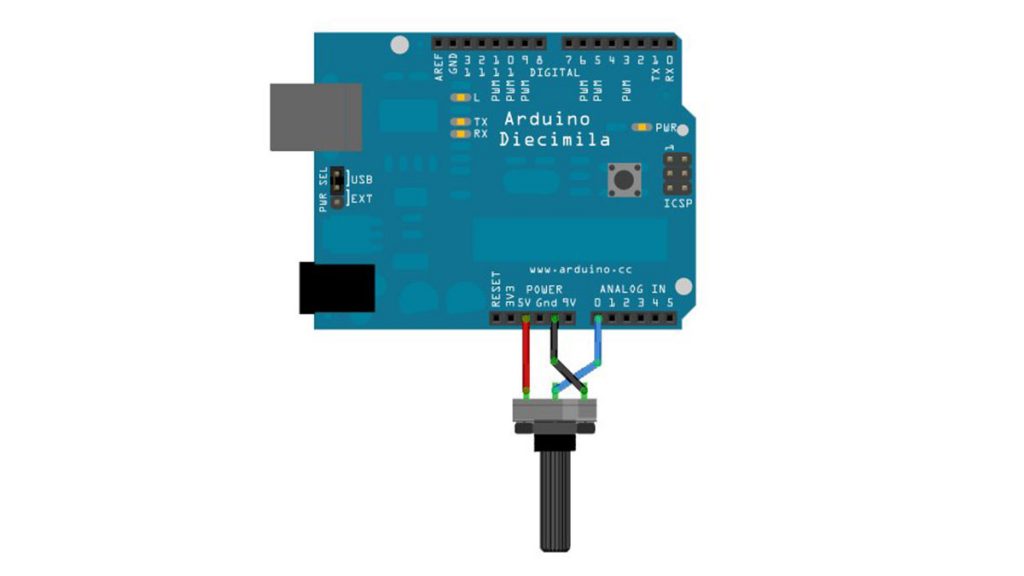
Serial Call and Response using Arduino

This example demonstrates multi-byte communication from the Arduino board to the computer using a call-and-response (handshaking) method. This sketch sends an ASCII A (byte of value 65) on startup and repeats that until it gets a serial response from the computer. Then it sends three sensor values as single bytes, and waits for another response

Serial Call and Response using Arduino Continue Reading

Read ASCII String using Arduino

Read ASCII String using Arduino

This sketch uses the Serial.parseInt() function to locate values separated by a non-alphanumeric character. Often people use a comma to indicate different pieces of information (this format is commonly referred to as comma-separated-values), but other characters like a space or a period will work too. The values are parsed into ints and used to determine the color

Read ASCII String using Arduino Continue Reading
Arduino Calibration

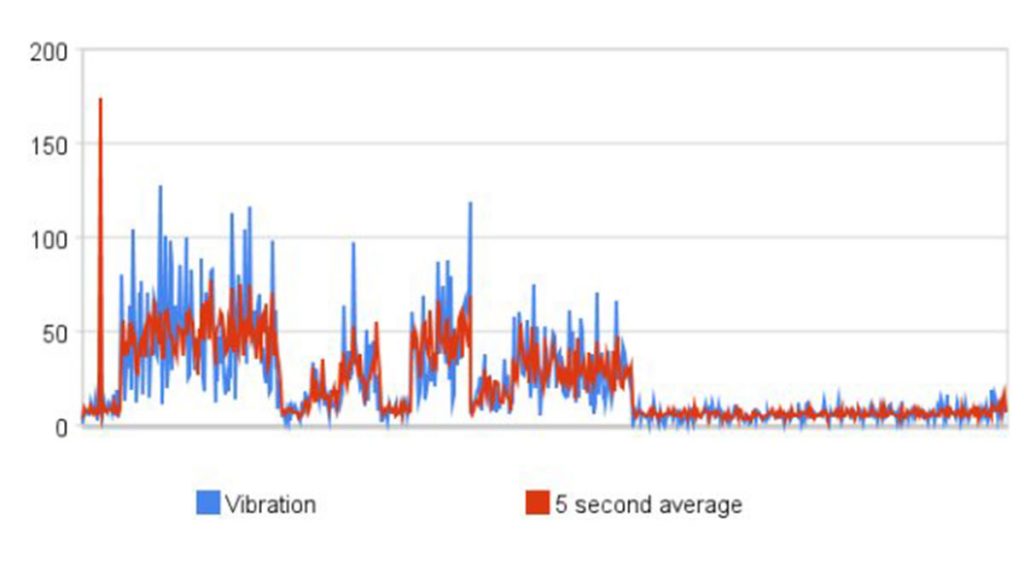
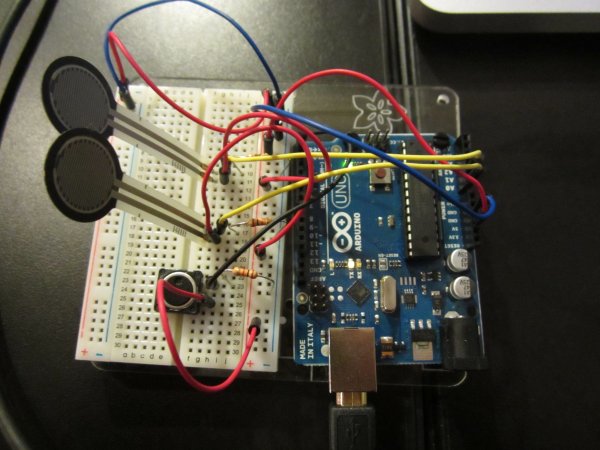
Calibrating sensor input using Arduino

This example demonstrates one techinque for calibrating sensor input. The Arduino takes sensor readings for five seconds during the startup, and tracks the highest and lowest values it gets. These sensor readings during the first five seconds of the sketch execution define the minimum and maximum of expected values for the readings taken during the

Calibrating sensor input using Arduino Continue Reading

Arduino Analog Write with 12 LEDs

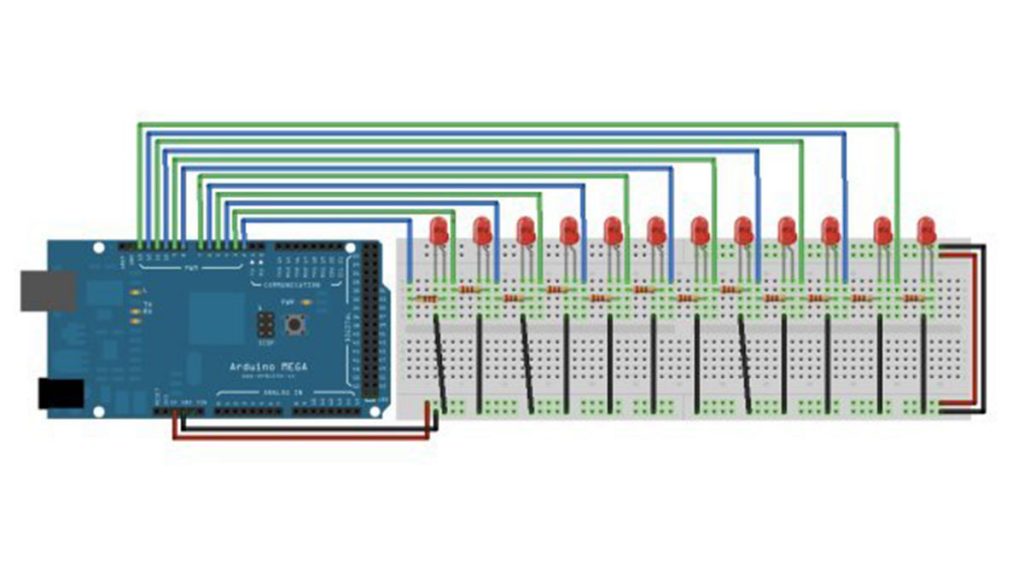
Analog Write with 12 LEDs on an Arduino Mega

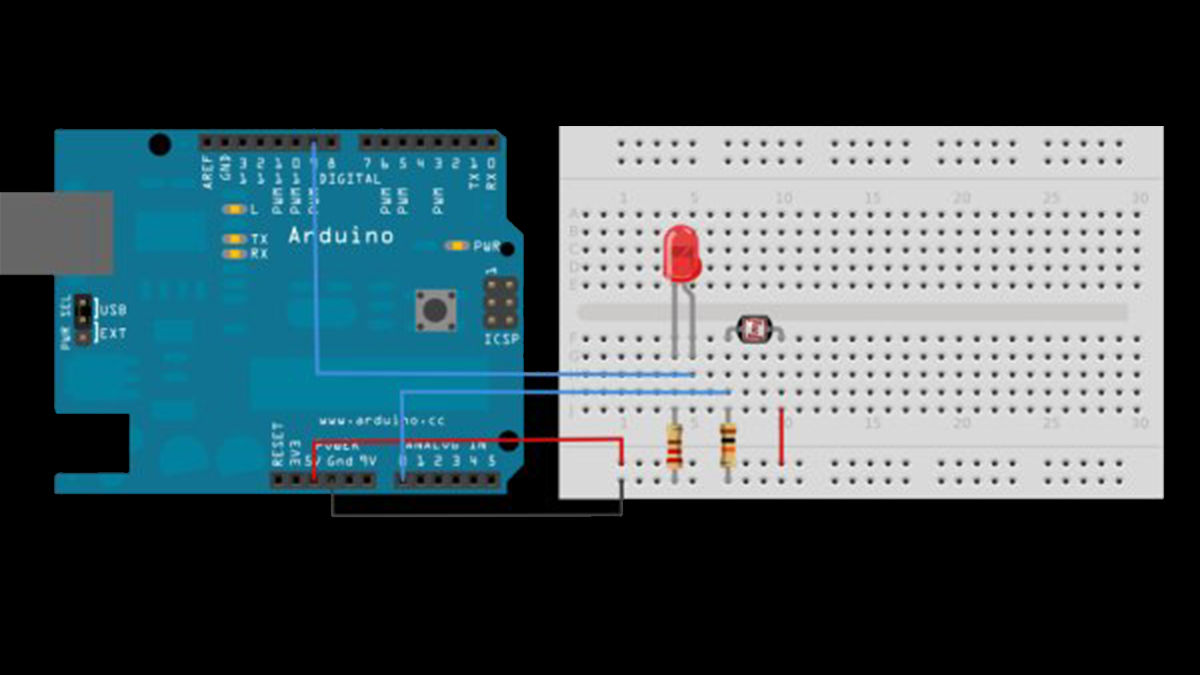
This example fades 12 LEDs up and the down, one by one, on an Arduino Mega board. Circuit image developed using Fritzing. For more circuit examples, see the Fritzing project page Connect the longer, positive legs of (anodes) 12 LEDs to digital pins 2-13 through 220 ohm current limiting resistors. Connect the shorter, negative legs (cathodes) to ground. Schematic Code In

Analog Write with 12 LEDs on an Arduino Mega Continue Reading

Arduino tones on Multiple outputs

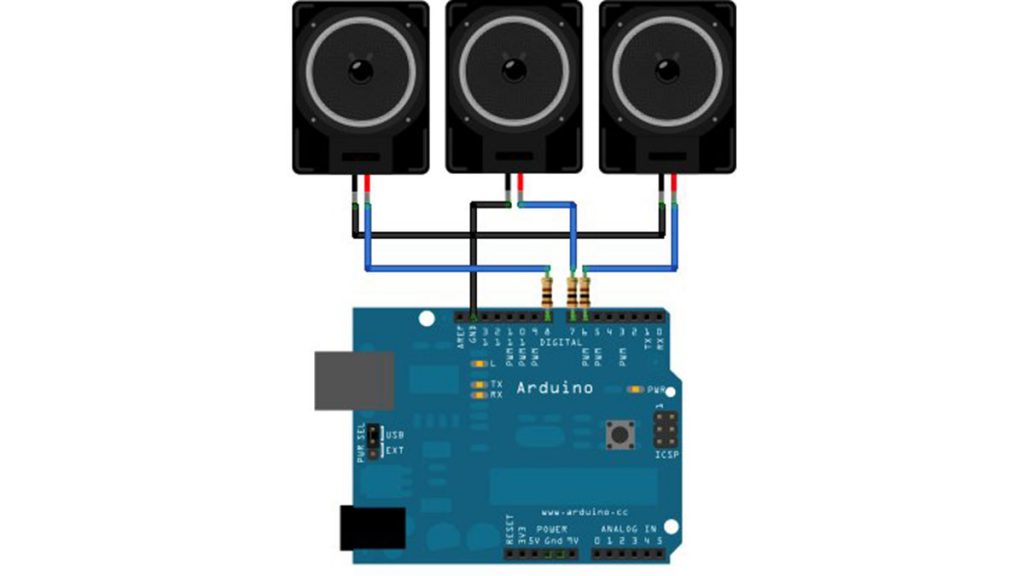
SPlaying tones on Multiple outputs using the tone() function with Arduino

This example shows how to use the tone() command to play different notes on multiple outputs. The tone() command works by taking over one of the Atmega’s internal timers, setting it to the frequency you want, and using the timer to pulse an output pin. Since it’s only using one timer, you can only play

SPlaying tones on Multiple outputs using the tone() function with Arduino Continue Reading

Scroll to Top