Projects

Arduino Simple keyboard

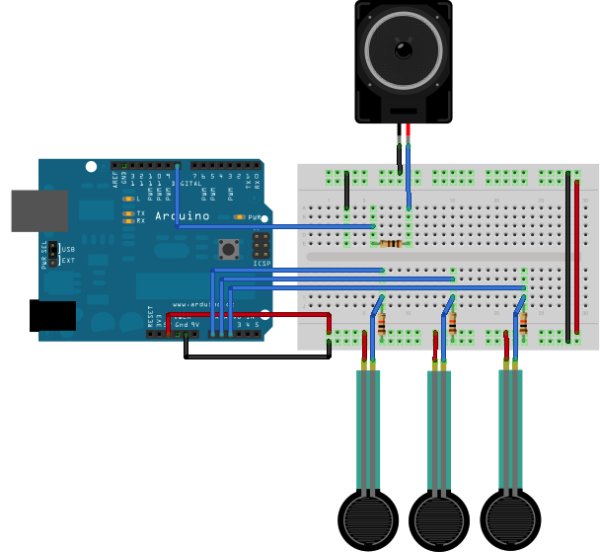
Simple keyboard using the tone() function using Arduino

This example shows how to use the tone() command to generate different pitches depending on which sensor is pressed.   Circuit Connect one terminal of your speaker to digital pin 8 through a 100 ohm resistor, and its other terminal to ground. Power your three FSRs (or any other analog sensor) with 5V in parallel. Connect each

Simple keyboard using the tone() function using Arduino Continue Reading
Arduino Play a Melody

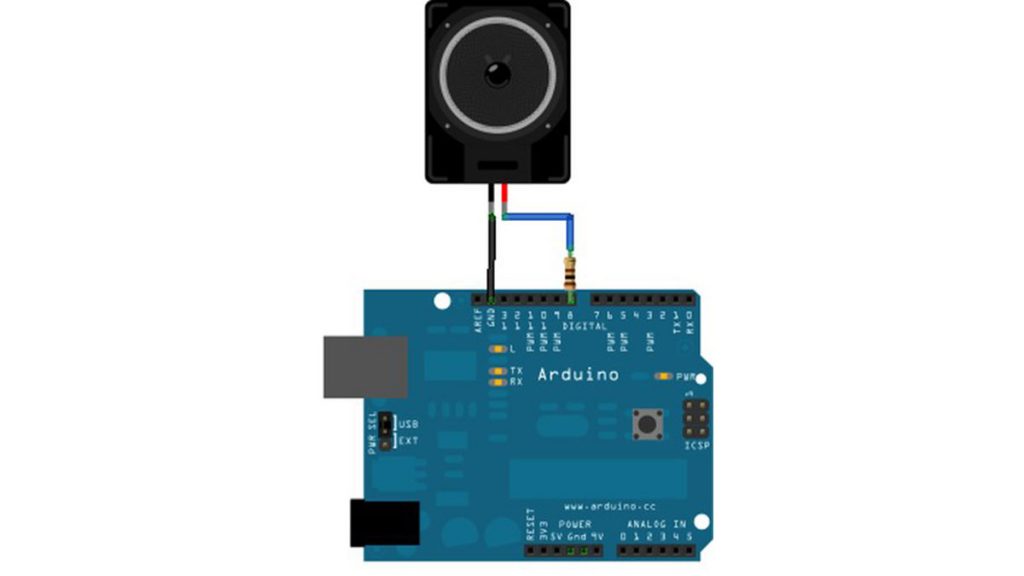
Play a Melody using the tone() function with Arduino

This example shows how to use the tone() command to generate notes. It plays a little melody you may have heard before. Circuit image developed using Fritzing. For more circuit examples, see the Fritzing project page Connect one terminal of your speaker to digital pin 8 through a 100 ohm resistor. Connect the other terminal to ground.

Play a Melody using the tone() function with Arduino Continue Reading

Fading with Arduino circuit

Fading an LED off and on using Arduino

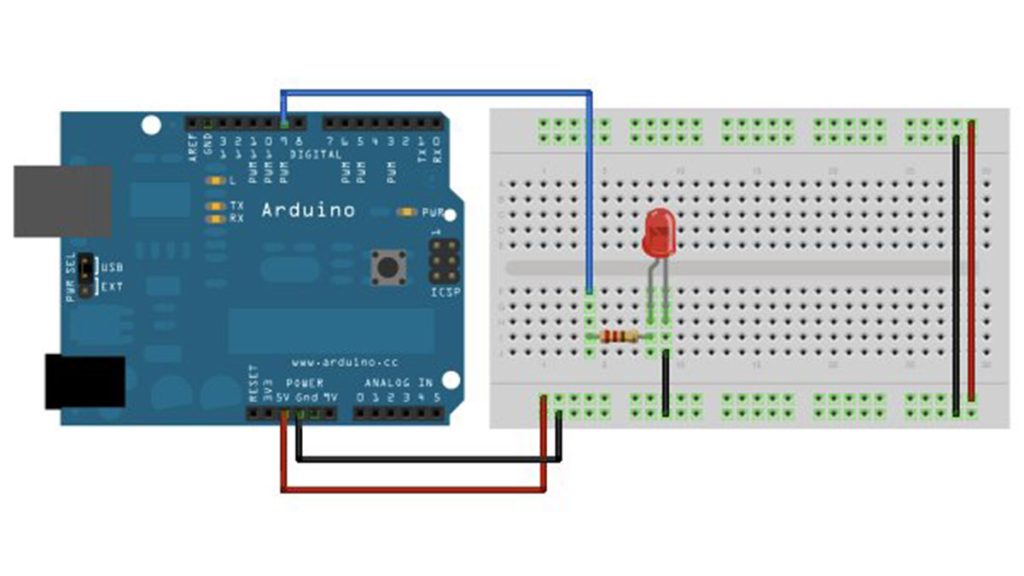
Demonstrates the use of the analogWrite() function in fading an LED off and on. AnalogWrite uses pulse width modulation (PWM), turning a digital pin on and off very quickly, to create a fading effect. Circuit Connect the anode (the longer, positive leg) of your LED to digital output pin 9 on your Arduino through a 220-ohm resistor. Connect the cathode (the shorter, negative leg)

Fading an LED off and on using Arduino Continue Reading
Digital Read Serial Circuit

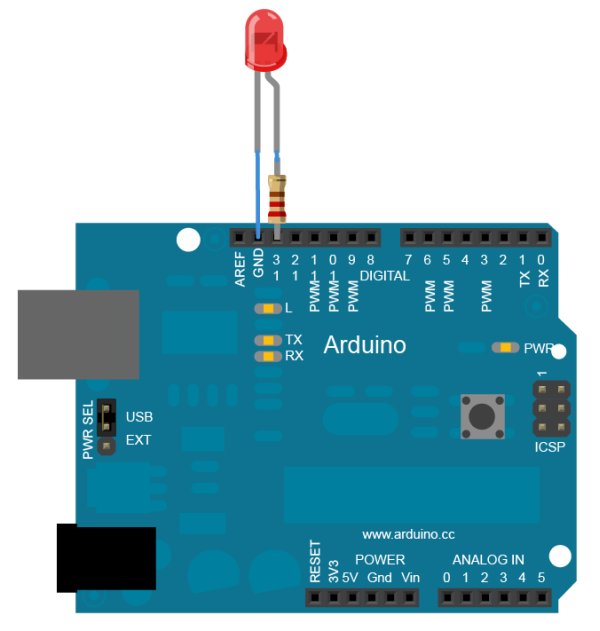
Digital Read Serial using Arduino

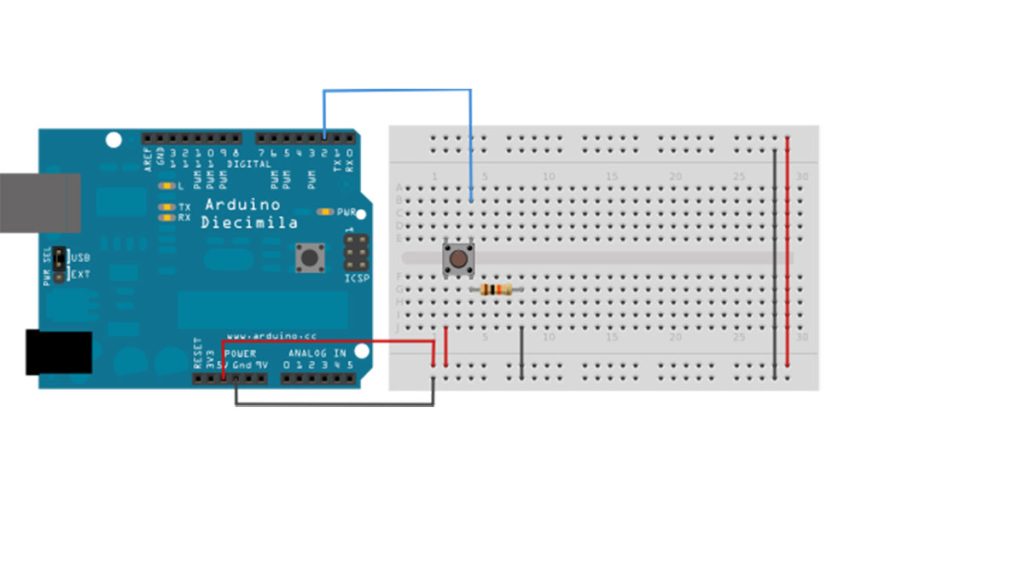
This example shows you how to monitor the state of a switch by establishing serial communication between your Arduino and your computer over USB. Hardware Required Arduino Board A momentary switch, button, or toggle switch 10k ohm resistor breadboard hook-up wire Circuit image developed using Fritzing. For more circuit examples, see the Fritzing project page Connect three wires to

Digital Read Serial using Arduino Continue Reading

Scroll to Top