
Summary of iAndroidRemote – Control Android mobile using an Apple Remote
This guide shows how to control an Android phone using an Apple Remote via an IR receiver, Arduino, Bluetooth shield, and the Amarino library to relay commands to Android. It explains wiring the IR receiver to Arduino pin 11, using the IRremote and MeetAndroid (Amarino) libraries to decode remote buttons and send strings over Bluetooth, and wiring the Bluetooth shield (Rx/Tx, Vcc, Gnd, and shorting CTS/RTS).
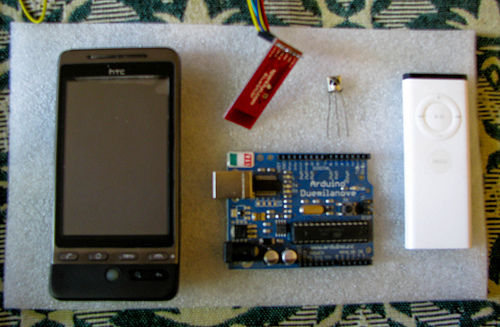
Parts used in the Project:
- Arduino board (Uno or Duemilanove)
- Arduino Bluetooth shield
- IR receiver (3-pin Vcc, Gnd, signal)
- Apple Remote
- Android phone
I love to integrate devices which are not supposed to be integrated and this guide shows you how you can control an Android mobile using Apple’s Remote. (Who said Apple devices work only with Apple products 😉 )
Also this is my entry to the Sparkfun microcontroller context. If you like this guide, please do vote for me. (Voting starts from Feb 14th)
Basic Architecture
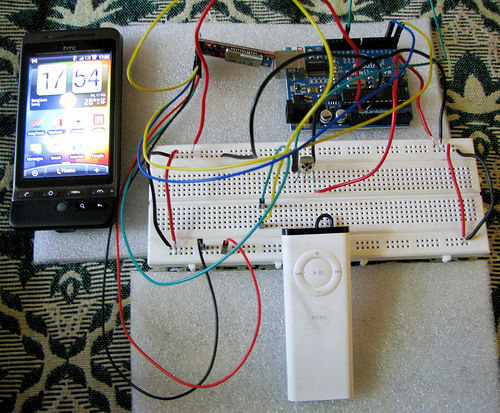
This is the basic architecture of how we will be setting up different pieces so that they can talk to each other.
Apple Remote -> IR Receiver -> Arduino -> Bluetooth Shield -> Amarino -> Android
Step 1: What do you need
Libraries used
Programming Skills
Basic Arduino programming
Basic Android programming skill (Optional)
Step 2: Arduino
Arduino – Connecting the IR Receiver
The first step is to connect the IR Receiver to Arduino. The IR Receiver has three legs (Vcc, Gnd and signal).
Connect the Vcc pin of IR Receiver to Arduino’s Vcc pin
Connect Gnd pin of IR Receiver to Gnd pin in Arduino
Connect the signal pin of IR Receiver to Arduino digital pin 11
Arduino – Code
The next step is to write the code in Arduino called as sketch. The code should do the following
Read the signal from IR Receiver
Identify the button that was pressed
Send the button code using Bluetooth
Arduino – Libraries
In order to do the above steps, we will be using the following two libraries.
IR Remote
This library allows us to identify which button was pressed by reading the signal from IR Receiver. Download the library from its home page and copy it to your Arduino library folder.
Amarino
This library allows us to connect Arduino and Android using Bluetooth. Download the library from its home page and copy it to your Arduino library folder.
Create a new Arduino sketch and copy the below code. You can also download the code from the github page .
#include <IRremote.h>
#include <IRremoteInt.h>
#include <MeetAndroid.h>
int IR_PIN = 11; // IR Receiver Pin
const long Plus = 2011254788;
const long Next = 2011258884;
const long Minus = 2011246596;
const long Prev = 2011271172;
const long Center = 2011275268;
const long Menu = 2011283460;
MeetAndroid meetAndroid;
IRrecv irrecv(IR_PIN);
decode_results results;
void setup () {
Serial.begin(115200);
irrecv.enableIRIn(); // Start the receiver
}
void loop() {
meetAndroid.receive(); // you need to keep this in your loop() to receive events
if (irrecv.decode(&results)) { // if an IR signal is obtained from IR receiver
if (results.value == Plus) {
meetAndroid.send(“Plus”);
}
if (results.value == Minus) {
meetAndroid.send(“Minus”);
}
if (results.value == Next) {
meetAndroid.send(“Next”);
}
if (results.value == Prev) {
meetAndroid.send(“Prev”);
}
if (results.value == 2011275268) {
meetAndroid.send(“Center”);
}
if (results.value == Menu) {
meetAndroid.send(“Menu”);
}
irrecv.resume(); // Receive the next value
}
}
After creating the Arduino sketch compile and upload it to your board. Once it is uploaded you should disconnect the USB to serial cable which connects the Arduino to the computer.
Arduino – Connecting Bluetooth shield
The next setup is to connect the Bluetooth shield to Arduino.
Please note that before you connect the Bluetooth you should disconnect the computer USB to Arduino cable, otherwise it will not work.
The Bluetooth shield has 6 pins and it should be connected like how it is explained below.
Connect the Vcc Pin of Bluetooth shield to Arduino’s Vcc pin
Connect the Gnd Pin of Bluetooth shield to Arduino’s Gnd
Connect the Rx (Receiver) pin of Bluetooth shield to Tx (Transmitter) pin of Arduino.
Connect the Tx (Transmitter) pin of Bluetooth shield to Rx (Receiver) pin of Arduino.
Short the CTS -1 and RTS -0 Pin of Bluetooth shield.
Arduino Bluetooth Shield
IR Receiver
Apple Remote
Android Phone
For more detail: iAndroidRemote – Control Android mobile using an Apple Remote
- What is the basic architecture of this project?
Apple Remote -> IR Receiver -> Arduino -> Bluetooth Shield -> Amarino -> Android. - Which Arduino pin is the IR receiver signal connected to?
The IR receiver signal is connected to Arduino digital pin 11. - Which libraries are required on the Arduino for this project?
The IRremote library and the Amarino (MeetAndroid) library are required. - How does the Arduino send button presses to the Android phone?
The Arduino decodes IR values and uses MeetAndroid.send with strings like Plus, Minus, Next, Prev, Center, Menu to send over Bluetooth. - How should the Bluetooth shield be connected to the Arduino?
Connect Bluetooth Vcc to Arduino Vcc, Gnd to Gnd, Bluetooth Rx to Arduino Tx, Bluetooth Tx to Arduino Rx, and short CTS-1 and RTS-0 pins. - Do you need to disconnect USB from the Arduino when using the Bluetooth shield?
Yes, disconnect the USB-to-serial cable before connecting the Bluetooth shield or it will not work. - What does the provided Arduino sketch do?
It initializes IR reception, checks decoded IR values against known button codes, and sends corresponding strings to Android via MeetAndroid. - Are specific numeric codes used for Apple Remote buttons in the sketch?
Yes, the sketch defines numeric constants like Plus = 2011254788, Next = 2011258884, Minus = 2011246596, Prev = 2011271172, Center = 2011275268, Menu = 2011283460.
