
Summary of Programming an ATTiny13A using Arduino & servo interpreter
Summary: The article describes programming an ATTiny13A using an Arduino as an ISP to read RC servo signals and control a laser/LED. It covers wiring between Arduino and ATTiny13A, installing Tekstop's attiny core into the Arduino IDE, uploading ArduinoISP to the Arduino, and adjusting boards.txt to change the ATTiny13 clock setting for correct timing.
Parts used in the ATTiny13A project:
- ATTiny13A microcontroller
- Arduino (as ISP programmer)
- LED (optional)
- Resistor (250 ohm, for LED)
- Connecting wires
- Power supply +5V (from Arduino)
So there I was, browsing eBay, looking for some cheap deals on Atmel chips when i came across a pair of ATTiny13 chips for £2.50. I just had to have them! After all, how hard can it be?
I needed a small chip to read servo signals from a hobby RC Receiver and control a laser output.
Once they arrived it dawned on me that I actually had no idea how to program these little chips. Dom and I spent hours trying various ways of ATTiny programming we found online with no luck. It was only until he left I sat down at my computer and found Tekstop’s tutorial on ‘Tiny programming that I had any success. With a couple of modifications to his files you will be up and programming these low price chips in no time!

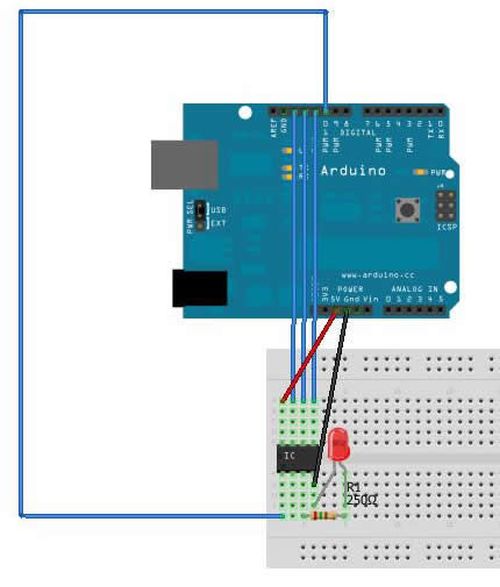
Connect your ATTiny13A to your arduino following the diagram below
Arduino pin 12 – ATTiny pin 6
Arduino pin 11 – ATTiny pin 5
Ardunio pin 10 – ATTiny pin 1
Arduino +5v – ATTiny pin 8
Arduino GNd – ATTiny pin 4
Optional:
GND – negative side of LED
ATTiny pin 3 – resistor (250 ohm) – positive side of LED
ATTINY13A Datasheet: http://www.atmel.com/Images/doc8126.pdf
Arduino ISP info: http://arduino.cc/en/Tutorial/ArduinoISP
Step 2: Setting up the IDE
- Open the arduino IDE and connect your Arduino
- Go to file > Examples > ArduinoISP
- Check you have the correct board & port selected (Tools > Board/Serial Port)
- Press the upload button
This will program your arduino board to be used as an ISP (in system programmer)
- Once complete, close the IDE
We now need to set up the IDE to recognise our ATTiny13A as an arduino compatible chip
- Download and extract this file: https://github.com/tekstop/attiny/tree/Arduino1
- Copy the folder “attiny” from the extracted ZIP to the /hardware/ folder in your arduino IDE installation directory
We then need to offset the clock speed (not a very elegant solution, but i’m working on it!):
- Open Hardware/attiny/boards.txt
- Scroll to the bottom of the file, this last few lines contains the data relevant to our chip
- Change “attiny13.build.f_cpu=9600000L” to “attiny13.build.f_cpu=1000000L”
This will correct delay times etc.
- Open the Arduino IDE again
- Go to Tools>Board and select “ATtiny13 (internal 9.6 MHz clock)”
Arduino GNd – ATTiny pin 4
For more detail: Programming an ATTiny13A using Arduino & servo interpreter
- How do I connect the ATTiny13A to the Arduino for ISP programming?
Connect Arduino pin 13 to ATTiny pin 7, Arduino pin 12 to ATTiny pin 6, Arduino pin 11 to ATTiny pin 5, Arduino pin 10 to ATTiny pin 1, Arduino +5V to ATTiny pin 8, and Arduino GND to ATTiny pin 4. - Can I add an LED to the ATTiny13A project?
Yes. Optionally connect GND to the LED negative side, ATTiny pin 3 via a 250 ohm resistor to the LED positive side. - How do I set up the Arduino as an ISP?
Open the Arduino IDE, connect the Arduino, go to File > Examples > ArduinoISP, select the correct board and port, upload the sketch, then close the IDE. - How do I make the Arduino IDE recognize the ATTiny13A?
Download Tekstop's attiny package, copy the attiny folder into the Arduino IDE installation hardware folder, then reopen the IDE and select the ATTiny13 board. - Do I need to change any clock settings for the ATTiny13A?
Yes. In Hardware/attiny/boards.txt change attiny13.build.f_cpu=9600000L to attiny13.build.f_cpu=1000000L to correct delay timings. - Which board should I select in the Arduino IDE for ATTiny13A?
Select ATtiny13 (internal 9.6 MHz clock) after installing the attiny hardware package and adjusting the clock setting. - Where can I find the ATTiny13A datasheet?
The article references the ATTINY13A datasheet at http://www.atmel.com/Images/doc8126.pdf. - Where can I find the Arduino ISP tutorial?
The article references Arduino ISP info at http://arduino.cc/en/Tutorial/ArduinoISP.
