
Summary of Control Android mobile by an Apple Remote using Arduino
This guide shows how to control an Android phone using an Apple Remote via an Arduino intermediary. The Apple Remote’s IR signals are received by an IR receiver connected to Arduino, decoded with the IR Remote library, and then sent over a Bluetooth shield to the Android device using Amarino. Required hardware, wiring (IR signal to Arduino digital pin 11, Vcc, GND), and software libraries are listed; Arduino sketches must read IR signals, identify buttons, and transmit codes via Bluetooth.
Parts used in the Control Android with Apple Remote project:
- Arduino Board (Uno or Duemilanove)
- Arduino Bluetooth Shield
- IR Receiver
- Apple Remote
- Android Phone
- IR Remote library
- Amarino library
I love to integrate devices which are not supposed to be integrated and this guide shows you how you can control an Android mobile using Apple’s Remote. (Who said Apple devices work only with Apple products 😉 )
Also this is my entry to the Sparkfun microcontroller context. If you like this guide, please do vote for me. (Voting starts from Feb 14th)
Basic Architecture
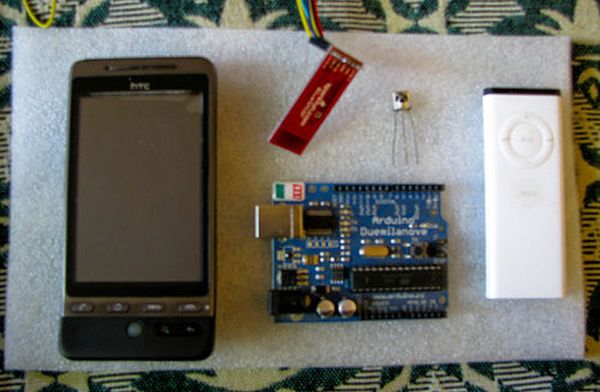
This is the basic architecture of how we will be setting up different pieces so that they can talk to each other.
Apple Remote -> IR Receiver -> Arduino -> Bluetooth Shield -> Amarino -> Android
Step 1: What do you need
Components needed
Arduino Board (Either Uno or Duemilanove)
Arduino Bluetooth Shield
IR Receiver
Apple Remote
Android Phone
Libraries used
Programming Skills
Basic Arduino programming
Basic Android programming skill (Optional)
Step 2: Arduino
Arduino – Connecting the IR Receiver
The first step is to connect the IR Receiver to Arduino. The IR Receiver has three legs (Vcc, Gnd and signal).
Connect the Vcc pin of IR Receiver to Arduino’s Vcc pin
Connect Gnd pin of IR Receiver to Gnd pin in Arduino
Connect the signal pin of IR Receiver to Arduino digital pin 11
Arduino – Code
The next step is to write the code in Arduino called as sketch. The code should do the following
Read the signal from IR Receiver
Identify the button that was pressed
Send the button code using Bluetooth
For more detail: Control Android mobile by an Apple Remote using Arduino
- What is the basic architecture of this project?
Apple Remote -> IR Receiver -> Arduino -> Bluetooth Shield -> Amarino -> Android. - Which Arduino pin is the IR receiver signal connected to?
The IR receiver signal pin is connected to Arduino digital pin 11. - What libraries are required for this project?
The IR Remote library and the Amarino library are required. - What are the main hardware components needed?
Arduino board (Uno or Duemilanove), Arduino Bluetooth shield, IR receiver, Apple Remote, and an Android phone. - What should the Arduino sketch do?
Read the signal from the IR receiver, identify the button pressed, and send the button code using Bluetooth. - Do I need Android programming skills for this project?
Basic Android programming skill is optional but not strictly required. - How are power and ground connected for the IR receiver?
Connect the IR receiver Vcc to Arduino Vcc and Gnd to Arduino Gnd. - Can this Apple Remote be used with non-Apple devices using this guide?
Yes; the guide shows how to control an Android phone using the Apple Remote via Arduino and Bluetooth.
