
Summary of Arduino Digital Output Project: Simple Output with LEDs
Arduino Digital Output Project introduces Arduino IDE setup, basic board connection, and example sketches to control LEDs. Users run the Blink and Fade tutorials to confirm communication and learn PWM. The project progresses to building LED circuits on a breadboard—wiring GND, connecting an LED to a PWM pin (pin 9), and observing fade effects—then expands to control five LEDs on PWM pins (3, 5, 6, 9, 10) using custom code for varied brightness patterns.
Parts used in the Arduino Digital Output Project:
- Arduino board (e.g., Elegoo UNO R3 or compatible Arduino)
- USB cable (for connecting Arduino to computer)
- Breadboard
- LEDs (at least 1, up to 5; various colors)
- Jumper wires (including black wire for GND)
- Computer with Arduino IDE installed
Simple Output with LEDs
Arduino Digital Output Project introduces users to the Arduino software environment and basic digital circuit construction. By running example programs, users gain foundational knowledge of Arduino’s capabilities. They then apply this knowledge to build and control a simple LED circuit. This hands-on experience bridges software and hardware, teaching core concepts of physical computing.
Download your Arduino
-
Setting Up the Development Environment:
Users are encouraged to download the official Arduino IDE from the link https://www.arduino.cc/en/main/software, making sure to choose the version compatible with your operating system. This is yet another necessary step to set up an environment to work with Arduino. -
Enabling Programming and Hardware Interaction:
By installing this IDE, users are now able to write, compile, and upload code to Arduino’s boards. This is the first step for every programming task and will allow for a relatively engaging use of Arduino hardware while learning.
Connect your Arduino board to laptop
-
USB Connection Establishment:
Connect the Arduino board to the computer via a USB cable. This forms the physical connection required for communication between the hardware and the Arduino IDE. -
Board Selection in Arduino IDE:
In the Arduino IDE, go to “Tools” and select the correct Board type. This tells the software which Arduino model you’re using, ensuring proper code compilation and upload. -
Port Verification (COM Port):
Still under “Tools,” select the correct Port. This allows the IDE to communicate through the right COM port, allowing it to send code to the board as well as return data.
Try the Blink tutorial
-
Running the Blink Example
Access the foundational “Blink” program via File → Examples → 01. Basics → Blink.
This example is designed to blink the onboard LED, confirming a successful software-hardware connection. -
Uploading the Code
Click on the “Upload” button to compile and upload the code to the Arduino board.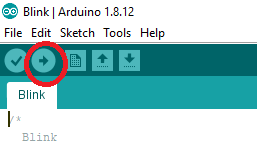
This image shows that the LED is blinking on the Arduino board, visually showing that the board is receiving and executing the uploaded code correctly. -
Modifying Code for Interaction
Change the value in delay(1000) to change the blink rate, then click “Upload“ again. This gets the users started into a live code change with an immediate effect on the hardware. -
Hands-On Learning Confirmation
This step provides immediate feedback and validates the full setup, from the IDE to the Arduino board.
It also offers users their first hands-on experience with live Arduino programming and physical computing.
Try the Fade tutorial
Arduino LED Fade Circuit tutorial introduces users to hands-on circuit building by transitioning from software-based tasks. Users gather basic components: a breadboard, an LED, and wires. These parts enable the visual “fade” effect and demonstrate how physical connections work. Helps users understand and organize essential components for practical circuit construction.

Explains the importance of LED polarity for proper circuit function. LEDs, like diodes, only permit current to flow in one direction—the longer of the two leads is positive (+) and the shorter of the two leads is negative (−). If you connect the leads the wrong way, it will either not light the LED up or damage the LED. Understanding polarity helps users avoid mistakes and builds a foundation for working with other electronic components.
Now connect the components:
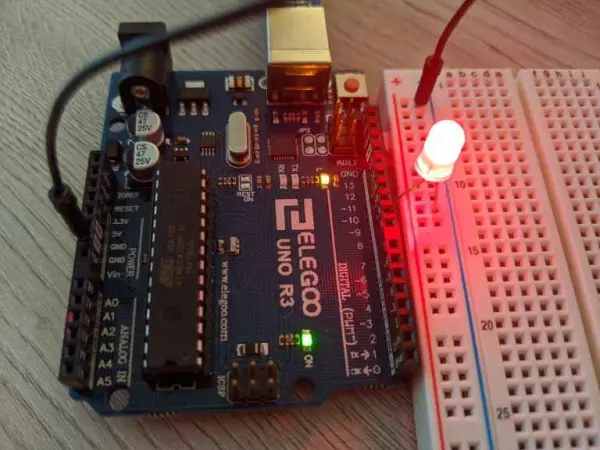
Once you wire and program the LED “Fade” circuit, you can see the LED gradually become more or less bright using PWM (pulse–width modulation).
-
Connecting GND: A wire is used to connect the Arduino‘s GND pin to the blue (-) rail on the breadboard to establish a common ground.
-
Connecting the LED:
-
The positive (long) lead of the LED connects to digital pin 9 (~9) on the Arduino, a PWM-capable pin for the fade effect.
-
The negative (short) lead connects to the breadboard’s blue rail, completing the circuit.
-
-
Uploading the Program: Users open File → Examples → 01. Basics → Fade and upload the code. The LED will fade in and out, showing PWM in action.
This step gives users practical experience in hardware setup, using PWM pins, and observing how software changes affect physical output.
Try the PWM (Pulse-Width-Modulation)
This section details the expansion of the previous circuit to include multiple LEDs and introduces custom code for more complex control.
- Downloading Customized Code: The first step is downloading a specialized pre-written code from a provided link. This advanced program controls multiple LEDs with varying intensities or patterns, enabling more sophisticated light effects.
- Adding More LEDs: The instruction to add four more LEDs, bringing the total to five, expands the circuit’s complexity and visual output. These additional LEDs, chosen by color, will be the new visual indicators for the customized program.
- Wiring Changes:
- The black wire retaining its previous connection implies the common ground established earlier remains in place, which is crucial for completing all LED circuits.
- Connecting the negative end of all five LEDs to the vertical blue (-) rail on the breadboard ensures they all share a common ground.
- Connecting the positive ends of these LEDs to different digital pins (3, 5, 6, 9, 10) on the Arduino allows for individual control of each LED. These are likely Pulse Width Modulation (PWM) pins, enabling varying brightness.
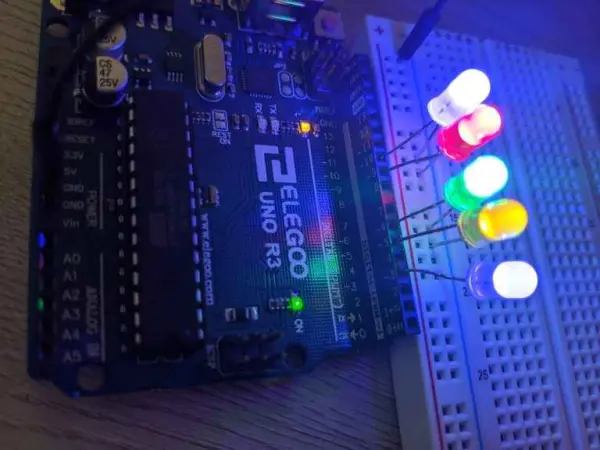
- Uploading and Observing: Uploading the customized program lets users observe each LED’s brightness increase with higher PINs, demonstrating advanced control logic in the code.
This process teaches users to expand Arduino Digital Output Projects, control multiple LED outputs individually, and see how custom code creates dynamic PWM-based lighting effects.
Read more: Arduino Digital Output Project: Simple Output with LEDs
- How do I set up the Arduino development environment?
Download and install the official Arduino IDE from https://www.arduino.cc/en/main/software matching your operating system. - How do I connect the Arduino board to my computer?
Use a USB cable to connect the Arduino board to your computer to enable communication with the Arduino IDE. - How can I verify the board is selected correctly in the IDE?
In the Arduino IDE go to Tools and select the correct Board type for your Arduino model. - How do I select the correct communication port?
In the Arduino IDE go to Tools and choose the correct Port (COM port) to allow IDE-board communication. - What does the Blink example demonstrate?
The Blink example blinks the onboard LED to confirm a successful software-hardware connection and that code uploads correctly. - How do I change the blink rate in the Blink sketch?
Modify the delay value (for example delay(1000)) in the code and click Upload to apply the new blink rate. - What components are needed for the Fade tutorial?
A breadboard, an LED, wires, and an Arduino board are used in the Fade tutorial. - How should the LED be connected for the Fade circuit?
Connect the LED positive (long lead) to digital pin 9 (PWM) and the negative (short lead) to the breadboard blue (-) rail, with Arduino GND connected to that rail. - How do I run the Fade example?
Open File → Examples → 01. Basics → Fade in the Arduino IDE and click Upload to run it and observe PWM fade. - How can I expand the project to multiple LEDs?
Add more LEDs with their negatives to the common ground rail and connect positives to PWM-capable pins 3, 5, 6, 9, and 10, then upload the customized code.
