
Summary of Arduino Bluetooth Serial Connections
This article guides users on setting up Bluetooth connectivity with an Arduino to transmit and receive serial data. It covers hardware connections, wiring diagrams, pairing concepts, and usage ideas like wireless remotes or alarms. The guide includes a test program uploaded at 115200 baud rate and emphasizes disconnecting the modem during code uploads to avoid communication conflicts.
Parts used in the Arduino Bluetooth Project:
- Arduino Uno
- Arduino Shield
- Bluetooth Modem
This is an introduction on how to setup, make a basic connection, and send data to and from an Arduino using Bluetooth!
Bluetooth is great for transmitting data over medium distances and what’s more, Arduino just treats it like a serial data connection. This means that we can use the Serial Library. That’s a nice thing to have.
But what to pair the bluetooth to? And how do we do that? This covers all that. What you use the new found connective abilities for is up to you.
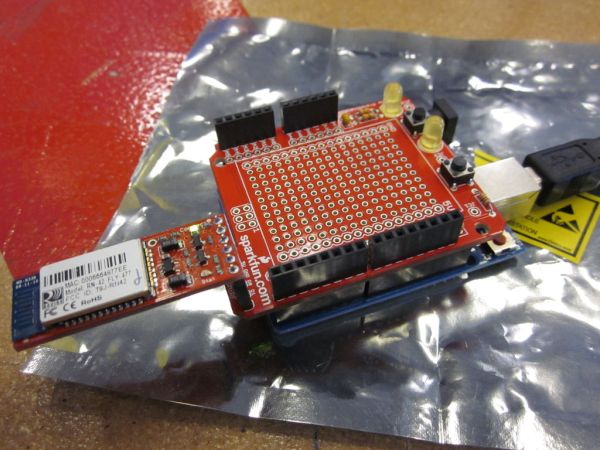
Here are some ideas though:
Wireless programming.
Wireless switches.
Wireless custom remotes.
Pairing with Android for some real power behind it.
Simple alarm system (someone is at the door or in room X)
As always, I made this at TechShop
Step 1: Materials
Since this is just connectivity, there are very few parts
1. Arduino Uno $40
2. Arduino Shield $10
3. Bluetooth Modem $40-60
Here’s the one I’m using from sparkfun
https://www.sparkfun.com/products/10269
Step 2: Arduino Side Setup
Setting up the hardware is really easy.
Hook everything up between the shield and the modem and the uno.
Modem -> Uno
V++ V++
GND GND
RX-I TX-O
TX-O RX-I
optional Flow Control
CTS-I High tells modem when arduino is sending
RTS-O High tells arduino when bluetooth is receiving
Now load this Test Program onto the arduino
By default the baud rate is 115200 NOT 9600. Use the higher one to communicate on the bluetooth.
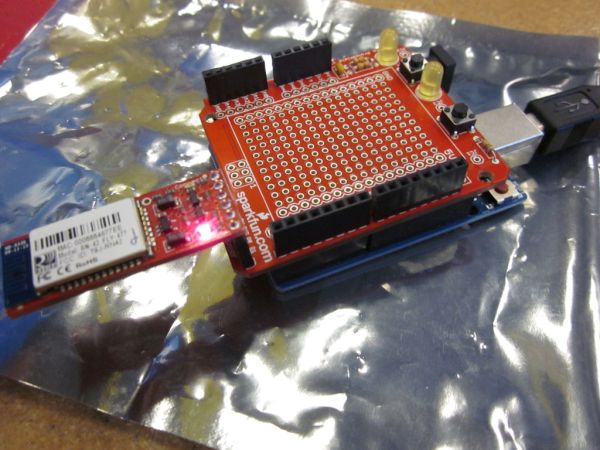
WHEN YOU LOAD THE PROGRAM DO NOT HAVE THE MODEM ATTACHED. You will not be able to communicate on the serial lines when the bluetooth is plugged in which means that uploading won’t work and neither will the serial monitor. If you want to upload and monitor while it is in use, leave RX and TX open and either use SoftwareSerial with an Uno or another Serial Port with a Mega.
——————————————-
/***********************
Bluetooth test program
***********************/
/*
Setup.
Upload this to board without the modem attached
-Make sure the baud rate is 115200 as that is what the bluetooth is (and serial port)
*/
int counter = 0;
int incomingByte;
void setup() {
Serial.begin(115200);
}
void loop() {
// see if there’s incoming serial data:
if (Serial.available() > 0) {
// read the oldest byte in the serial buffer:
incomingByte = Serial.read();
// if it’s a capital R, reset the counter
if (incomingByte == ‘R’) {
Serial.println(“RESET”);
counter=0;
}
}
//only count to 100 then stop aka don’t count to infinity
if(counter<100){
Serial.println(counter); //displays the ACSII number/letter
//Serial.write(counter); //writes the data AS IS
counter++;
delay(250);
}
}
2. Arduino Shield
3. Bluetooth Modem
For more detail: Arduino Bluetooth Serial Connections
- What is the default baud rate for this project?
The default baud rate is 115200, not 9600. - Can I upload the program while the modem is attached?
No, you must not have the modem attached when loading the program because it prevents serial line communication. - How do I connect the RX-I pin on the modem?
Connect the RX-I pin on the modem to the TX-O pin on the Uno. - What happens if I send the letter R via serial?
Sending the capital letter R resets the counter and prints RESET. - Does the counter count to infinity?
No, the code stops counting once it reaches 100. - What are some suggested uses for this setup?
Ideas include wireless programming, wireless switches, custom remotes, Android pairing, and simple alarm systems. - Where was this project created?
The project was made at TechShop. - How should I handle flow control pins?
CTS-I tells the modem when the arduino is sending, and RTS-O tells the arduino when the bluetooth is receiving.
