
Summary of Add a TFT Display to your Arduino projects (1.8 TFT SPI 128×160)
Summary: The article describes replacing cheap 1602 LCDs with an inexpensive 1.8 inch 128×160 SPI TFT for Arduino projects. It notes the need for a specific UTFT library version, provides wiring details (including 1 kΩ resistors on data lines), lists Arduino Uno pin connections, links a demo video, and points to datasheets, diagrams, libraries, and demos for download. The display was purchased from Banggood but is also available on eBay and other Chinese shops.
Parts used in the 1.8 inch 128x160 TFT Project:
- 1.8 inch 128×160 SPI TFT display module
- Arduino Uno
- 1 kΩ resistors (one for each data line)
- Connecting wires/jumper wires
- 5V power supply (Arduino 5V)
- Ground connection
- UTFT library (specific version required)
In all my arduino projects I was using cheap 1602 LCDs mostly because… they are cheap but also of the libraries flexibility. Recently I found a nice TFT 1.8 inch 128×160 in a very competitive price and i thought to give it a go. Just $4.5.
I had a little bit of trouble to make it work because you need to use a specific version of UTFT.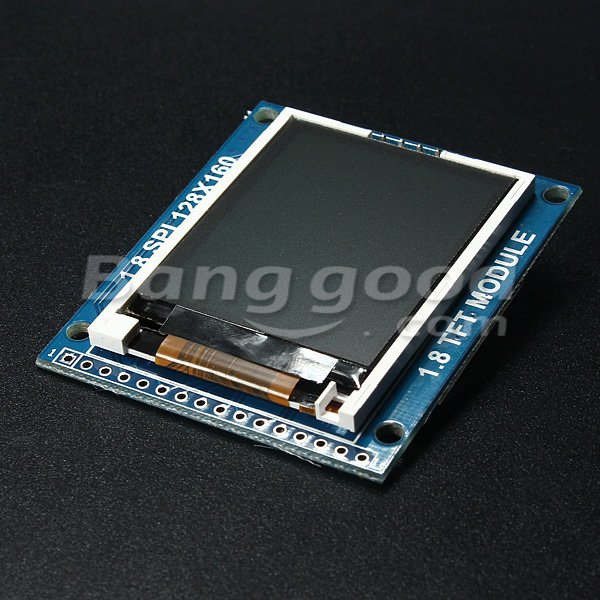 You will find all the files at the bottom. Connection is easy enough just don’t forget to add 1KOhm resistors to all data lines.
-Connect to LCD_Pin SDA/SDI/MOSI(it means LCD_Model Pin_SDA/SDI/MOSI Connect to Arduino_UNO Pin11)
-Connect to LCD_Pin SCL/CLK/SCLK(it means LCD_Model Pin_SCL/CLK/SCLK Connect to Arduino_UNO Pin10)
-Connect to LCD_Pin CS/CE(it means LCD_Model Pin_CS/CE Connect to Arduino_UNO Pin9)
-Connect to LCD_Pin RST/RESET(it means LCD_Model Pin_RST/RESET Connect to Arduino_UNO Pin12)
-Connect to LCD_Pin RS/DC(it means LCD_Model Pin_RS/DC Connect to Arduino_UNO Pin8)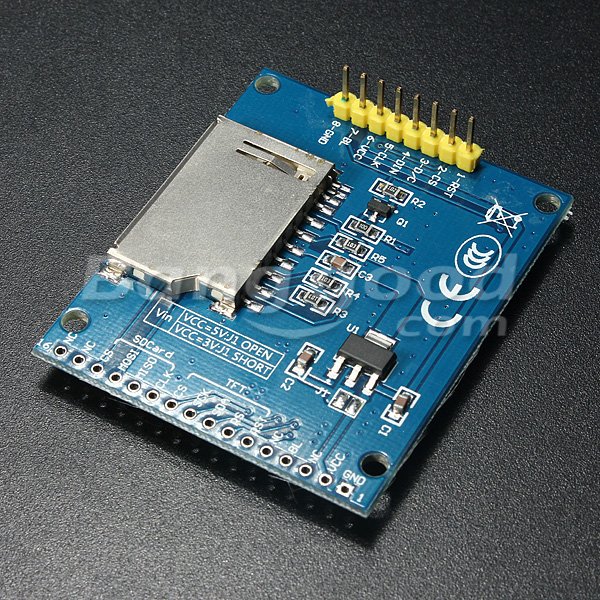 -Connect to LCD_Pin VCC and BL to Arduino 5v
-Connect to LCD_Pin GND to Arduino GND
And here is a short demo
http://www.youtube.com/watch?v=uxjhD3Z20nA&list=UUXyVgABpnlyTj-pnHvdiySQ
I bought mine from Bangggood.com but you can them in ebay or in other chinese eshops.
Download the datasheets,diagrams,library and demos here.
For more detail: Add a TFT Display to your Arduino projects (1.8 TFT SPI 128×160)
- How do I connect the TFT MOSI line to the Arduino Uno?
Connect the display SDA/SDI/MOSI pin to Arduino Uno pin 11 and include a 1 kΩ resistor on the data line. - How do I connect the TFT SCLK line to the Arduino Uno?
Connect the display SCL/CLK/SCLK pin to Arduino Uno pin 10 and include a 1 kΩ resistor on the data line. - How do I connect the TFT CS pin to the Arduino Uno?
Connect the display CS/CE pin to Arduino Uno pin 9 and include a 1 kΩ resistor on the data line. - How do I connect the TFT RESET pin to the Arduino Uno?
Connect the display RST/RESET pin to Arduino Uno pin 12. - How do I connect the TFT DC/RS pin to the Arduino Uno?
Connect the display RS/DC pin to Arduino Uno pin 8. - Where should I connect the TFT VCC and backlight pins?
Connect the display VCC and BL pins to Arduino 5V. - Where should I connect the TFT ground pin?
Connect the display GND pin to Arduino GND. - Do I need a specific library to run this TFT?
Yes, you need a specific version of the UTFT library as noted in the article. - Where can I buy this 1.8 inch TFT?
The author bought it from Banggood and mentions it is also available on eBay and other Chinese e-shops. - Are there demo resources available?
Yes, the article links a short demo video and provides downloads for datasheets, diagrams, the library, and demos.
