
Summary of Digital Read Serial using Arduino
This article explains how to monitor a switch state by using Arduino-to-computer serial communication over USB. It describes the required hardware, wiring on a breadboard with a pull-down resistor, how the button changes the digital input between LOW and HIGH, the need to avoid floating inputs, and starting Serial at 9600 baud and configuring digital pin 2 as an input in setup().
Parts used in the Switch Monitoring Project:
- Arduino Board
- Momentary switch, button, or toggle switch
- 10k ohm resistor
- Breadboard
- Hook-up wire
This example shows you how to monitor the state of a switch by establishing serial communication between your Arduino and your computer over USB.
Hardware Required
- Arduino Board
- A momentary switch, button, or toggle switch
- 10k ohm resistor
- breadboard
- hook-up wire
Circuit
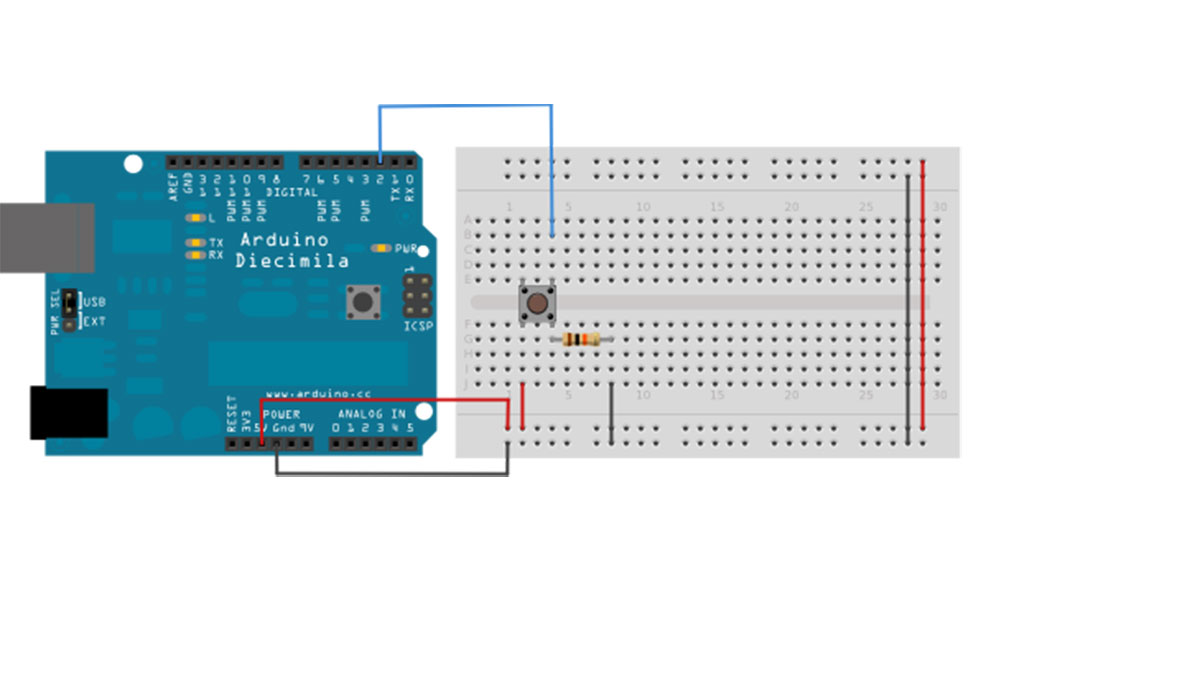
image developed using Fritzing. For more circuit examples, see the Fritzing project page
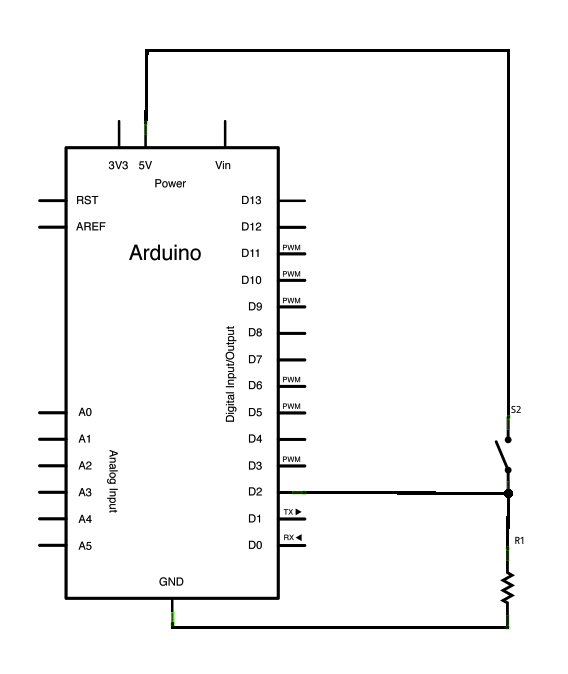
Connect three wires to the Arduino board. The first two, red and black, connect to the two long vertical rows on the side of the breadboard to provide access to the 5 volt supply and ground. The third wire goes from digital pin 2 to one leg of the pushbutton. That same leg of the button connects through a pull-down resistor (here 10 KOhms) to ground. The other leg of the button connects to the 5 volt supply.
Pushbuttons or switches connect two points in a circuit when you press them. When the pushbutton is open (unpressed) there is no connection between the two legs of the pushbutton, so the pin is connected to ground (through the pull-down resistor) and reads as LOW, or 0. When the button is closed (pressed), it makes a connection between its two legs, connecting the pin to 5 volts, so that the pin reads as HIGH, or 1.
If you disconnect the digital i/o pin from everything, the LED may blink erratically. This is because the input is “floating” – that is, it doesn’t have a solid connection to voltage or ground, and it will randomly return either HIGH or LOW. That’s why you need a pull-down resistor in the circuit.
Schematic
Code
In the program below, the very first thing that you do will in the setup function is to begin serial communications, at 9600 bits of data per second, between your Arduino and your computer with the line:
Serial.begin(9600);
Next, initialize digital pin 2, the pin that will read the output from your button, as an input:
For more detail: Digital Read Serial using Arduino
- What hardware is required to monitor a switch with Arduino?
Arduino board, a momentary switch/button/toggle switch, 10k ohm resistor, breadboard, and hook-up wire. - How is the switch wired to the Arduino?
Digital pin 2 connects to one leg of the pushbutton; that leg also connects through a 10k pull-down resistor to ground; the other leg of the button connects to 5 volts; power and ground rails are supplied from the Arduino. - Why is a pull-down resistor used?
To keep the input pin tied to ground when the button is open, preventing floating and erratic readings. - What happens when the button is not pressed?
The pin is connected to ground through the pull-down resistor and reads LOW (0). - What happens when the button is pressed?
The button connects the pin to 5 volts and the pin reads HIGH (1). - How do you start serial communication in the Arduino code?
Call Serial.begin(9600) in the setup function to start serial communication at 9600 bits per second. - Which pin is used to read the button in the example?
Digital pin 2 is used as the input to read the button state. - What issue occurs if the digital i/o pin is disconnected?
The input floats and may randomly return HIGH or LOW, causing erratic behavior.
