
Summary of The Arduino Weather Station
This article details a DIY solar-powered weather station with HVAC control built using an Arduino Microcontroller. The project integrates local weather monitoring and system control by combining hardware components like a Pico Solar PV/Lithium battery pack, a 4-line white-on-blue LCD display, and the Arduino board itself. Code examples demonstrate initializing the LCD to show temperature, humidity, pressure, and time.
Parts used in the Home Built Solar Powered Weather Station:
- Arduino Microcontroller Board
- Pico Solar PV / Lithium battery pack
- 4 line white on blue LCD display
I’ve always been interested in monitoring my local weather, and noticed the difference between what weather.com and accuweather.com think my local weather is, and what I see out the window. I also wanted better control over my heating and A/C system. As a computer and electronics nut, I’ve been playing with the Arduino Microcontroller, and decided to to meld my interests. So here goes the documentation on my home built solar powered weather station (always being modified, and expanded) with HVAC Control.
Step 1: The Arduino
The first step was obtaining a Arduino board. We purchased ours from hacktronics.com. After working through the tutorials on their site, I felt confident that I understood the simple scripting and connection concepts, and moved forward.
Arduino is an open-source electronics prototyping platform based on flexible, easy-to-use hardware and software. It’s intended for artists, designers, hobbyists, and anyone interested in creating interactive objects or environments. – http://arduino.cc/
The Arduino requires 5v to run, and we supply this with our Pico Solar PV / Lithium battery pack.
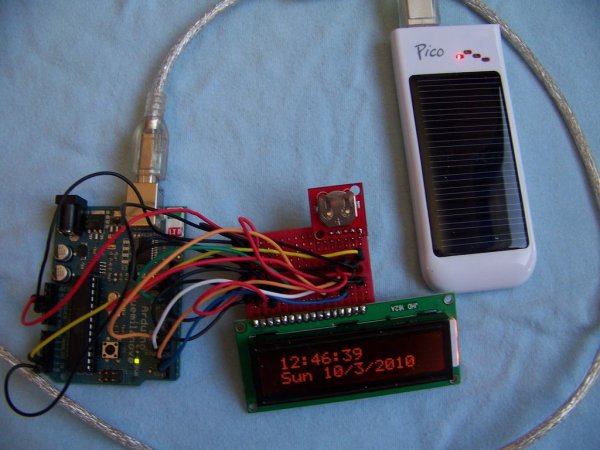
Step 2: The LCD Display
I needed the ability to display temperature, humidity, barometric pressure, and time/date, so I picked a 4 line white on blue LCD display from Hacktronics. I used their LCD tutorial to get it connected and display some sample text on the screen.
// character LCD example code
// www.hacktronics.com
// Connections:
// rs (LCD pin 4) to Arduino pin 12
// rw (LCD pin 5) to Arduino pin 11
// enable (LCD pin 6) to Arduino pin 10
// LCD pin 15 to Arduino pin 13
// LCD pins d4, d5, d6, d7 to Arduino pins 5, 4, 3, 2
LiquidCrystal lcd(12, 11, 10, 5, 4, 3, 2);
int backLight = 13; // pin 13 will control the backlight
void setup()
{
pinMode(backLight, OUTPUT);
digitalWrite(backLight, HIGH); // turn backlight on. Replace ‘HIGH’ with ‘LOW’ to turn it off.
lcd.begin(16,2); // columns, rows. use 16,2 for a 16×2 LCD, etc.
lcd.clear(); // start with a blank screen
lcd.setCursor(0,0); // set cursor to column 0, row 0 (the first row)
lcd.print(“Hello, World”); // change this text to whatever you like. keep it clean.
lcd.setCursor(0,1); // set cursor to column 0, row 1
lcd.print(“hacktronics.com”);
// if you have a 4 row LCD, uncomment these lines to write to the bottom rows
// and change the lcd.begin() statement above.
//lcd.setCursor(0,2); // set cursor to column 0, row 2
//lcd.print(“Row 3”);
//lcd.setCursor(0,3); // set cursor to column 0, row 3
//lcd.print(“Row 4”);
}
void loop()
{
}
See http://www.hacktronics.com/Tutorials/arduino-character-lcd-tutorial.html for actual code as instructables breaks our include statements.
For more detail: The Arduino Weather Station
- What is the primary purpose of this project?
To monitor local weather and gain better control over heating and A/C systems. - How does the Arduino get its power?
The Arduino requires 5v to run and receives this from a Pico Solar PV / Lithium battery pack. - Where did the author purchase the Arduino board?
The author purchased the Arduino board from hacktronics.com. - What data does the LCD display show?
The display shows temperature, humidity, barometric pressure, and time/date. - Which website provided the tutorial for connecting the LCD?
The author used the LCD tutorial found on Hacktronics. - What are the pin connections for the LCD enable pin?
The enable pin (LCD pin 6) connects to Arduino pin 10. - Can the backlight be turned off via code?
Yes, replacing 'HIGH' with 'LOW' in the code turns the backlight off. - What type of LCD was selected for this build?
A 4 line white on blue LCD display was picked.
