
Summary of The Arduino Noise Machine
Summary (under 100 words): The author adapted code from the Loud Objects Noise Toy to run on an Arduino UNO, discovered usable PWM pins (10 and 11) for audio output, and built a simple noise/synth project using two momentary buttons, a 3.5mm jack (or speaker), and jumper wiring on breadboard/perfboard. Several .pde sketches are provided to upload via the Arduino IDE; wiring uses digital pins 8 and 9 for switches and pins 10/11 (or 11/12 for louder output) for the speaker.
Parts used in the Loud Objects Noise Toy on Arduino:
- 2 momentary buttons (tactile)
- Jumper wires
- Breadboard
- Perf board
- 3.5mm female jack
- Speaker (8 ohm, ~0.25 W) with or without amp
- Male header pins (one row)
- Arduino UNO
Okay, okay, I know you all were wondering what I am up to now.
I love synths and so, I built this. There are three things that can catch my attention: Synthesizers, Amplifiers and free. The other day (Actually it was just Thursday) I was cruising around Make’s website when I saw the Deal of the Day was the Loud Objects Noise Toy. I had seen it before but had not cared much for it. I the n saw a Vimeo video on it and was hooked. I quickly ordered it at half-price from Make but I couldn’t wait. I saw the had code on the bottom and so, even though I know it wouldn’t work, I tried to compile it.
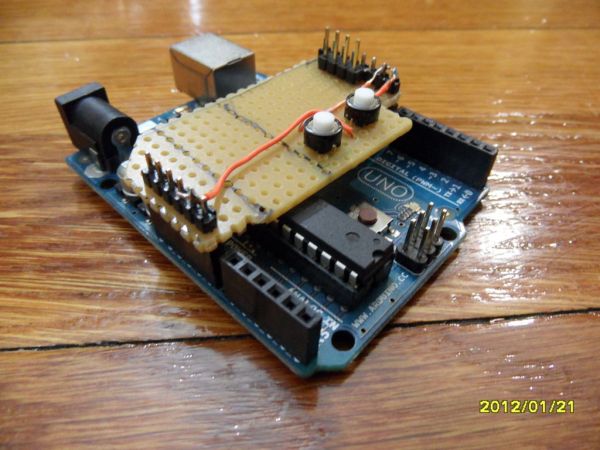
IT WORKED! I grabbed my AtTiny Programming Shield and hit Upload. The results were not satisfactory. Then I said to myself: “If it can compile in the Arduino IDE why can’t it Upload?” I uploaded the code and tried every Digital Out pin I could find. I finally reached Pins 10 and 11 and had thought that maybe the code worked but the software didn’t. I had tried 9 already and knew it outputted on two pins and the only two pins that were PWM pins were 10 and 11. I tried them and it worked!
Here is the result. The names of the codes were kind of misleading so I renamed them but renamed them as .pde files.
If you have Windows or Mac, use Word to open the code. 🙂
P.S. You may be wondering why I haven’t posted much lately…midterms. 🙂
P.P.S. Second picture goes through every part of Arduino plus the shield.
Step 1: Parts to Acquire.
You will Need:
Bunches of jumper wires.
1 Breadboard
1 Perf board
1 3.5mm female jack (Only if your amp has a male jack. :-))
1 speaker with or without an amp (8ohm, 0.25 watts…you get the idea.)
Male Headers (One row of them will do just fine.)
1 Arduino (Preferably UNO.)
Step 2: MUST ATTACH WIRES…MUST ATTACH WIRES…MUST ATTACH WIRES!
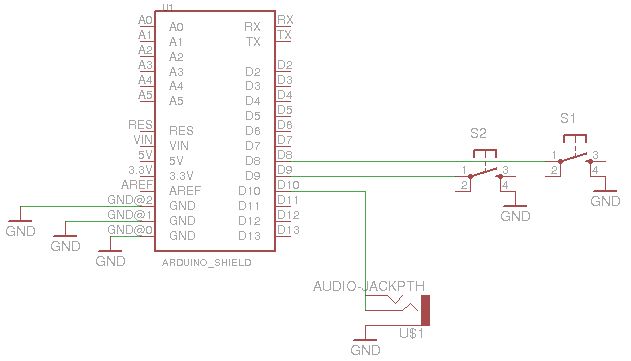
I have included a EagleCAD schematic above. REMEMBER IT IS VERY BASIC AND SO, DON’T NECCESSARILY TRY TO FOLLOW THE SCHEMATIC. I will move into Fritzing later on and will add results.
Connect one switch’s lead to ground on the Arduino. The other goes to Digital I/O Pin 8.
Do the same for the other except for using Digital 9 for the second switch.
Attach the Jack as shown. If you are using an 8ohm speaker, one wire to either 10 or 11 and the other to ground. Connect it to Pin 11 and Pin 12 for higher sound output…
 Loud Objects Noise Toy on Arduino.fz64 KB
Step 3: Test Your Lovely Circuit.
Plug in your Arduino. Open the IDE. Download the code from below. (Pick RandomBlipsAndBleeps_Metroid. (You can thank me later.)) Upload the code and listen.
If you have Windows or Mac, use Word to open the code.
Here is the code in which you can try in alphabetical order:
Major Components in Project
1 3.5mm female jack
1 speaker with or without an amp
Male Headers
1 Arduino UNO
- Which Arduino pins are used for the two buttons?
The article uses Digital I/O Pin 8 for one switch and Digital 9 for the other. - Which pins produce audio output to the speaker?
The article suggests using PWM pins 10 or 11, and mentions using Pin 11 and Pin 12 for higher sound output. - Do I need a 3.5mm jack?
Use a 3.5mm female jack only if your amp or speaker has a male jack; otherwise wire the speaker directly. - What type of speaker is recommended?
The article mentions an 8 ohm, 0.25 watt speaker as an example. - How do I get the code to upload in Arduino IDE?
Open the provided .pde sketches in the Arduino IDE and upload; the author notes successful compilation and upload using PWM-capable pins. - Can I use an AtTiny programming shield like the author tried?
The author tried an AtTiny programming shield but ultimately used an Arduino UNO because the AtTiny upload results were unsatisfactory. - Are the provided code filenames important?
The author renamed sketches with .pde filenames and provides a list to choose from, for example RandomBlipsAndBleeps_Metroid.pde. - Is there a schematic available?
The article includes an EagleCAD schematic but warns it is very basic and not strictly prescriptive.
