Interfacing(USB – RS232 – I2c -ISP) Projects

Arduino Switch case2 Statement

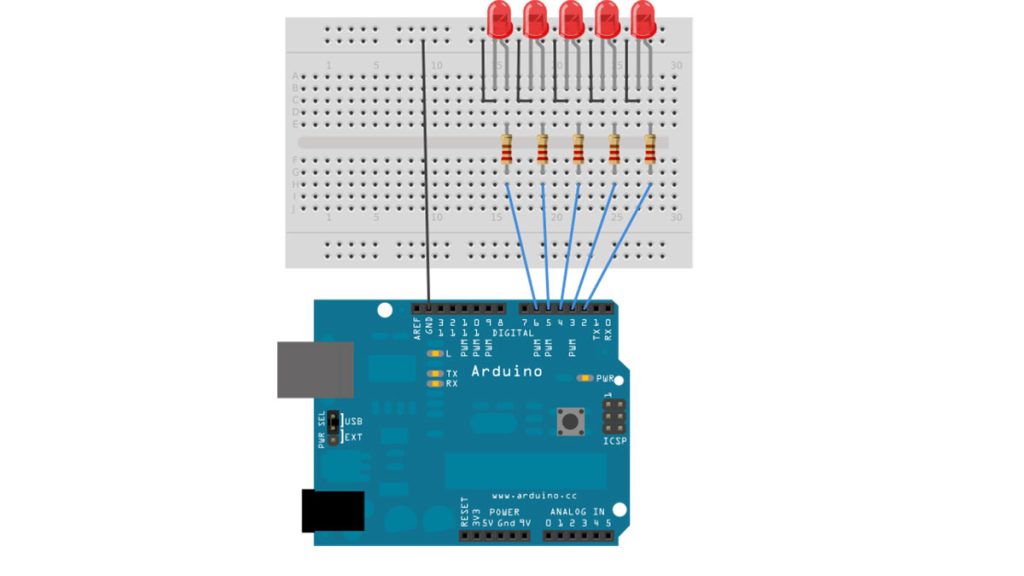
Arduino Switch (case) Statement, used with serial input

An if statement allows you to choose between two discrete options, TRUE or FALSE. When there are more than two options, you can use multiple if statements, or you can use the switch statement. Switch allows you to choose between several discrete options. This guide demonstrates how to utilize a switch to activate one of

Arduino Switch (case) Statement, used with serial input Continue Reading

arduino l3dgecomm

Arduino-l3dgecomm – Integrating L3DGEWorld and Arduino

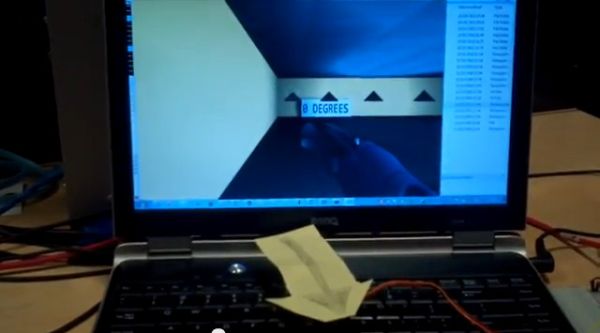
L3DGEWorld is a tool for monitoring and interacting with networks and computer systems. Within a 3D world, entities bounce, spin, scale and otherwise change. These entities all represent an entity in another context – be it a server, phone, router or other monitorable device. The visual transformations represent various characteristics of these entities, such as

Arduino-l3dgecomm – Integrating L3DGEWorld and Arduino Continue Reading

Serial Call and Response with ASCII encoded output using Arduino

Serial Call and Response with ASCII-encoded output using Arduino

This example demonstrates string-based communication from the Arduino board to the computer using a call-and-response (handshaking) method. The sketch sends an ASCII string on startup and repeats that until it gets a serial response from the computer. Then it sends three sensor values as ASCII-encoded numbers, separated by commas and terminated by a linefeed and

Serial Call and Response with ASCII-encoded output using Arduino Continue Reading

Serial Call and Response using Arduino

Serial Call and Response using Arduino

This example demonstrates multi-byte communication from the Arduino board to the computer using a call-and-response (handshaking) method. This sketch sends an ASCII A (byte of value 65) on startup and repeats that until it gets a serial response from the computer. Then it sends three sensor values as single bytes, and waits for another response

Serial Call and Response using Arduino Continue Reading

Arduino Simple keyboard

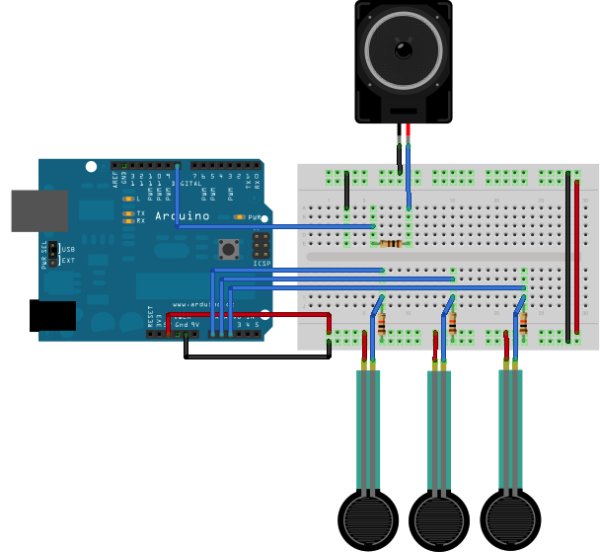
Simple keyboard using the tone() function using Arduino

This example shows how to use the tone() command to generate different pitches depending on which sensor is pressed.   Circuit Connect one terminal of your speaker to digital pin 8 through a 100 ohm resistor, and its other terminal to ground. Power your three FSRs (or any other analog sensor) with 5V in parallel. Connect each

Simple keyboard using the tone() function using Arduino Continue Reading

Scroll to Top