
Summary of Programming the ATtiny85 (Using an Arduino Uno)
This article explains how to program an ATtiny85 chip using an Arduino as a programmer via the Arduino IDE. It details the necessary hardware components, software installation steps for board support, and specific configuration settings within the IDE to establish communication between the two devices.
Parts used in the Programming an ATtiny85 with Arduino:
- Jumper wires
- 1 x 10 micro farad capacitor
- The ATtiny85 Chip
- A breadboard
- An Arduino
- 3 LED's (Optional)
- 1 x 330 Ohm Resistor (Optional)
- Extra jumper cables (Optional)
Today, we are going to build a circuit to program an ATtiny85 with our Arduino.
Supplies
We are going to need the following:
- Some jumper wires
- 1 x 10 micro farad capacitor
- The ATtiny85 Chip
- A breadboard
- An Arduino
For Extra visual’s (that are not really required) I’m going to add:
- 3 LED’s
- 1 x 330 Ohm Resistor
- And some extra jumper cables
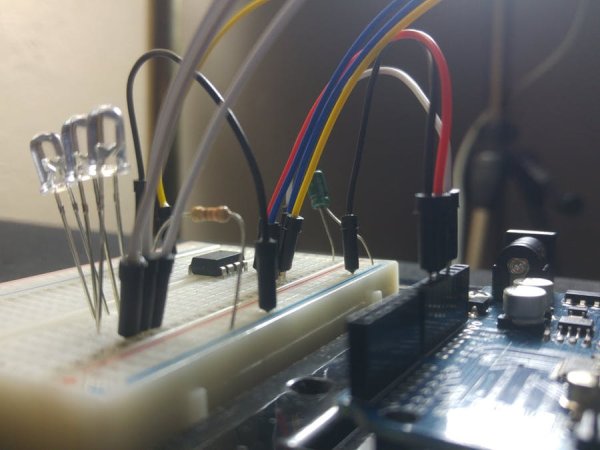
Before we start with the circuit build, head over to the Arduino IDE.
Arduino Software
Open the Sketch ArduinoISP from the File, Examples and ArduinoISP menus:
- Verify and upload this sketch to your Arduino
The Arduino software does not natively support the ATtiny85 so we need to add support for it.
- Open the Preferences Dialog from the File menu.
- Put the link into the “Additional Boards Manager URL“.
- Click OK!
ATTINY
- Open the Boards Manager from the Tools, Board Menus
- Select the ATtiny from the list once the software has updated
Note that you will require an internet connection for the ATtiny board manager to download.
- Search for ATtiny, either manually scrolling down the list, or typing “attiny” in the filter field.
- Click Install the (Use the latest version).
Program Setup
Lets set up the program to use the Arduino as a programmer.
- Select Arduino as ISP from the Tools, Programmer Menus
- Select ATtiny from the Tools, Board Menus
- Select ATtiny85 from the Tools, Processor Menus
- I’m selecting 16Mhz Internal from the Tools, Clock Menu
The chip has 8 pins, to program the ATtiny85 we are interested only 6 of them MISO, MOSI, SCK, RESET, Ground, and Positive.
If you look closely at the chip you will see a dot. This is Pin 1. Pin 2 through 8 follow in an anti-clockwise order around the chip.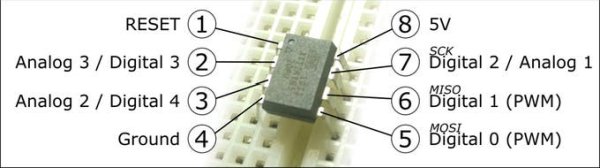
Conveniently the headers on the Arduino are easy to work with to program the ATtiny85.
For more detail: Programming the ATtiny85 (Using an Arduino Uno)
- What is the primary purpose of this project?
To build a circuit that programs an ATtiny85 chip using an Arduino. - Can I use the ATtiny85 without installing extra software?
No, the Arduino software does not natively support the ATtiny85 so you must add support via the Boards Manager. - How do I access the additional boards manager URL?
You open the Preferences Dialog from the File menu to paste the link into the Additional Boards Manager URL field. - Does the ATtiny board manager require internet access?
Yes, you will require an internet connection for the ATtiny board manager to download the necessary files. - Which sketch should be uploaded to the Arduino first?
You need to verify and upload the Sketch ArduinoISP found under the File, Examples, and ArduinoISP menus. - How many pins on the ATtiny85 are needed for programming?
Although the chip has 8 pins, you only need 6 of them for programming: MISO, MOSI, SCK, RESET, Ground, and Positive. - How can I identify Pin 1 on the ATtiny85 chip?
You look closely at the chip to see a dot which indicates Pin 1. - What processor setting should be selected in the Tools menu?
You should select ATtiny85 from the Tools, Processor Menus. - Which clock speed option is recommended for the setup?
The author selects 16Mhz Internal from the Tools, Clock Menu. - What is the best way to connect the headers for programming?
The headers on the Arduino are described as easy to work with to program the ATtiny85.
