
Summary of Arduino Esplora Accelerometer
This article explains how to read accelerometer data from an Arduino Esplora board using the Serial Monitor. By tilting the board, users can observe real-time changes in X, Y, and Z axis values ranging from 0 to 1023. The process involves initializing a serial connection at 9600 baud and utilizing the `Esplora.readAccelerometer()` function with specific axis arguments to retrieve and print the sensor readings.
Parts used in the Arduino Esplora Accelerometer Project:
- Arduino Esplora
- USB cable
This sketch shows you how to read the values from the accelerometer.
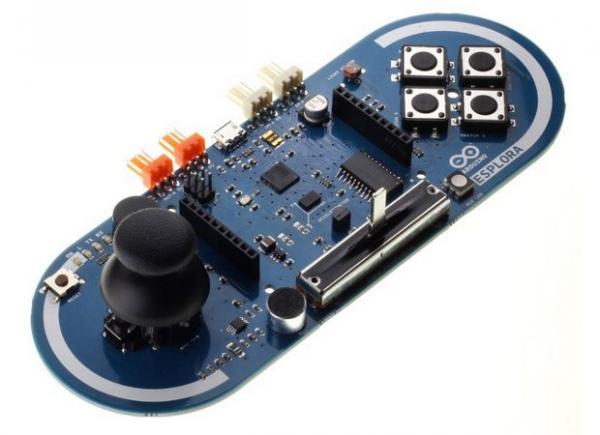
To see it in action, open the Arduino serial monitor on your computer and tilt the board. You’ll see the accelerometer values for each axis change as you tilt the board.
Circuit
Only your Arduino Esplora is needed for this example. Connect the Esplora to your computer with a USB cable and open the Arduino’s Serial Monitor.
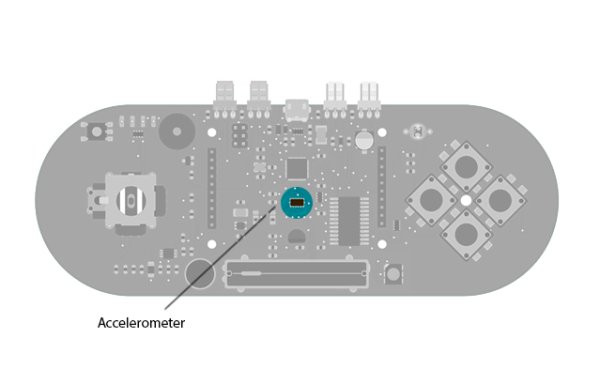
Accelerometer to send data to your computer from the Esplora
Code
To send data to your computer, you need to open a serial connection. use Serial.begin() to open a serial port at 9600 baud on the Esplora.
The Esplora.readAccelerometer() function gets the values from the accelerometer. It needs an argument telling it what axis you’re reading from: X_AXIS, Y_AXIS, or Z_AXIS. Each axis will give you a value between 0 and 1023.
To send the values to the Serial Monitor, you call Serial.print(). When the Esplora is connected, and the Serial Monitor is open, you should start to see values reported like this twice a second :
x: 6	y: -128	z: 27
x: 2	y: -138	z: 19
x: 9	y: -137	z: 20
Hardware Required
- Arduino Esplora
For more detail: Arduino Esplora Accelerometer
- How do I view the accelerometer values?
Open the Arduino serial monitor on your computer and tilt the board. - What function retrieves accelerometer values?
The Esplora.readAccelerometer() function gets the values from the accelerometer. - Which axes can be read from the accelerometer?
You can read from the X_AXIS, Y_AXIS, or Z_AXIS. - What is the range of values for each axis?
Each axis will give you a value between 0 and 1023. - How do I send data to the computer?
Call Serial.print() after opening a serial connection. - At what baud rate should the serial port be opened?
You need to open a serial port at 9600 baud. - Can I see the values change by tilting the board?
Yes, the accelerometer values for each axis change as you tilt the board. - How often are the values reported?
The values are reported twice a second.
