
Summary of Android talks to Arduino
This project modifies Google's Bluetooth Chat Android sample so typed messages on the phone are sent via Bluetooth to an Arduino Uno and displayed on a parallel LCD, and the Arduino sends a periodic message back to the Android app every 30 seconds. It includes hardware setup, software dependencies, and BAUD-rate configuration for the BlueSMiRF Gold to ensure reliable two-way communication.
Parts used in the Bluetooth Chat to Arduino LCD project:
- Arduino Uno (ATmega328, 16MHz, 5V)
- Bluetooth Modem: BlueSMiRF Gold / FireFly (Sparkfun WRL-00582)
- Parallel LCD (e.g., Sparkfun LCD-09051)
- 10k Potentiometer
- Wires for connections
- FTDI Basic USB-to-serial adapter (for changing BAUD)
- Android Phone
- Computer with Eclipse and Android Development Kit
- NewSoftSerial library (Mikal Hart)
- Hyperterminal or TeraTerm (to change BAUD)
- Bluetooth Chat Android sample code (Google)
- bluetooth_chat_LCD.pde Arduino sketch
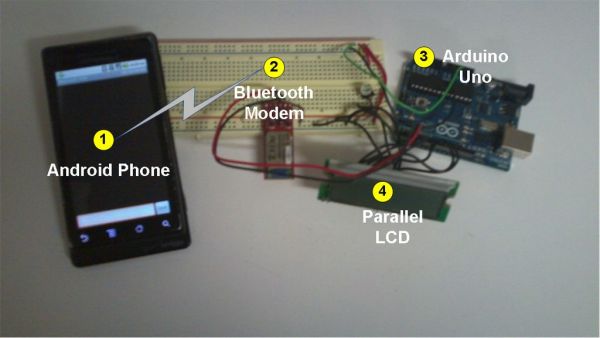
This project slightly modifies the Google Android sample app called “Bluetooth Chat” so you can type a message in the Android app and that same message will appear on an LCD attached to an Arduino Uno.
Functionality: Android talks to Arduino
1. Run the Android “Bluetooth Chat” sample app (after we modify the app in this instructable). Type a message in the app’s text box and press the “send” button. The message you typed echoes on the app display.
2. Message travels through the air from the built-in Android Bluetooth modem to the Bluetooth modem connected to the Arduino Uno.
3. Arduino Uno receives the typed message.
4. The Arduino Uno prints the typed message on the LCD.
Functionality: Arduino talks to Android
1. Every 30 seconds, the Arduino sends a message (“hello from Arduino”) to the Android phone via Bluetooth.
2. The Arduino message appears on the Android “Bluetooth Chat” sample app display.
Why? Just an easy way to test the Arduino’s ability to not only receive messages from, but send messages to the Android phone. You can take the example sketch and change it however you want.
Here’s the full video instruction that we’ll break out into steps:
Step 1: Hardware list
Hardware
– Arduino Uno (328, 16MHz, 5V).
– Bluetooth Modem: BlueSMiRF Gold, aka FireFly (Sparkfun sku: WRL-00582).
– Parallel LCD (Sparkfun sku: LCD-09051 but you can use pretty much any parallel LCD).
– 10k Potentiometer.
– Wires to connect electronic components.
– Computer and FTDI chip (to change BAUD rate).
– Android Phone (I used a Motorola Droid – operating system v2.2.2 – but Google has sample code for all versions).
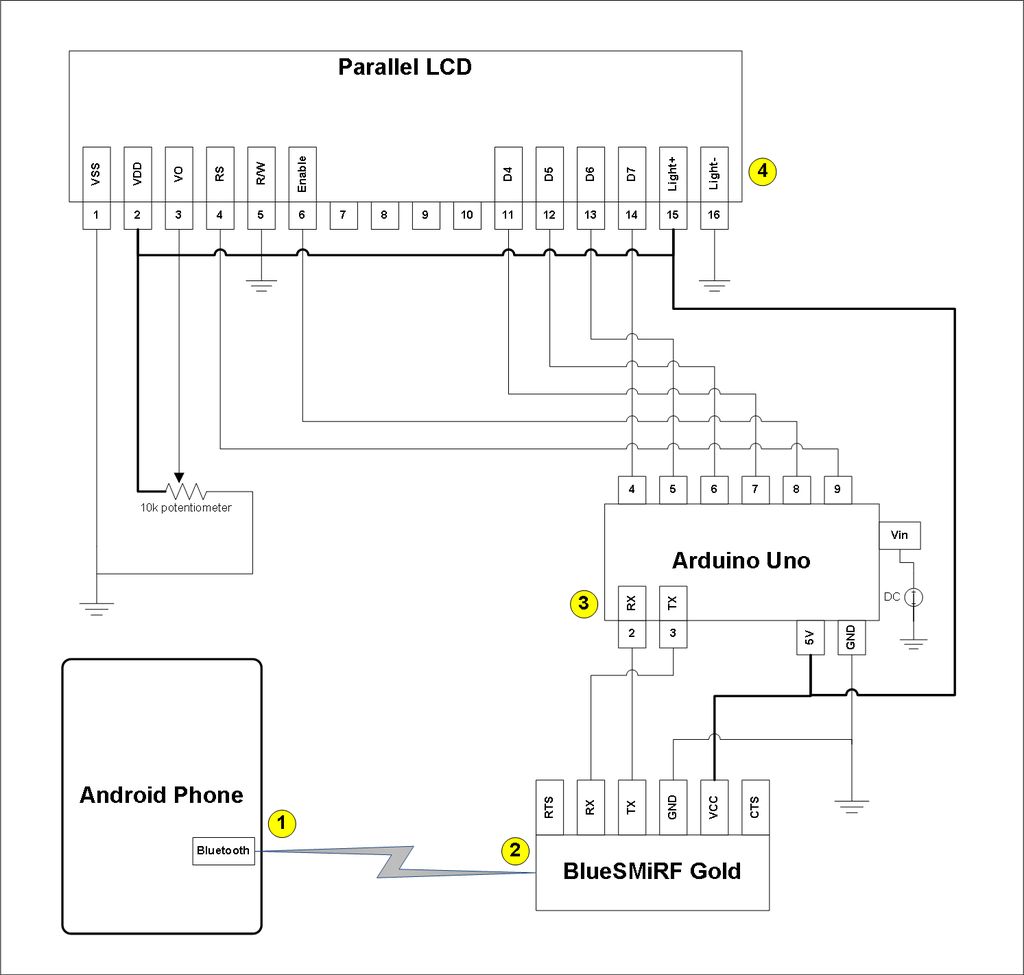
Assemble your circuit as shown in the diagram. You don’t have to assemble anything between circle #1 and circle #2: that is the message going through the air from Android to the Bluetooth modem. Hey, I’m an Arduino beginner so I’m not assuming anything. 🙂
Step 2: Software List
– Arduino Source code from this project (bluetooth_chat_LCD.pde attached below)
– NewSoftSerial library from Mikal Hart: http://arduiniana.org/libraries/newsoftserial/
– Eclipse
– Android Development Kit (explicitly follow all of Google’s installation instructions)
– “Bluetooth Chat” Android sample code from Google: http://developer.android.com/resources/samples/BluetoothChat/index.html
– Hyperterminal or TeraTerm to change BAUD rateAndroid Beginners (like me):
Make sure you do at least a couple tests before you execute the rest of this instructable:
– Create a “hello, world” app (lots of examples out there) to make sure you have Android/Eclipse setup correctly to run an app on a virtual device.
– Plug in your Android phone and ensure that you can copy the “hello, world” app to your phone. Make sure your phone has debugging turned on. Settings –> Applications –> Development –> USB debugging (turn it on)After you successfully copy an Android app to your actual phone, you can proceed with this instructable. Keep in mind that you are not going to be able to run this instructable on a virtual device; you have to have a real phone to deploy the “Bluetooth Chat” code.
 bluetooth_chat_LCD.pde
Step 3: Change BAUD rate on BlueSMiRF Gold
Change the BAUD rate from the default 115.2k to 57.6k. If you leave the BAUD at 115.2k, the parallel LCD will display gibberish when you send a message from Android to Arduino. If you set the BAUD below 57.6k, the Android phone will “cut up” the message that the Arduino sketch sends every 30 seconds. So 57.6k BAUD is just right.
*Commands to set BAUD: http://www.sparkfun.com/datasheets/Wireless/Bluetooth/rn-bluetooth-um.pdf
*Video instructions on how to change BAUD:
http://www.instructables.com/id/Change-BAUD-rate-on-BlueSMiRF-Gold/
FTDI Basic chip: http://www.sparkfun.com/products/9716
– Bluetooth Modem
– Parallel LCD
For more detail: Android talks to Arduino
- What does this project do?
It sends typed messages from the Android Bluetooth Chat app to an Arduino which displays them on an LCD, and the Arduino sends a message back every 30 seconds. - What hardware is required?
Arduino Uno, BlueSMiRF Gold Bluetooth modem, parallel LCD, 10k potentiometer, wires, FTDI adapter, Android phone, and a computer. - What software is required?
Arduino sketch bluetooth_chat_LCD.pde, NewSoftSerial library, Eclipse, Android Development Kit, and Google's Bluetooth Chat sample code. - How should the BlueSMiRF BAUD rate be set?
Set the BlueSMiRF Gold BAUD rate to 57600 (57.6k) for correct LCD display and reliable messaging. - Why not use the default 115200 BAUD?
At 115200 the parallel LCD displays gibberish when receiving messages from Android. - What happens if BAUD is set below 57600?
If BAUD is set below 57.6k the Arduino messages sent every 30 seconds may be cut up on the Android phone. - Can I run the Android app on an emulator?
No; you must deploy the Bluetooth Chat app to a real Android phone to use Bluetooth communication. - How often does the Arduino send a message to Android?
The Arduino sends hello from Arduino every 30 seconds. - Where can I find instructions to change the BlueSMiRF BAUD?
The Sparkfun RN Bluetooth user manual and linked video instructions explain how to change BAUD.
