Summary of Reef Controller
This article details a remote-controlled Reef/Saltwater Aquarium controller using an Arduino MKR1000. The system automates lighting schedules via an RTC, monitors tank temperature to trigger cooling fans, and controls pumps for feeding safety. It features an LCD display for real-time status and is managed through a custom Universal Windows Platform (UWP) app that sends HTTP requests for configuration and retrieves JSON status updates.
Parts used in theReef Controller:
- Arduino MKR1000
- Adafruit Perma-proto board full size
- Adafruit I2C logic level converter
- Adafruit RGB LCD Shield Kit I2C 16x2
- SainSmart 2-Channel Relay Module
- Holdding DS3231 AT24C32 IIC
- SparkFun Waterproof Temp Probe d218b20
- Adafruit N Channel Power MosFT
- Adafruit RGB LED Strip
A Reef / Saltwater Aquarium controller based on an Arduino Mrk1000 and controlled remotely by an Universal Windows Platform app.
On a reef tank the temperature and lighting schedule are critical functions that can’t be left to a person to do manually. A completely automatic system isn’t good when you need to do maintenance on the tank or if something happens when you’re away. So an automatic controller like an arduino that can receive commands and send it’s status is an ideal setup. I saw the Mkr1000 and wanted to build this project on one. Luckily Arduino decided my project was good enough to warrant a free board!
Currently this project allows me to run 3 LED channels that fade in and out according to the time of day, set by the rtc. It also monitors the tank temp and turns on a cooling fan if the temp gets too high. Finally it allows me to shut off the pumps so that I can feed the fish without all the food being sucked into the overflow. All of this is controllable from a Universal Windows Platform app. Every time the arduino receives an http request it returns a json string with the status of the tank/controller. Simple get commands allow you to change the functions of the controller.
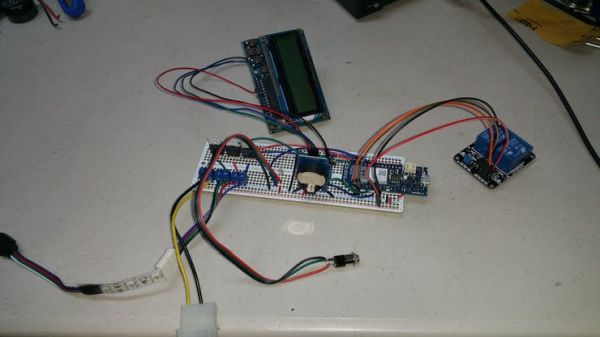
mkr1000 board all soldered up and tested. Just need to stuff it in a project box.
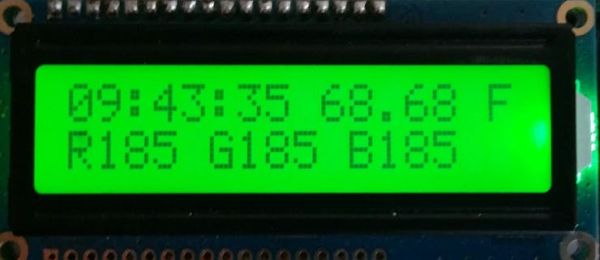
The lCD module displays the time and tank temp as well as the led outputs. If the temperature gets too hi the display goes from green to red and the LEDs are dimmed to help control the temperature until the fan can bring it back down.
lcd screen with time, temp and led outputs
While the project is up and running it is by no means done. I’m hoping to add in the ability to control the functions via the menu buttons on the LCD and update the UWP app to monitor and configure my quarantine tank controller as well. I’m also close to pushing data to my Azure IoT hub but I ran out of time. I think this will be a nice addition so that I can track tank parameters over time.
I wrote the Arduino code using 1.6.7 of their ide. I used their SAMD 1.6.3 board library for the mkr1000. I also used a lot of ADAFruit libraries, including CC3000 for the Mega version, RGBLCDShield and RTC_ds3231. I used the Wifi101 library for the mkr1000 version and the dallas one wire library for the temp probe.
For the UWP I used Visual Studio 2015 Pro with Git Hub installed. The code is written in VB.net. Make sure you set the device’s ip address in the device constant for the program. Other than that it should be ready to use.



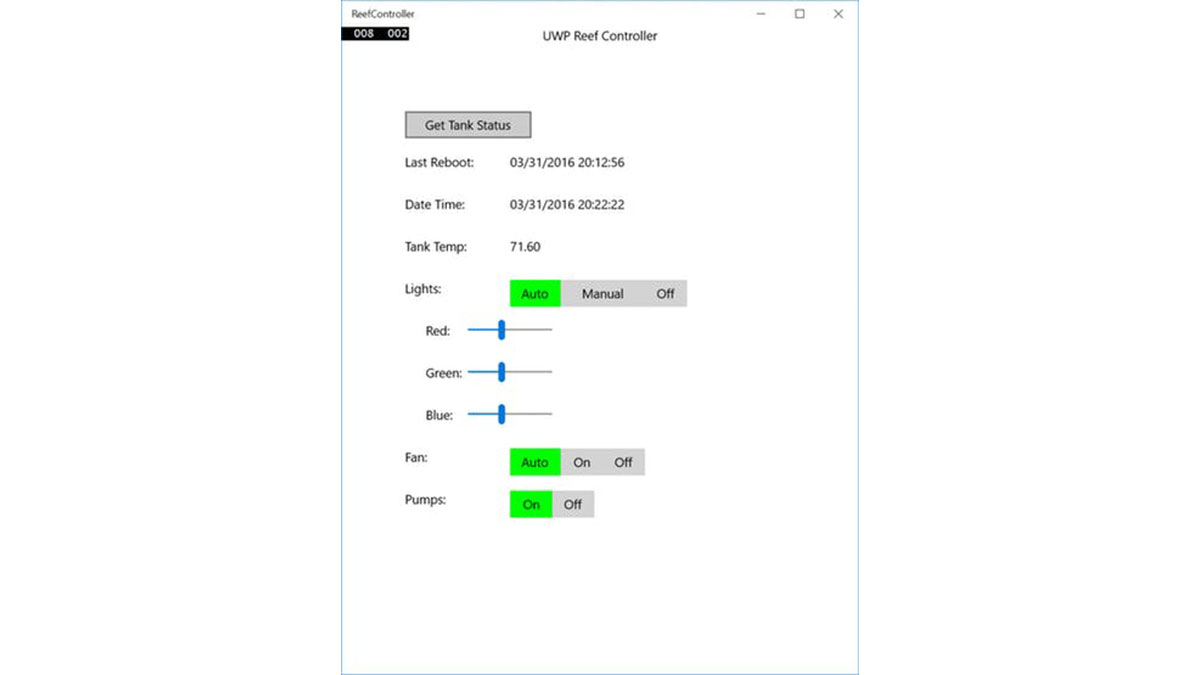 UWP aop
