
Summary of Send SMS from Arduino over the Internet using ENC28J60 and Thingspeak
This article details a project to send free SMS messages from an Arduino via the internet using Thingspeak and Twilio. It compares three methods but focuses on the third, which works with Ethernet shields, ENC28J60 modules, and WiFi without special libraries beyond standard Ethernet ones. The process involves setting up accounts on Twilio and Thingspeak, configuring a ThingHTTP channel, and uploading a simple Arduino sketch that triggers an HTTP POST request to send the message.
Parts used in the Send SMS from Arduino over the Internet:
- Arduino Uno or equivalent
- Ethernet shield
- ENC28J60 Ethernet module
- WiFi module or shield (ESP8266)
- Twilio account
- Thingspeak account
- Arduino UIP library
This Instructable explains how to send an SMS from an Arduino using the Internet. There are many ways to approach this and I will explain one of the different methods used to accomplish this task.
Some major points needed for my project:
- I have a standard Ethernet shield, and ENC28J60 Ethernet module, and I needed my program to work with both and also over a wifi connection (using the ESP8266 – I just ordered some to test)
- I would like the SMS service to be free
So aside from the hardware, I found three main ways to interface with the Arduino and send an SMS.
 Using Temboo to send an SMS through Twilio
- Using Lithouse connected to IFTTT to send an SMS
- Using Thingspeak ThingHTTP to send an SMS through Twilio
I tested all of these methods, and only one successfully worked on my ENC28J60 Ethernet module, the target I was going for. But more importantly the code on the Arduino side is very simple, and should work using WiFi or Ethernet without any special libraries, other than the standard Ethernet communication libraries.
So again I will only explain method number 3. If you want to use another method there are other guides on the internet, but I felt like Thingspeak ThingHTTP is slighjtly undocumented.
Step 1: Setup
The hardware is pretty simple.
- Arduino Uno, or equivalent
- A connection to the internet, using an Ethernet shield, the ENC28J60 Ethernet module, or a WiFi module/shield
The software is a little more complicated to set up.
Since the Arduino does not support HTTPS, we are going to use Thingspeak to trigger Twilio.
You will need:
- A Twilio account. Register at https://www.twilio.com/try-twilio. After signing up, verify your number.
- A Thingspeak account. Register at https://thingspeak.com/users/sign_up
If you are using the ENC28J60 or wifi module, you will need the acompaning libraries. For the ENC28J60, I reccomend Arduino UIP. Download the zip and move it to the libraries folder. https://github.com/ntruchsess/arduino_uip
Okay now that’s all set up, we will start the configuration.
Step 2: Configuring Thingspeak ThingHTTP
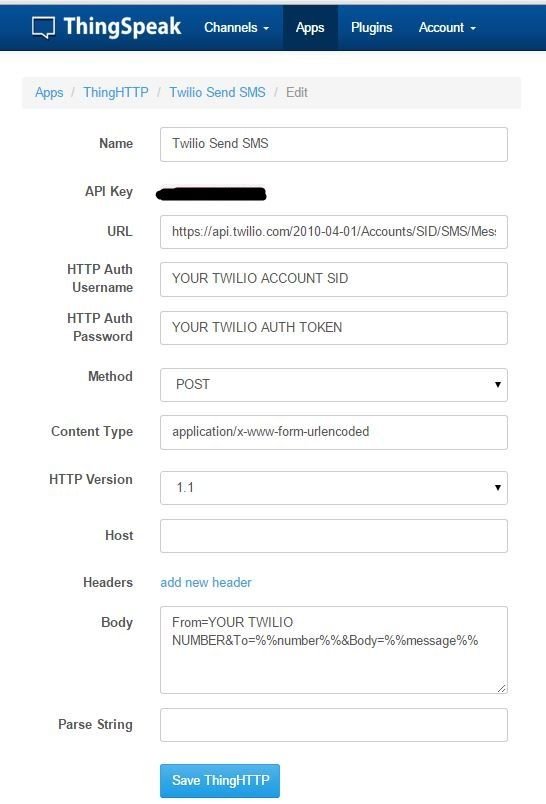
Go to Thingspeak.com, click on apps, then ThingHTTP, and then New ThingHTTP. This will take you to the setup page. You will have to find your Twilio account SID and auth token on your Twilio dashboard page
Copy the following data into the fields. Where italics and caps you must replace with the data from Twilio.
- Name it Twilio Send SMS
- URL is https://api.twilio.com/2010-04-01/Accounts/YOUR TWILIO ACCOUNT SID/SMS/Messages
- HTTP Auth Username is YOUR TWILIO ACCOUNT SID
- HTTP Auth Password is YOUR TWILIO AUTH TOKEN
- Set the method to POST
- Content type is application/x-www-form-urlencoded
- Click remove headers, and leave host blank
- Body = From=YOUR TWILIO NUMBER&To=%%number%%&Body=%%message%%
Click Save ThingHTTP
Take note of the API key for your ThingHTTP. You will need it in the Arduino sketch
Step 3: Arduino Side
The Arduino will need a connection to the internet, again the Ethernet shield and ENC28J60 Ethernet module will both work, and Wifi will too with some small changes to the program
Here is a guide to connect the ENC28J60 to the Arduino http://www.instructables.com/id/Add-Ethernet-to-a…
This code will work both with the Arduino Ethernet Shield and the ENC28J60 Ethernet module, with a simple modification. Download the file and change the API key and phone number to your own, then upload it.
Test the program, and hopefully within a few seconds your phone will receive the SMS. The Serial monitor will also display some helpful information for debugging.
Good luck and hope this was helpful!
For more detail: Send SMS from Arduino over the Internet using ENC28J60 and Thingspeak
- How can I send an SMS from an Arduino for free?
You can use Thingspeak to trigger Twilio, which allows you to send SMS messages at no cost. - Which hardware modules does this project support?
The project supports the standard Ethernet shield, the ENC28J60 Ethernet module, and WiFi connections using modules like the ESP8266. - Does the code require special libraries for WiFi or Ethernet?
No, the code uses standard Ethernet communication libraries and should work without special libraries other than those needed for your specific hardware connection. - What software accounts are required to set up this system?
You need a Twilio account to verify your number and a Thingspeak account to configure the ThingHTTP app. - Why is HTTPS not used in this setup?
The Arduino does not support HTTPS, so the project uses Thingspeak to trigger Twilio instead. - How do I configure the ThingHTTP body parameters?
You must set the body to From=YOUR TWILIO NUMBER&To=%%number%%&Body=%%message%% within the ThingHTTP configuration page. - Can I use the same code for both Ethernet and WiFi?
Yes, the provided code works with both the Ethernet shield and ENC28J60 module, with only small modifications needed for WiFi. - Where do I find my Twilio credentials?
Your Twilio Account SID and Auth Token are located on your Twilio dashboard page.
