
Summary of Servo Motor Control using MATLAB
This tutorial explains how to connect Arduino directly to MATLAB for programming, particularly useful for complex robotics. It involves downloading the Arduino support package, extracting it to an "ArduinoIO" folder, and uploading a specific sketch (adioes.pde) via the Arduino IDE. Finally, users set the current folder in MATLAB to access functions like `arduino(comport)` for control.
Parts used in the Arduino-Matlab Connection:
- Arduino board
- Matlab software
- Arduino IDE
- Arduino support package
- ArduinoIO folder
- adioes.pde file
- Servo motors
In this tutorial you will learn to make direct connection between your Arduino and Matlab, so that you can program your Arduino directly through Matlab. It is very useful when you are working on complex robotics like Robotic Hand, Humanoid etc. as you can process your complex program on your PC in Matlab and then directly program the results in Arduino.
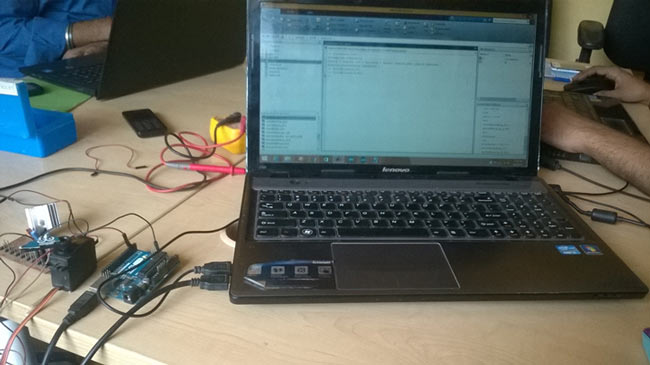
So let’s get started:
First of all you have to download Arduino support package from Matlab. You can download it by using following link:
http://in.mathworks.com/hardware-support/arduino-matlab.html
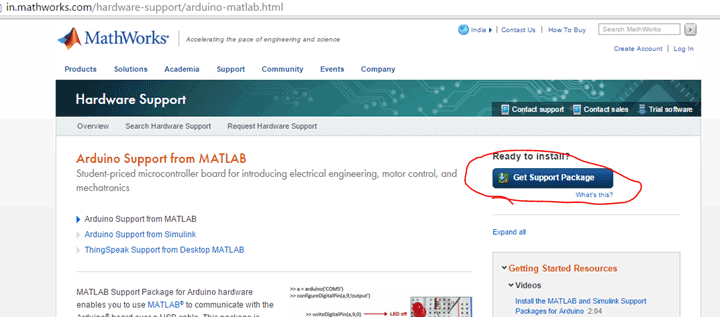
It will download a compressed file, so first of all uncompressed it and save it in the folder and name the folder ArduinoIO. Now open the Arduino IDE, I am using Arduino 1.0.6, click on the file menu and then open the ArduinoIO folder and select the .pde file of your interest from the Pde folder. I selected adioes.pde as it allows us to control servo motors. You may select other programs according to your choice. You may learn about various pde file by just opening it in Arduino IDE.
Now the final step will be to upload the program adioes.pde on your Arduino and now we will move on to Matlab.
I will try to teach you about Matlab code using picture so that it can be easy in understanding.
The most important thing is to select the ArduinoIO folder as your current folder in Matlab. You can do it by clicking on ‘browse the folder’.
Now after your current folder is selected, you can click on arduino.m to get all the function and commands which you can use. You can see that, first command is arduino(comport).
Read More: Servo Motor Control using MATLAB
- Why is connecting Arduino to Matlab useful?
It allows processing complex programs on a PC in Matlab and directly programming the results into Arduino. - How do I download the necessary support package?
You can download it from the MathWorks hardware support link provided in the article. - What should I name the extracted folder?
The uncompressed folder must be named ArduinoIO. - Which Arduino version is recommended for this tutorial?
The author uses Arduino 1.0.6. - What file type should be opened in the Arduino IDE?
You need to select a .pde file from the Pde folder inside the ArduinoIO directory. - Which specific program is selected to control servo motors?
The adioes.pde file is selected for controlling servo motors. - How do you set the working directory in Matlab?
You must click browse the folder to select the ArduinoIO folder as your current folder. - What command is used first in the Matlab arduino.m file?
The first command listed is arduino(comport).
