
Summary of Arduino Esplora Remote
This article describes a Processing sketch project that interacts with an Arduino Esplora board. The software reads sensor data and controls the buzzer and RGB LED via a graphical interface, mirroring the physical board on screen. Users can choose between a simple text-based or advanced graphic-based sketch. Alternatively, serial commands can be used without Processing.
Parts used in the Arduino Esplora Remote:
- Arduino Esplora
- Processing environment
- Buzzer
- RGB LED
This example is designed to be used with a Processing sketch. Processing is an open source programming environment. The application on the computer reads the sensors on the Esplora board and controls the buzzer and the RGB LED through a graphical interface. The image in the Processing application mirrors the Esplora board, so you’ll see a virtual version of your board.
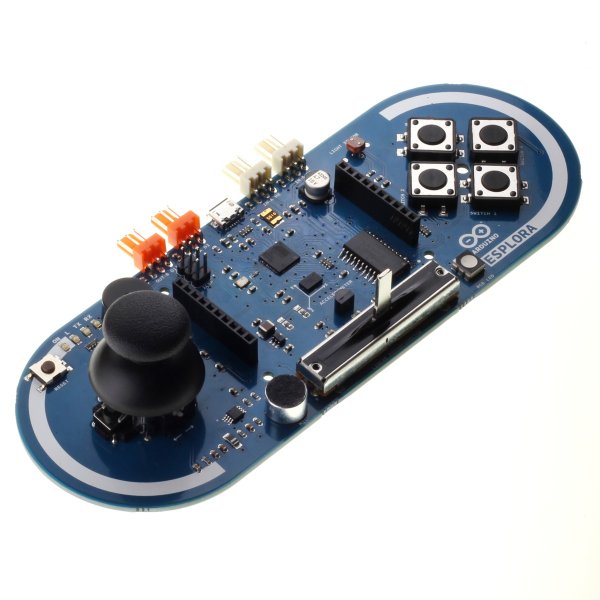
If you don’t have Processing installed on your computer, you can also test this example opening the serial monitor and interacting with the Esplora trough serial commands.
There are two Processing sketches that work with this example, a simple one that prints the sensors in text, and a more complex one that shows a graphic representation of the Esplora. The former may be better for beginning Processing programmers, and the latter may be better for advanced Processing programmers.
Download the zip file containing the simple Processing sketch for this example.
Download the zip file containing the advanced Processing sketch for this example.
You only need to unzip this folder inside your Processing sketches folder, and open the .pde file in Processing.
Software Required
Circuit
Only your Arduino Espora is needed for this example.
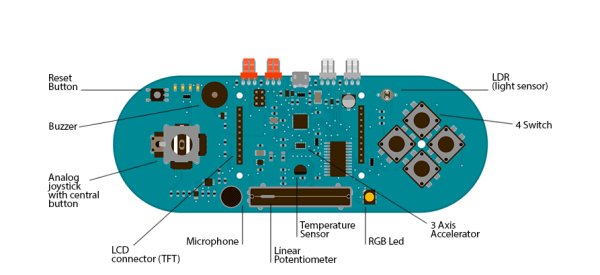
Esplora board
Code
This example opens a serial interface to the Esplora. You’ll ask the board to read the sensors or write to the buzzer or RGB LED by sending commands over the Esplora’s serial port.
Hardware Required
- Arduino Esplora
For more detail: Arduino Esplora Remote
- What is the primary function of this example?
The application reads sensors on the Esplora board and controls the buzzer and RGB LED through a graphical interface. - How does the image in the Processing application relate to the hardware?
The image mirrors the Esplora board, showing a virtual version of your board. - Can I test this example without installing Processing?
Yes, you can test it by opening the serial monitor and interacting with the Esplora through serial commands. - What are the two types of Processing sketches available?
There is a simple one that prints sensors in text and a more complex one showing a graphic representation. - Which sketch is better for beginning programmers?
The simple sketch that prints sensors in text is better for beginning Processing programmers. - How do I install the provided sketches?
You only need to unzip the folder inside your Processing sketches folder and open the .pde file. - Does this example require any additional circuit components?
No, only your Arduino Esplora is needed for this example. - How does the code communicate with the board?
The example opens a serial interface to send commands over the Esplora's serial port to read sensors or write outputs.
