
Summary of Arduino FIO Tutorial
The Arduino Fio is a 3.3V, 8MHz microcontroller board designed for wireless applications using XBee. It features 14 digital I/O pins, 8 analog inputs, and an on-board LiPo charging circuit. The board arrives without headers, requiring users to solder connections via FTDI pins for programming or standard female headers for prototyping. It supports both wired USB-to-TTL communication and wireless sketch uploads via modified XBee adapters.
Parts used in the Arduino Fio Project:
- Arduino Fio Microcontroller Board
- ATmega328P Microcontroller
- Lithium Polymer Battery
- USB-to-TTL Cable (FTDI)
- Sparkfun Breakout Board
- XBee Explorer USB Adaptor
- 0.1 Male Right-Angle Headers
- Screw Terminals
- Single-Row Female Headers
- Breadboard
Overview
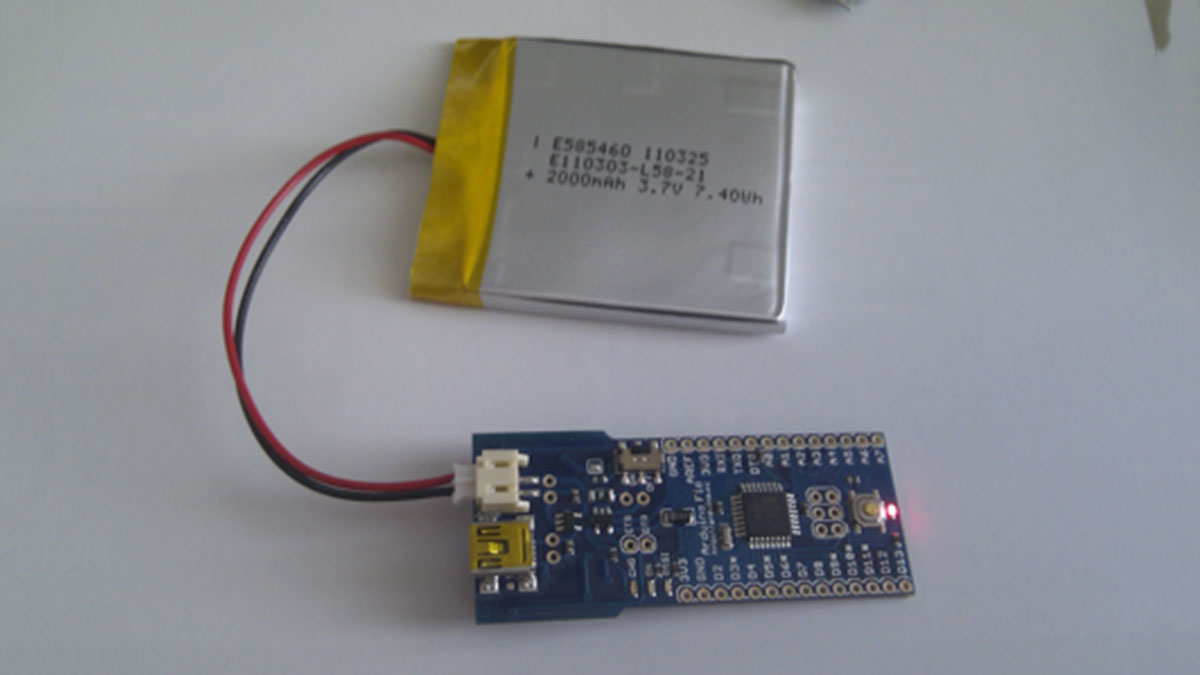
The Arduino Fio is a microcontroller board based on the ATmega328P (datasheet) runs at 3.3V and 8 MHz. It has 14 digital input/output pins (of which 6 can be used as PWM outputs), 8 analog inputs, an on-board resonator, a reset button, and holes for mounting pin headers. It has connections for a Lithium Polymer battery and includes a charge circuit over USB. An XBee socket is available on the bottom of the board.
The Arduino Fio is intended for wireless applications. The user can upload sketches with an a FTDI cable or Sparkfun breakout board. Additionally, by using a modified USB-to-XBee adaptor such as XBee Explorer USB, the user can upload sketches wirelessly. The board comes without pre-mounted headers, allowing the use of various types of connectors or direct soldering of wires.
The Arduino Fio was designed by Shigeru Kobayashi and SparkFun Electronics, and manufactured by SparkFun Electronics.
(source: Arduino FIO reference page)
Initial Setup
Solder FTDI Pin Headers
- You need six pins to connect the FTDI cable and program the FIO.
- One approach is to attach 0.1″ male right-angle headers (6 position) on the underside of the board.
- Attach the pins to the labelled FTDI area on underside of board, with pins pointed inwards.
- This is where you will attach the USB-to-TTL cable to program the board:
-
Input/Output Pins
- Approach 1. Permanent Soldered Connections:
- Soldered Solder connections to sensors, inputs, outputs AS NECESSARY. Be careful soldering and desoldering so as not to destroy the board. This is your most permanent attachment solution.
- Good for permanent installation of the FIO, applications with lots of motion, wearable devices.
- Approach 2. Screw Terminals:
- Solder screw terminals to inputs and outputs as needed. These will give you strong but flexible (reusable) input and output connections.
- Pins can be repurposed at a later point.
- Screw terminals will secure peripherals in a semi-permanent manner.
- Approach 3: Arduino Standard
- Solder on the typical arduino single-row female headers to the top side of the board.
- This will give you flexibility for prototyping with less permanent connections than the previous options.
- You can stack “shield” type protoboards on the xbee with this setup.
- With male single-row headers in a breadboard, you can use the fio for breadboarding:
-
Using the TTL Cable
Wired Programming
- Remove the XBee module if you have one attached to the FIO. The Xbee and the serial adapter share the same TX/RX pins. THey will interfere with each other. You can reconnect the xbee when you are done uploading a program.
- Connect a 3.3V FTDI cable to the correct pins on the Xbee. Be sure to match colors as described on the underside of the board:
- The FTDI cable will power the FIO (3V3 and GND) from the USB port, as well as communicate with the device. You do not need the battery pack or mini-USB charging cable attached.
- Upload a simple Blink (or meaningful blink) program. When done uploading, you should see it execute on the bright red led on the bottom of the FIO board.
- Disconnect the FTDI cable and power the device from the LiPO battery pack. Does the blinking still work?
Wired Operation
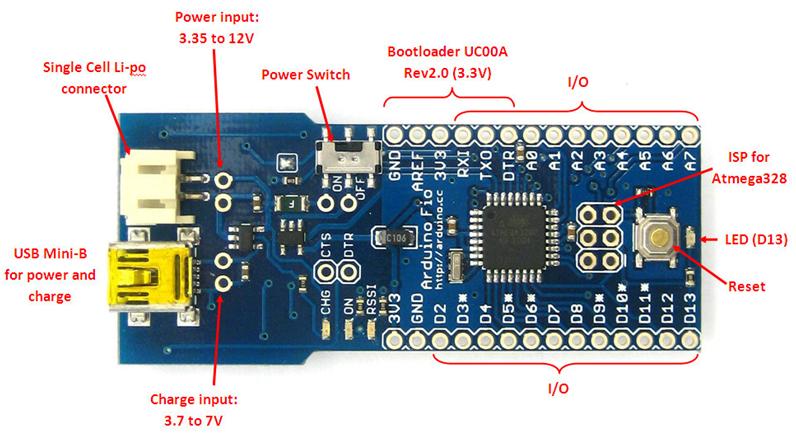
- With the FIO connected to the FTDI cable, you can use the FIO just like a normal arduino.
- Data well be sent and received over the TX and RX pins, and show up on the computer through the serial port.
- All the same input/output circuits, low-high current interface concerns are present.
- NOTE: The FIO is a 3.3V device (not 5V like the UNO). This changes values for any resistors in voltage divider circuits, LED outputs, as well as affecting how you use any powered peripherals (like IR range finders).
For more detail: Arduino FIO Tutorial
- How do you upload sketches to the Arduino Fio?
You can upload sketches using an FTDI cable, a Sparkfun breakout board, or a modified USB-to-XBee adaptor for wireless uploading. - Does the Arduino Fio operate at 5V like the UNO?
No, the FIO is a 3.3V device, which affects resistor values and powered peripherals compared to 5V boards. - What components are required to connect the FTDI cable?
You need six pins, such as 0.1 male right-angle headers, attached to the labelled FTDI area on the underside of the board. - Can you use the Fio with an XBee module during programming?
No, you must remove the XBee module because it shares TX/RX pins with the serial adapter and will interfere. - What is the best way to create permanent connections on the Fio?
Soldering direct connections to sensors or inputs/outputs is the most permanent solution for fixed installations. - How do you power the Fio when using an FTDI cable?
The FTDI cable powers the Fio from the USB port through the 3V3 and GND pins, so no battery is needed. - What types of connectors can be used if headers are not pre-mounted?
Users can solder screw terminals for reusable connections or standard single-row female headers for prototyping. - Which LED indicates successful program execution?
A bright red LED located on the bottom of the Fio board lights up when a program executes.
