
Summary of Improved Fan Cart Using Arduino
This article details the development of Fancart v2.1, an upgraded Arduino-controlled fan cart featuring a custom PCB and enhanced functionality. The new design allows for precise control over speed, direction, and timing modes using three buttons and LEDs. Key improvements include the ability to toggle between three operational modes: toggling on magnet detection, timed activation, or reversing direction upon sensing a magnet. The device is compact enough to fit into standard PASCO fan cart holders.
Parts used in the Fancart v2.1:
- Arduino controller
- L293D quad half-H chip (driver)
- Custom EagleCAD PCB board
- PASCO fan cart board-holder
- Three push buttons (Mode, Speed, Time)
- LED indicators
- Magnet sensor
- Fan motor
In an earlier post I described an Arduino-controlled fan cart. The driver I used was an L293D quad half-H chip, because I had one handy and was out of simpler parts at the time. It’s always bugged me that I was just controlling speed on that cart, since it’s possible to control direction with an H-bridge also.
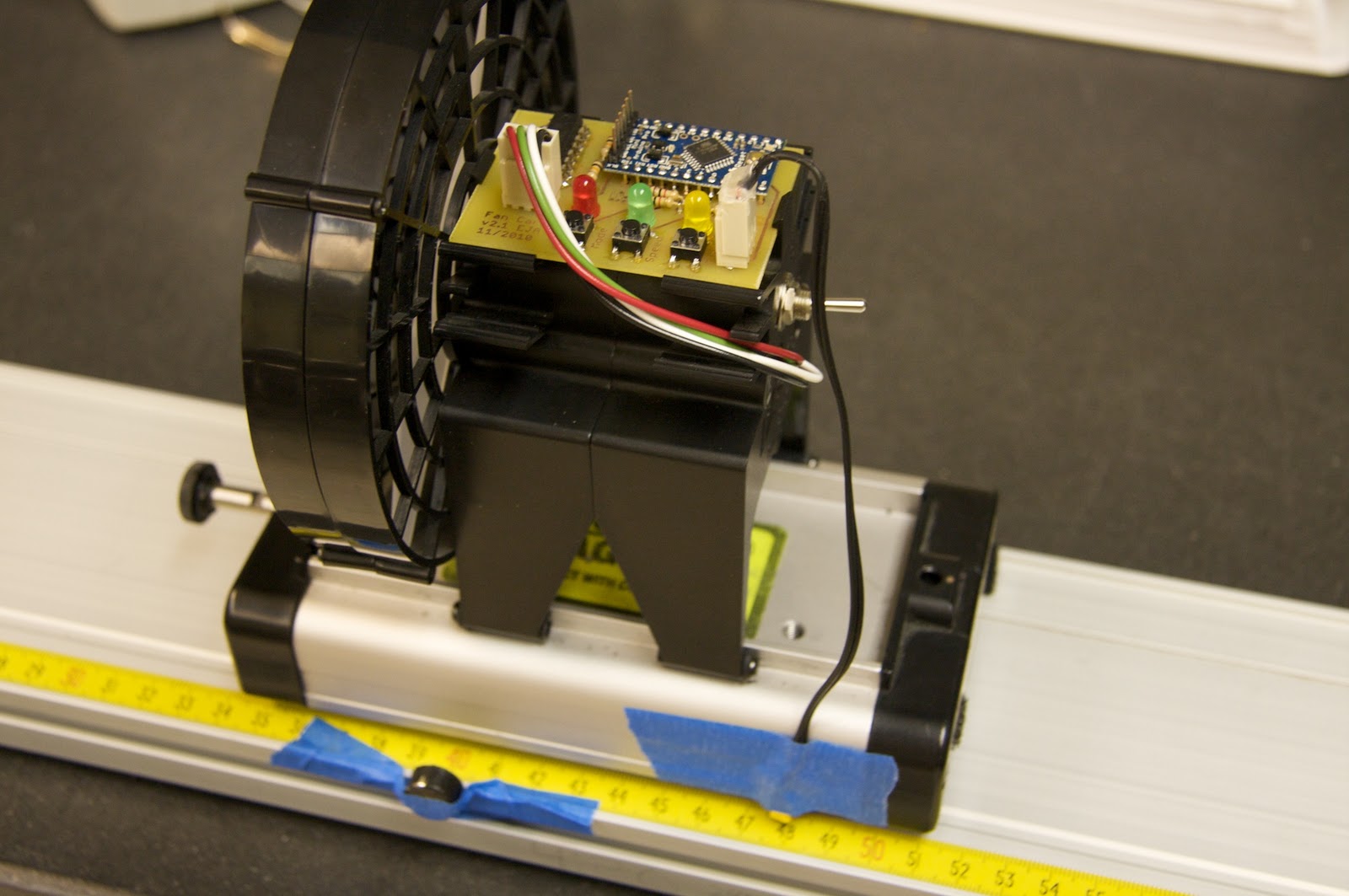
I’d also gotten several suggestions of other features the fan-cart could have; and I’ve learned a bit about EagleCAD recently too, so I went back and re-did the device. Here it is: Fancart v2.1. I sized the board so that it fits in the board-holder notches on the top of the PASCO fan cart.
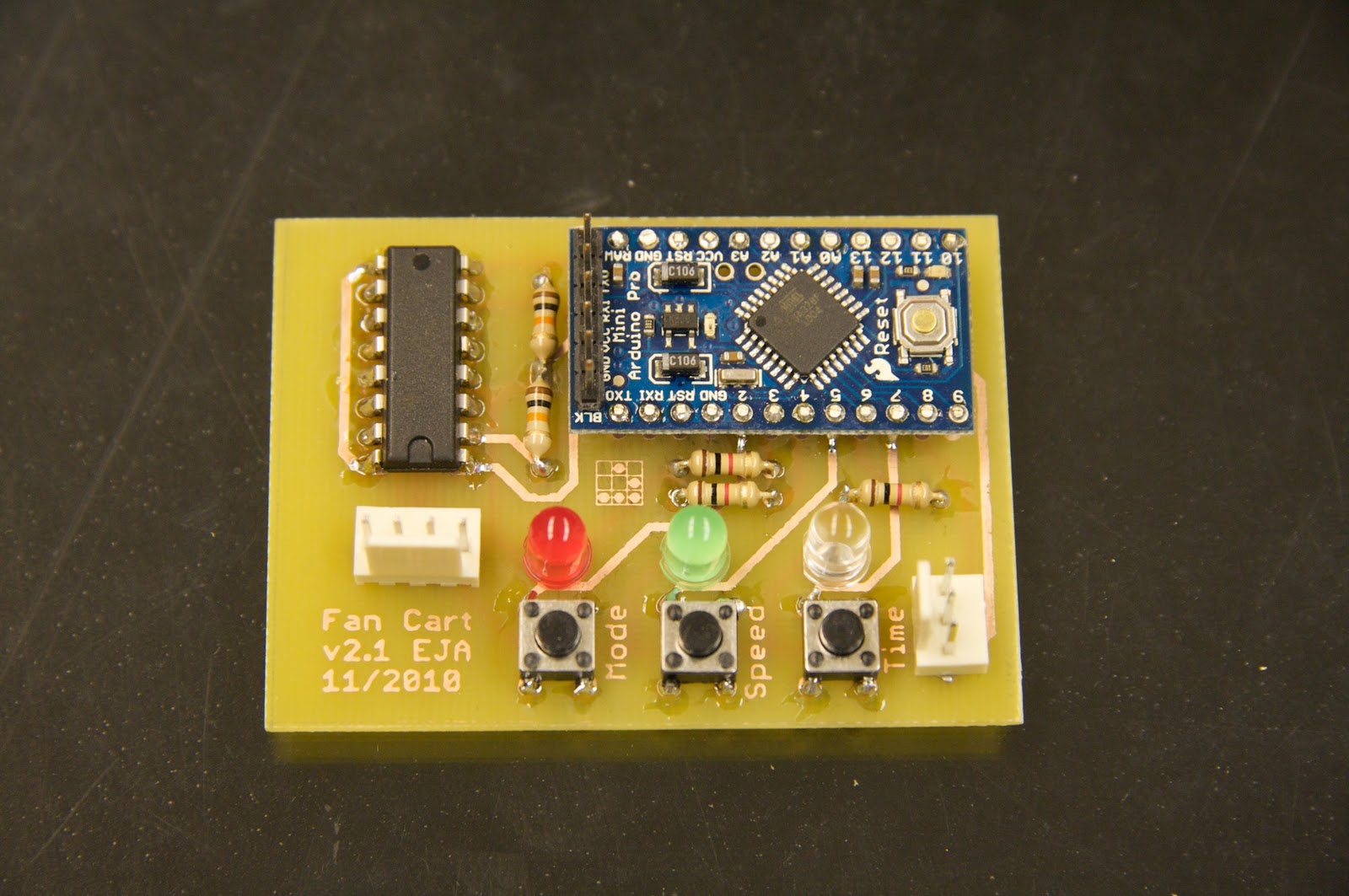
The three buttons set the mode, speed, and time. Any of the three parameters can be read by pressing the corresponding button: the setting will blink on the corresponding LED. For example, if the speed is 2/3, then pressing the speed button will cause the green LED to blink twice.
Any parameter can be set by holding the corresponding button for two seconds and then releasing it. The parameter LED will turn off, and each subsequent press of the button advances the parameter through its cycle of values. For example: to change the speed from two (default) to one (lower speed), hold the speed button for two seconds then release it. The green LED will turn off. Press the speed button again and the green LED will blink three times (speed is now 3). Press the speed button once more and the green LED will blink once (speed is now 1). Press either of the other buttons to accept the change and go back to normal run mode.
There are three modes available in the current program:
Mode 1: The fan toggles between on and off each time the sensor sees a magnet. This is what the previous fancart did.
Mode 2: The fan turns on when it sees a magnet, and then turns off T seconds later, where T is the time setting. The current program has available T settings of 1-4 seconds, although that’s easy to change.
Mode 3: The fan reverses each time it sees a magnet. This is kind of fun: one magnet in the center of the track results in anharmonic oscillation.
For more detail: Improved Fan Cart Using Arduino
-
How do I read the current setting for a parameter?
Press the corresponding button; the setting will blink on the corresponding LED. -
How can I change a parameter value like speed or time?
Hold the corresponding button for two seconds then release it, and press the button again to cycle through values. -
Does the fan reverse direction with this new version?
Yes, Mode 3 makes the fan reverse each time it sees a magnet. -
What are the available time settings for Mode 2?
The program offers T settings ranging from 1 to 4 seconds. -
How do I accept a change and return to normal run mode?
Press either of the other buttons to accept the change and go back to normal run mode. -
Can I use this board in a standard PASCO fan cart?
Yes, the board was sized to fit in the board-holder notches on the top of the PASCO fan cart. -
What happens in Mode 1 when the sensor sees a magnet?
The fan toggles between on and off each time the sensor sees a magnet. -
How does the fan behave in Mode 2 after seeing a magnet?
The fan turns on when it sees a magnet and then turns off T seconds later.
