
Summary of Graphing values in Arduino, the EASY Way!
This article explains a quick method to visualize sensor data in the Arduino Serial Monitor using ASCII characters instead of complex graphs. By printing a repeated letter based on the sensor's value, users can create a simple, sideways bar chart. The guide includes pseudocode and C++ examples for reading an analog sensor (like a potentiometer) on pin A0, utilizing the `map()` function to scale values from 0–1023 to a readable range of 0–100.
Parts used in the Arduino Sensor Graphing Project:
- Arduino Board
- Analog Sensor (e.g., Potentiometer)
- Serial Monitor
- LCD Screen (Optional)
Sometimes when you’re testing a sensor or debugging a value in an Arduino project, you want to see something other than numbers flying by in the Serial Monitor. However, you want to get the sensor working quickly, and you don’t want to take the time to write code to graph it or display it in an intricate way.
Well, we can fix that 🙂
The trick is very simple. However it graphs it sideways, but hey, it’s quick and easy.
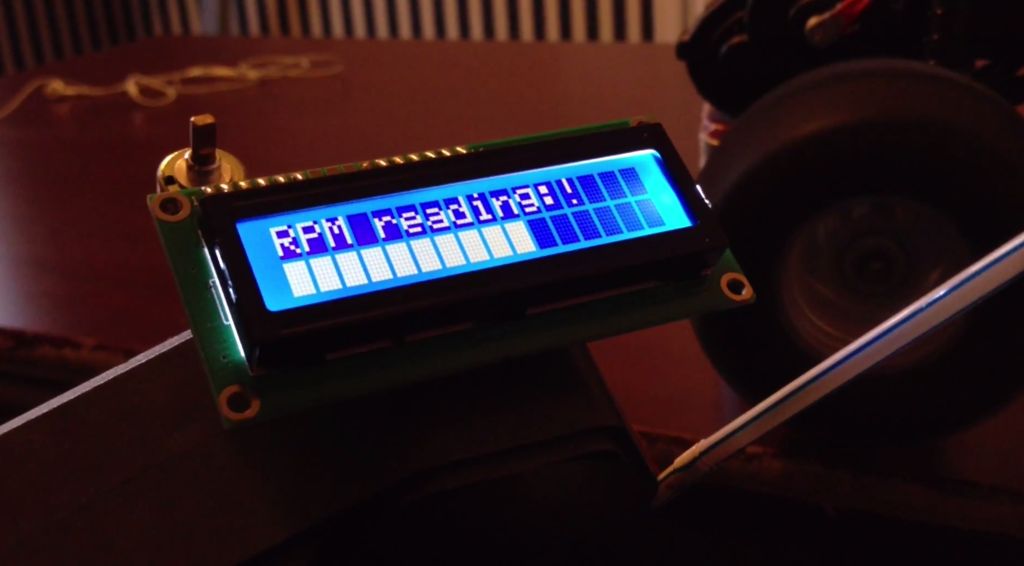
Although I usually use this trick with the Serial Port, Sometimes I also use it with an LCD screen
Step 1: Psuedocode!
print a basic letter, which can be a unit for the graph such as a lowercase L, l;however, we want to print this letter repeatedly to emulate a graph.
Pseudocode:
//Gather Sensor Data;
for(int i = 0; i < (The value you want to graph); i++) {
//print the letter you chose, such as “l”;
// but print it all on the same line;
}
// now go to the next line in the Serial Monitor
Step 2: Basic Example for Arduino
Here’s an example to graph an analog sensor, such as a potentiometer. The analog pin is A0 for these examples.
void setup() {
Serial.begin(9600);
}
void loop() {
// Analog Sensor Connected to analog pin 0
int SensorVal = analogRead(A0);
for(int i = 0; i < SensorVal; i++) {
Serial.print(“l”);
}
Serial.println();
delay(50);
}
Try it, you know you want to!
When you do try it, you’ll notice that the graph is sideways, and the bottom of the Serial Monitor shows the most recent reading of the Sensor.
You’ll also notice that the graph can get quite long, and may be wrapped around to the next line if the windows isn’t wide enough. To fix this we can use a function called map();
this will take in a minimum and maximum value for your sensor, and then scale it to a desirable output.
Here’s how the code would look like for this example. Note, 1023 is the maximum output value for the analogRead() function. also note, we are scaling the analog read function to a value from 0 to 100. You will need to place this line of code before the for loop in the earlier example.
SensorVal = map(SensorVal, 0, 1023, 0, 100);
Here is the complete code for a scaled graph of an Analog sensor on analog pin 0.
void setup() {
Serial.begin(9600);
}
void loop() {
// Analog Sensor Connected to analog pin 0
int SensorVal = analogRead(A0);
SensorVal = map(SensorVal, 0, 1023, 0, 100);
for(int i = 0; i < SensorVal; i++) {
Serial.print(“l”);
}
Serial.println();
delay(50);
}
For more detail: Graphing values in Arduino, the EASY Way!
- How can I quickly graph sensor data without writing complex code?
You can print a basic letter repeatedly in a loop based on the sensor value to emulate a graph. - Which port is typically used for this graphing trick?
The trick is usually used with the Serial Port, though it can also work with an LCD screen. - What happens if the graph line gets too long?
The line may wrap around to the next line if the window is not wide enough. - How do I scale the sensor value to make the graph more manageable?
Use the map() function to scale the minimum and maximum sensor values to a desirable output range. - What is the maximum output value for the analogRead() function?
The maximum output value for the analogRead() function is 1023. - Can I change the character used to draw the graph?
Yes, you can choose any basic letter, such as a lowercase L, to represent the graph units. - Where does the most recent sensor reading appear in the Serial Monitor?
The bottom of the Serial Monitor shows the most recent reading of the sensor. - What delay is suggested between graph updates in the example code?
The example code suggests a delay of 50 milliseconds between updates.
