
Summary of Bluetooth RGB Shelf Lighting using Arduino
This article guides users in building an RGB Bluetooth-controlled shelf lighting system using an Arduino Uno R3. The project enables wireless control of WS2801 LEDs via smartphones, tablets, or computers through a JY-MCU HC-06 module. It details the necessary hardware components and provides specific wiring instructions for connecting the Bluetooth transceiver to the Arduino and power sources.
Parts used in the RGB Bluetooth Controlled Shelf Lighting System:
- Arduino Uno R3
- Arduino Proto Sheild
- 30mm WS2801 LED's
- 12v Power Supply
- JY-MCU HC-06 V1.06 Bluetooth Transeiver
- 2.1mm power jack
- 2k resistor
- 1k resistor
- DB9 Connector
Being the giant fan of LED’s that I am i’m always trying to come up with new ways I can put them throughout my house. Today i’m going to show you how to create a simple, yet extremely eye catching, RGB Bluetooth controlled Shelf lighting system. The beauty of integrating Bluetooth into the system is that you can control your lights using almost any device, your computer, smart phone, even your tablet.
Step 1: Materials
- Arduino Uno R3
- Arduino Proto Sheild
- 30mm WS2801 LED’s
- 12v Power Supply
- JY-MCU HC-06 V1.06 Bluetooth Transeiver
- 2.1mm power jack
- 2k resistor
- 1k resistor
- DB9 Connector

You can find most of these from just about anywhere, you don’t necessarily have use the links above, they are just a suggestion. You also don’t need the DB9 Connector I use it for an easy disconnect from the LED’s.
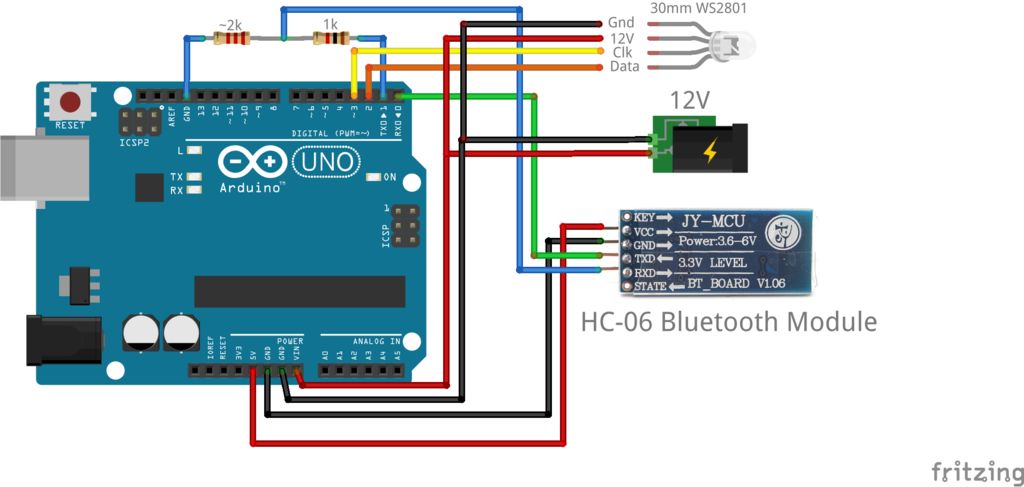
Step 2: The Circuit
Connect the HC-06 to the 5v power source on the Arduino and the WS2801’s to the 12v power source. Be sure that the Tx on the HC-06 goes to the Rx pin on the Arduino and the Rx pin on the HC-06 to the Tx pin on the Arduino. You can connect as many LED’s in a row as you would like, in this particular scenario I’m using 11.
Step 3: Connecting Bluetooth
The default password for these Bluetooth transceivers is “1234” without quotes. Below are all of the defaults:
— Default COM setting: 9600, N, 8,1
— Default Password/pairing code: 1234.
— Supports the AT command to modify the baud rate, device name, passkey, master/slave, etc.
— Supports baud rates 2400 -1382400.
— Based on the CSR Bluetooth chip BC417143
— Bluetooth specification v2.0 + EDR
— Power supply: +3.3VDC 50mA
— Frequency: 2.4GHz ISM band
— Modulation: GFSK(Gaussian Frequency Shift Keying)
— Emission power: ≤4dBm, Class 2
— Sensitivity: ≤-84dBm at 0.1% BER
— Speed: Asynchronous: 2.1Mbps(Max) / 160 kbps, Synchronous: 1Mbps/1Mbps
— Security: Authentication and encryption
— Size: 26.9mm x 13mm x 2.2 mm.
— Working temperature: -20 ~ +75 Centigrade
— Dimension: 26.9mm x 13mm x 2.2 mm
If you wish to change any of the defaults there is a great tutorial on Instructables that I used, the tutorial is for the HC-05 but it works for the HC-06 as well.
Modify The HC-05 Bluetooth Module Defaults Using AT Commands
For more detail: Bluetooth RGB Shelf Lighting using Arduino
- How do I connect the Bluetooth module to the Arduino?
Connect the Tx on the HC-06 to the Rx pin on the Arduino and the Rx pin on the HC-06 to the Tx pin on the Arduino. - What is the default password for the Bluetooth transceivers?
The default password is 1234 without quotes. - Can I use this setup with a tablet?
Yes, you can control your lights using almost any device including your computer, smart phone, or tablet. - How many LEDs are used in the scenario described?
In this particular scenario, 11 LEDs are connected in a row. - What is the default COM setting for the Bluetooth module?
The default COM setting is 9600, N, 8,1. - Does the DB9 Connector have to be used?
No, you do not need the DB9 Connector as it is only used for an easy disconnect from the LED's. - Where can I find the parts listed?
You can find most of these from just about anywhere and do not necessarily need to use the suggested links. - Can I modify the Bluetooth defaults?
Yes, you can modify the baud rate, device name, passkey, and other settings using AT commands. - Which tutorial is recommended for modifying defaults?
A tutorial on Instructables titled Modify The HC-05 Bluetooth Module Defaults Using AT Commands is recommended.
