
Summary of Arduino MKR1000 Kit
This tutorial demonstrates how to control and monitor an Arduino MKR1000 via a custom mobile application for Android and iOS. The project enables users to read/write digital, PWM, and analog pins, change pin modes, rename labels, and view data on an LCD terminal. It features automatic connection, status memory, and customizable actions triggered by input data.
Parts used in the Arduino MKR1000 Controller:
- Arduino MKR1000
- Arduino IDE
- Arduino MKR1000 Kit - Android
- Apple Arduino MKR1000 Kit - iOS
Best in Class Arduino MKR1000 Controller.
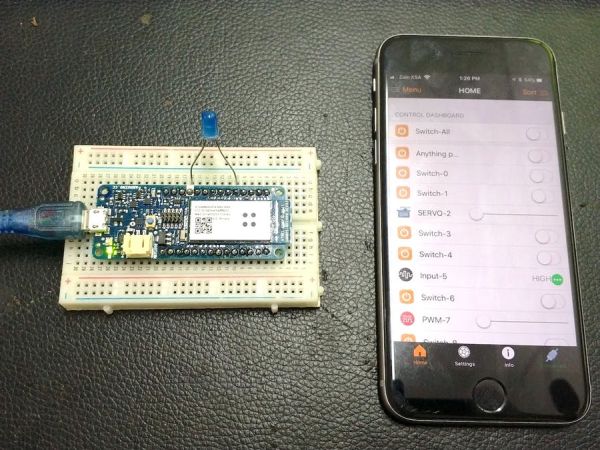
Things used in this project
Hardware components |
||||||
 |
|
× | 1 | |||
Software apps and online services |
||||||
 |
|
|||||
|
||||||
|
||||||
Story
This tutorial will focus on how to control and monitor MKR1000 from your smart phone. WIFI is one of the most popular wireless communication technologies because of its availability, low power consumption, low cost and a light stack.
Why did we decide to make it?
There are a lot of apps on both store Apple and Android for controlling MKR1000, but none of them will give you all what you need. So we decided to build a mobile application from scratch alongside with the code that can give you the following:
- Read & write digital pins.
- Read & write PWM pins.
- Read analog pins.
- Remember last status of the pins.
- Change the mode of the pin (Output, PWM, SERVO or Input).
- Automatic connect to Arduino.
- Rename the label of each pin.
- Terminal to send any data to Arduino.
- LCD to receive any data from Arduino.
- Assign actions when receiving data from Inputs, LCD and Analogs.
Schematics
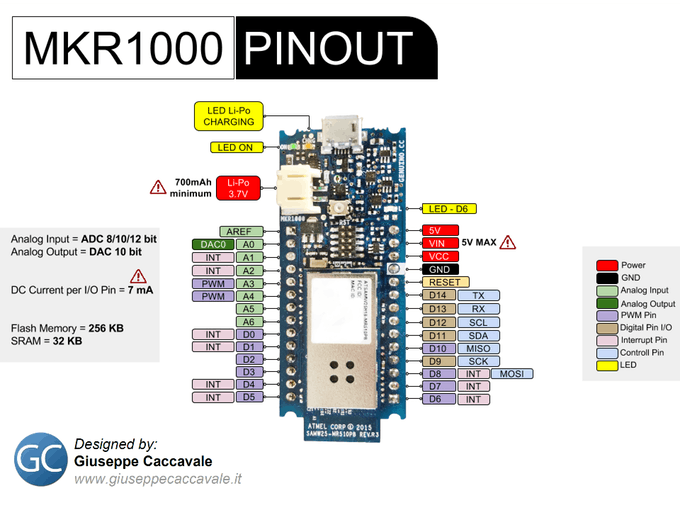
Source : Arduino MKR1000 Kit
- What is the main purpose of this tutorial?
To show how to control and monitor the MKR1000 from a smartphone using a custom app. - Why was a new mobile application built?
Existing apps did not provide all necessary features like pin mode changes and data logging. - Can the app read and write digital pins?
Yes, the custom app allows reading and writing digital pins. - Does the system remember the last status of the pins?
Yes, the application remembers the last status of the pins. - How can you change the mode of a pin?
You can change the pin mode to Output, PWM, SERVO, or Input through the app. - Is there an automatic connection feature?
Yes, the app includes an automatic connect to Arduino function. - Can users rename the label of each pin?
Yes, the application allows renaming the label of each pin. - What functionality does the Terminal provide?
The Terminal allows sending any data to the Arduino. - How does the LCD component work in this project?
The LCD receives any data sent from the Arduino. - Can actions be assigned when receiving data?
Yes, actions can be assigned when receiving data from Inputs, LCD, and Analogs.
