
Summary of Temperature Logging Appliance using Arduino Yun with Proteus Simulation
This article describes a Temperature Logging Appliance built with an Arduino Yun and simulated in Proteus. The system continuously monitors temperature using a Grove sensor, logs historical data to a file named temp.dat based on time or value changes, and visualizes trends via IoT widgets. It features adjustable chart ranges, data clearing capabilities, and server request handling for IoT applications.
Parts used in the Temperature Logging Appliance:
- Arduino Yun
- Grove Temperature Sensor
- Signal conditioning / analog interface section
- Resistors
- LED and reset section
- IoT chart control
- IoT thermometer control
- Data file storage reference: temp.dat
Introduction
The Temperature Logging Appliance is a practical microcontroller project built around the Arduino Yun and tested in Proteus simulation. It is designed to read temperature values from a sensor, update the current reading, and store historical data for chart-based viewing. This makes it a useful example for anyone learning embedded systems, DIY electronics, and IoT-style monitoring.
What makes this project interesting is that it does not just measure temperature once—it keeps a time-based record and displays temperature history through a graph control. That makes it more realistic than a basic thermometer demo.
For students, makers, and engineers, this is a strong example of combining sensing, logging, and visualization in one practical electronics project. Based on the flowchart, it also supports changing the viewing range of the chart and clearing stored data when needed.
Project Overview
This project works as a temperature logging system that continuously reads temperature in Celsius from a Grove temperature sensor connected to the Arduino Yun. The controller checks whether the temperature has changed significantly, and it also checks the elapsed time before saving new data.
From the provided flowchart, the system writes temperature data to a file named temp.dat, updates the live IoT thermometer display, and stores time-stamped values for chart visualization. The project also listens for server requests, which fits its Internet of Things category and shows that the design is intended for connected monitoring.
Users can switch the chart time range between seconds, minutes, and hours, and they can also clear the logged data through a confirmation action.
How the Project Works
The working principle is straightforward and modern:
- The Arduino Yun starts by setting the current temperature value to zero.
- It assigns a data file named
temp.datfor historical storage. - The system waits for the time server during setup.
- In the main loop, the temperature sensor is read in Celsius.
- If the temperature changes by more than 0.5°C, or if 30 seconds have passed, the reading is updated and logged.
- The latest value is sent to the IoT thermometer display.
- The new value, along with the current time, is written to the chart data file.
- The server keeps waiting for incoming requests.
- A user can change the graph display range or clear the stored chart data.
Workflow Explanation
Sensor Input Stage
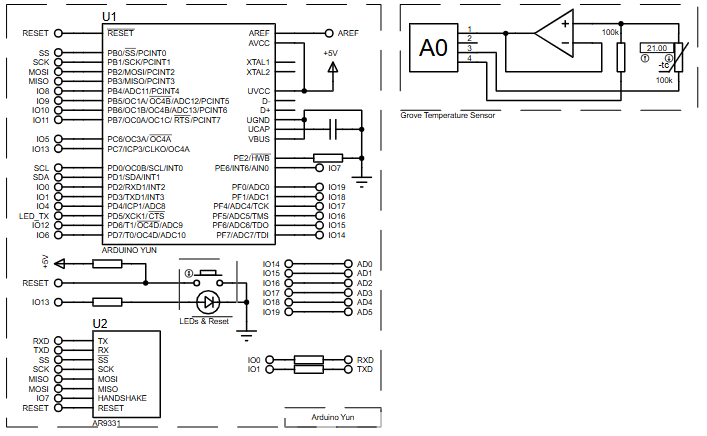
The schematic shows a Grove Temperature Sensor connected to the Arduino Yun. This block is responsible for generating the analog temperature-related signal used by the controller.
Microcontroller Processing Stage
The Arduino Yun acts as the core processing unit. It reads the temperature value, compares it with the previous reading, checks time intervals, and decides when to update and log data.
Data Logging Stage
According to the flowchart, the chart component writes readings into a file called temp.dat. This is the historical storage used for graphing temperature changes over time.
Display / IoT Visualization Stage
The project uses:
- an IoT thermometer widget for current temperature
- an IoT chart widget for historic trend display
This makes the project more interactive than a simple sensor-read demo.
User Interaction Stage
From the flowchart, two user actions are present:
- Change Range through
IotBtn1 - Clear Data through
IotBtn2with confirmation throughIotAlert1
Key Features
- Real-time temperature measurement using a Grove temperature sensor
- Historical temperature logging to a data file
- Graph-based temperature visualization
- Live thermometer-style display for current temperature
- Time-based and change-based logging logic
- Adjustable chart time ranges
- Data reset option with confirmation prompt
- Server request handling for IoT-style interaction
- Built on Arduino Yun for embedded and IoT experimentation
Components Used
Based only on the provided schematic and description, the project uses:
- Arduino Yun
- Grove Temperature Sensor
- Signal conditioning / analog interface section shown near the sensor
- Resistors visible in the schematic
- LED and reset section
- IoT chart control
- IoT thermometer control
- Data file storage reference:
temp.dat
Applications
This type of microcontroller project can be used in many practical situations, such as:
- Room temperature monitoring
- Small lab or workshop environment logging
- Educational embedded systems training
- IoT-based appliance monitoring
- Temperature trend analysis over time
- Prototype data acquisition systems
- DIY electronics dashboard projects
Explanation of Code
No full source code was provided, but the flowchart makes the logic clear enough to explain the firmware structure at a high level.
Sensor Reading Module
The controller reads the temperature in Celsius using a routine labeled readCelcius from the temperature input block.
Comparison Logic
The firmware checks whether the difference between the new reading and the previous reading is greater than 0.5. This helps avoid unnecessary logging for very small changes.
Timing Module
The system also checks whether 30 seconds have passed since the last important update. This ensures temperature data is recorded periodically even when change is small.
IoT Display Module
The current temperature is pushed to the thermometer widget using the setTemperature action.
Chart Logging Module
The project writes temperature history using the chart control and stores values in temp.dat. Logged records include time and temperature.
User Control Module
The range button changes the chart view between:
- 60 seconds
- 60 minutes
- 24 hours
The clear-data button triggers a confirmation message before wiping chart data.
Server Handling
The server waits for requests with a timeout setting, showing that the firmware is designed for connected or remote interaction.

Flowchart
Proteus Simulation
In Proteus simulation, the project behaves like a temperature monitoring and logging appliance. The Grove temperature sensor provides the input, the Arduino Yun processes the reading, and the simulated IoT interface updates both the current thermometer value and the historical chart.
The chart can be switched between short-term and long-term views, making it easy to observe how the temperature changes over time. The simulation also includes a clear-data function, which resets the chart history after user confirmation. This gives learners a complete view of sensing, logging, and data visualization inside one embedded project workflow.
Conclusion
The Temperature Logging Appliance using Arduino Yun with Proteus Simulation is a clean and practical DIY electronics project for learning how modern embedded systems handle sensing, logging, and visualization together. Even from the provided schematic and flowchart, it is clear that this design goes beyond a simple thermometer and becomes a useful temperature history tracker.
For students and makers, it offers solid learning value in microcontroller project design, working principle analysis, Proteus simulation, and IoT-style firmware structure.
Complete File
Temperature Logging Appliance using Arduino Yun with Proteus Simulation
- How does the system decide when to log new data?
The system logs data if the temperature changes by more than 0.5°C or if 30 seconds have passed since the last update. - What file is used to store historical temperature data?
The project writes readings into a file named temp.dat for historical storage and graphing. - Can users adjust the time range of the displayed graph?
Yes, users can switch the chart display range between 60 seconds, 60 minutes, and 24 hours. - How does the project handle data clearing?
A user can clear stored data using IotBtn2, which triggers a confirmation prompt via IotAlert1 before wiping the history. - What components are used for real-time visualization?
The project uses an IoT thermometer widget for current temperature and an IoT chart widget for historic trend display. - Does the system require a network connection to function?
Yes, the design listens for server requests and waits for a time server during setup, fitting its Internet of Things category. - What simulation software was used to test this project?
The project was tested in Proteus simulation to demonstrate sensing, logging, and data visualization workflows. - What happens if the temperature change is less than 0.5 degrees?
If the change is less than 0.5°C, the system waits until 30 seconds have elapsed before updating and logging the reading.
