
Summary of Arduino-STM32 BluePill LCD Display using STM32 BluePill with Proteus Simulation
This project shows interfacing a 16x2 alphanumeric LCD with an STM32 BluePill using Arduino-STM32 (Visual Designer) inside Proteus. The BluePill initializes LCD pins, sends configuration commands, and prints two text lines; then the program enters an idle loop. It is intended for verifying wiring, timing, and firmware in simulation before real hardware use, suitable for beginners learning STM32 and embedded UI basics.
Parts used in the STM32 BluePill LCD Display project:
- STM32 BluePill development board (STM32F103 series)
- 16x2 alphanumeric LCD module
- Resistors for LCD contrast and backlight control
- Power supply (5V / 3.3V as required)
- Proteus simulation environment
Introduction
This microcontroller project demonstrates how to interface a standard alphanumeric LCD with the STM32 BluePill using Arduino-STM32 (Visual Designer) in a Proteus simulation environment.
The project is a simple yet powerful starting point for anyone working with embedded systems, DIY electronics, or STM32-based designs.
It focuses on displaying text messages on an LCD, proving correct GPIO configuration, timing, and communication.
Such projects are commonly used to verify hardware connections before moving to real boards.
Overall, this example is ideal for beginners exploring practical electronics and STM32 development using Arduino-style programming.
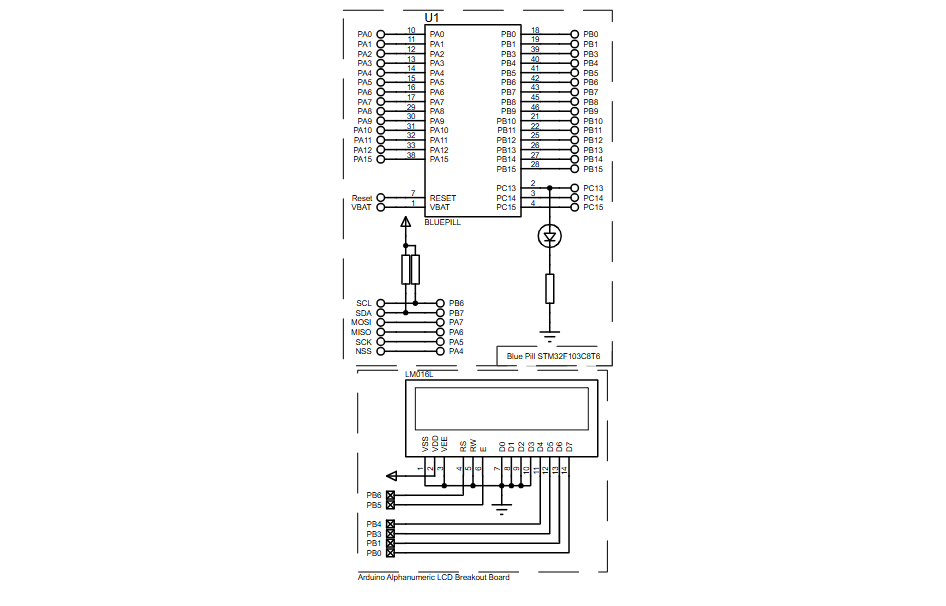
How the Project Works (Overview)
The STM32 BluePill initializes the LCD during startup and sends predefined text messages for display.
Once powered on, the microcontroller configures the LCD control and data pins, clears the screen, and prints messages line by line.
The program flow is simple: setup runs once to initialize the LCD, and the loop remains idle after displaying text.
This confirms correct pin mapping, LCD timing, and firmware execution inside Proteus simulation.
Block Diagram / Workflow Explanation
The project workflow follows a straightforward sequence based on the schematic and flowchart:
-
System power-up and reset
-
STM32 BluePill initializes LCD interface pins
-
LCD configuration commands are sent
-
Text message is printed on Line 1
-
Text message is printed on Line 2
-
Program enters idle loop
Components Used
Based on the schematic and project description, the following components are used:
-
STM32 BluePill development board (STM32F103 series)
-
16×2 Alphanumeric LCD module
-
Resistors (LCD contrast and backlight control)
-
Power supply (5V / 3.3V as required)
-
Proteus simulation environment
Applications
This type of system is widely used in real-world and learning scenarios, including:
-
Debug message display for embedded projects
-
User interface for sensors and controllers
-
STM32 learning and training kits
-
Menu-based systems for electronics projects
-
Industrial prototypes using LCD feedback
Explanation of Code (High-Level)
The firmware is developed using Visual Designer for Arduino STM32, which abstracts low-level register access.
-
Setup Section
-
Initializes LCD pins
-
Configures LCD mode (data + control lines)
-
Clears display
-
-
Display Logic
-
Prints
"Hello From"on the first line -
Prints
"Bluepill"on the second line
-
-
Loop Section
-
No repetitive logic
-
Keeps the system stable after display
-
This structure makes the code easy to modify for sensors, counters, or menus.
Flowchart
Proteus Simulation
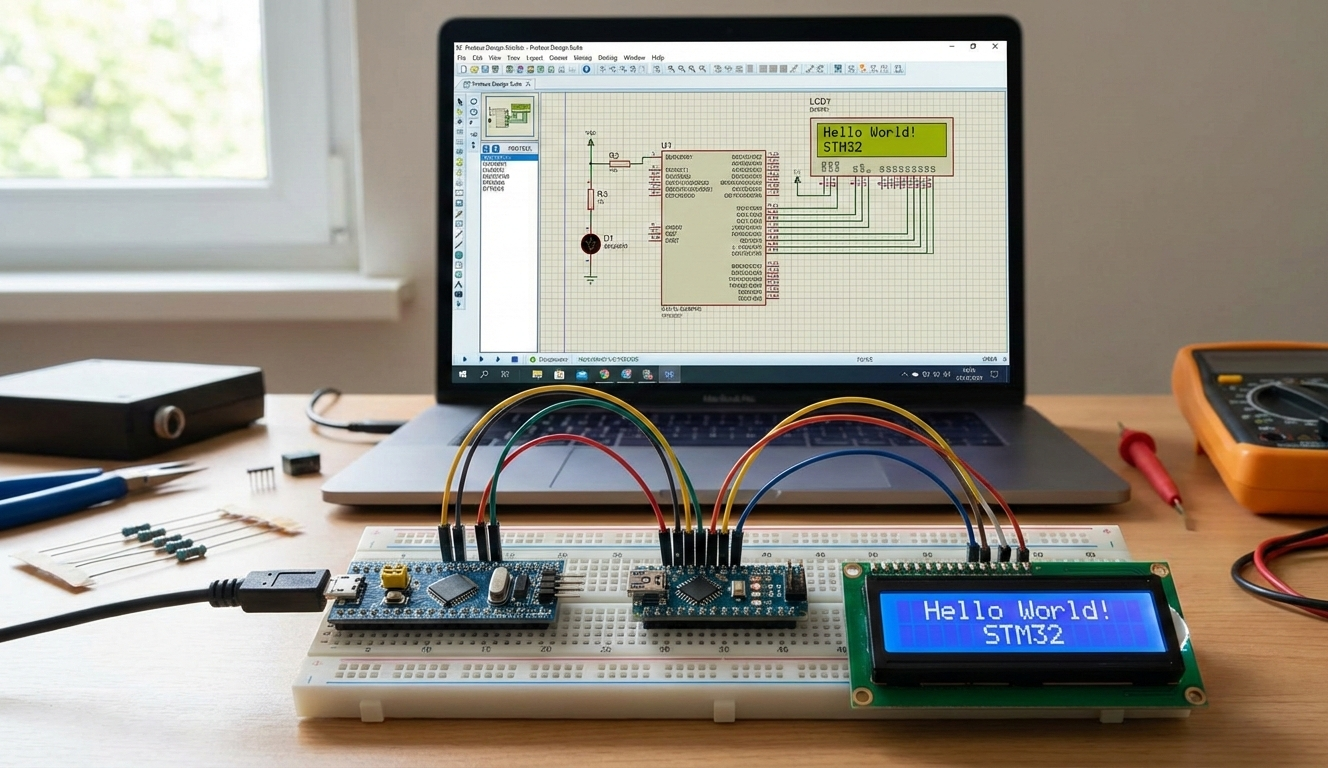
In Proteus simulation, the STM32 BluePill boots and immediately writes text to the LCD screen.
The LCD displays two lines clearly, confirming correct wiring and firmware logic.
This simulation allows testing without physical hardware and is especially useful for beginners.
Any wiring or timing issue can be debugged visually before real-world deployment.
(FAQs)
[ultimate-faqs Include_category=”arduino-stm32-bluepill-lcd”]Conclusion
This STM32 BluePill LCD project is a clean and practical introduction to embedded systems using Arduino-style programming and Proteus simulation.
It helps validate LCD wiring, understand firmware structure, and gain confidence before hardware deployment.
Perfect for students, hobbyists, and anyone exploring STM32-based microcontroller projects.
Complete File
Arduino-STM32 BluePill LCD Display using STM32 BluePill with Proteus Simulation
- How does the project initialize the LCD?
The STM32 BluePill configures LCD control and data pins and sends LCD configuration commands during startup. - What text is displayed on the LCD?
The LCD prints Hello From on the first line and Bluepill on the second line. - Can this project be tested without physical hardware?
Yes, the project is demonstrated using the Proteus simulation environment. - Does the program run continuous updates after displaying text?
No, after displaying text the program enters an idle loop with no repetitive logic. - What is the development environment used for firmware?
The firmware is developed using Visual Designer for Arduino STM32. - What is the main purpose of this example project?
To verify LCD wiring, timing, and firmware execution and to serve as a beginner introduction to STM32 development. - What components control LCD contrast and backlight?
Resistors are used for LCD contrast and backlight control. - What sequence does the project workflow follow at startup?
System power-up and reset, initialize LCD interface pins, send LCD configuration commands, print Line 1, print Line 2, then enter idle loop.
