
Summary of Home Automation: Drapes using Arduino
Dr. Drape is a DIY Arduino project that uses a servo motor and pulley system to automatically open and close drapes via a button or an automated schedule (opens at 10 am Monday–Friday). The tutorial covers parts, modifying a standard servo for continuous rotation, mounting a servo wheel, optional prototyping, and tips for fitting components in the gap between wall and curtain. Difficulty is easy for those with Arduino experience.
Parts used in the Dr. Drape:
- Arduino Uno
- Arduino power supply
- Arduino programming cable
- Servo (continuous rotation or modified standard servo)
- Cord to pull curtain (at least 2x window width)
- Button
- Command Strips
- Pulley for opposite side
- Connecting wires
- Screws
- 3D printed mount (optional)
- Soldering iron (tool)
- Screwdrivers and basic tools (tools)
Hate having to manually open and close your drapes? Hate getting back from work/school and your room is dark and dreary? Do you want curtains that open and close themselves? Then you need Dr. Drape!
Dr. Drape is an easy DIY project using an Arduino and servo to open and close your drapes at the tap of a button or on an automated schedule. The code included in this tutorial responds to your button press to open or close the drapes, as well as opens them at 10 am Monday – Friday.
Difficulty is easy, and anyone with some Arduino experience should be able to follow! This is my first instructable, so let me know if I should make any changes. Otherwise grab your soldering iron and C programming book, we’re gonna move some drapes!
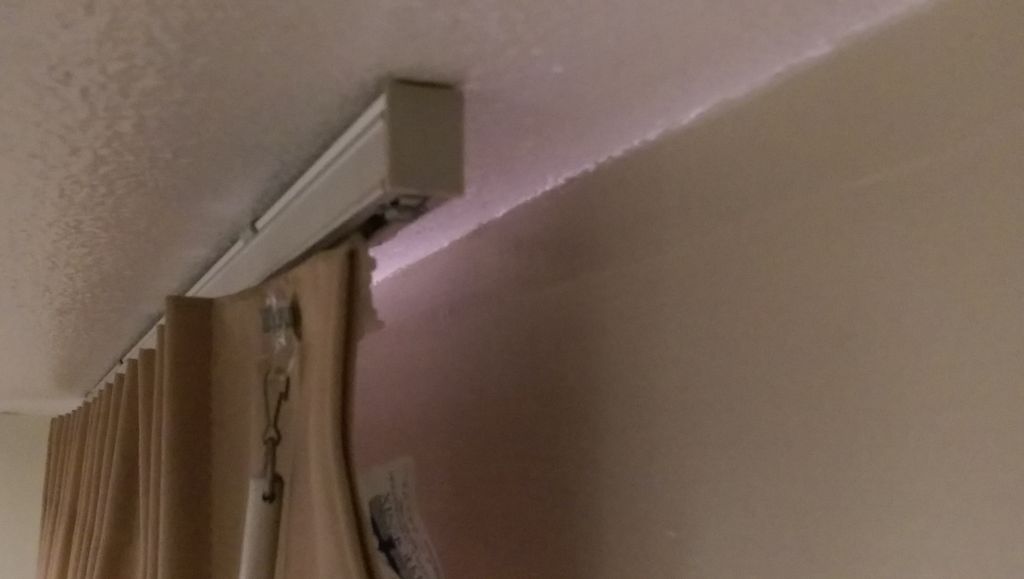
Step 1: Before you begin…
Attached are some pictures of my window before I began. There is a few inches of space between the wall and the curtain to fit the Arduino, motor, and pulley system so that they do not stick out. On the left side we are just going to mount a pulley that will hold the cord, while the right will have the wheel, motor, and Arduino.
Parts
Primary
Arduino Uno: http://www.amazon.com/Arduino-UNO-board-DIP-ATmega…
Arduino Power Supply: http://www.amazon.com/gp/product/B00BWA48AA/ref=oh…
Arduino Programming Cable (if you don’t have one): http://www.amazon.com/gp/product/B001TH7GUA/ref=oh…
Servo: https://www.hobbyking.com/hobbyking/store/__25456_…
Other Parts
Cord to pull curtain (at least 2x the width of your window)
A button
Command Strips for attaching stuff to the walls
Pulley for side opposite the Arduino
Connecting wires
Screws
Tools
3D Printer (I used this to print the mount, in the likely even you don’t have access to one you would have to find a workaround)
Soldering Iron
Screwdrivers/other basic tools
Step 2: Continuous Rotation Servo
Having the benefit of hindsight, you should probably order a servo that has continuous rotation out of the box. I forgot to check when ordering, so the servo I ordered did not. However, it is possible to modify the servo so it can rotate 360 freely. The tutorial I followed to do this is here: http://flitetest.com/articles/easy-9g-continuous-r…
For the servo listed in the parts list here, I had to cut out a plastic block that prevented the servo from over-rotating as well as cut off the potentiometer and solder on two 2.2k ohm resistors. At this point, the servo was no longer “centered” around 90 being neutral, 0 being left, and 180 being right. I had to go through and test lots of different options, and had to use Servo.writeMicroseconds() instead of just Servo.write(). My values I found were 700 for left, 1424 for neutral, and 2300 for right.
After making these modifications to the servo, the resistors stick out of the side of the servo body, for which I recommend you cut a hole in the plastic body to fit these through. For the 3D printed mount I made, I also made a hole for the 3-wire servo connect to thread through the side. This way, I could leave just 1 side of the servo exposed on the mount.
Step 3: The Servo Wheel
The wheel I attached to the servo I just found lying around in a parts bin, so I cannot tell you what it actually is. Just make sure your wheel is small enough that the torque of your servo can still handle the curtain. I would also recommend you have a hole in the middle of it so you can attack your servo arm before attaching the arms to the servo (like in the pictures above).
Step 4: (Optional) Prototyping the circuit
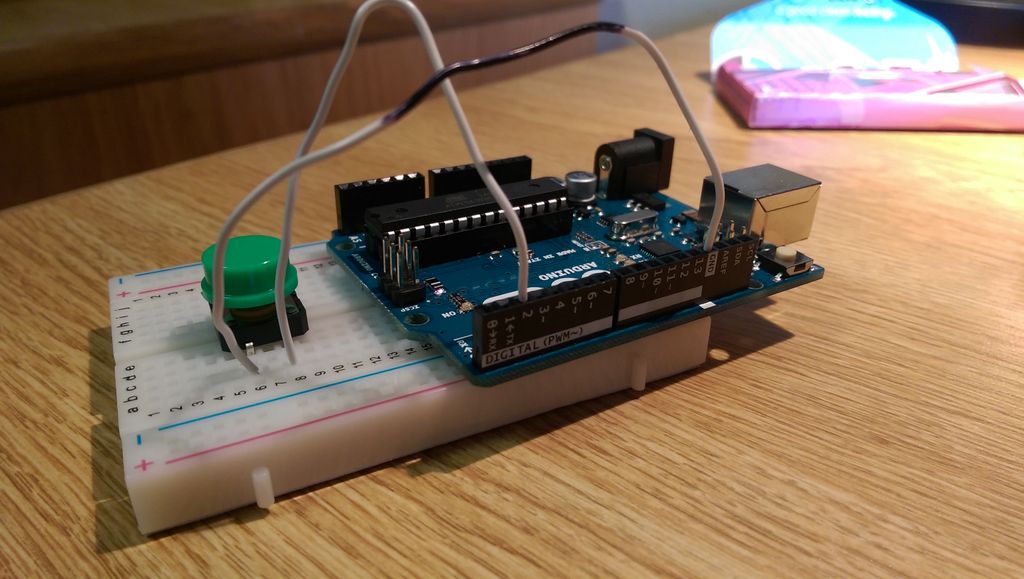
Before actually mounting everything together, it can be a good idea to make sure that all your electronics work. Here is a picture of me testing my button.
You should test your board with the servo as well. You can pick through the code attached at the end of the tutorial to find out how to operate the servo and detect button presses.
Read more: Home Automation: Drapes using Arduino
- What does Dr. Drape do?
Dr. Drape automatically opens and closes drapes via a button or an automated schedule that opens them at 10 am Monday–Friday. - What microcontroller is used in the project?
The project uses an Arduino Uno. - Can I use a standard servo for continuous rotation?
Yes; the article describes modifying a standard servo by removing a plastic block, cutting off the potentiometer, and soldering two 2.2k ohm resistors to enable continuous rotation. - How does the tutorial suggest mounting components?
The tutorial mounts the pulley on the left side and the wheel, motor, and Arduino on the right side, fitting components in the space between the wall and curtain; a 3D printed mount is used for the servo. - What should I test before final assembly?
The article recommends prototyping and testing the button and servo operation with the Arduino and the provided code before mounting everything. - What servo signal values did the author find after modification?
After modification the author used Servo.writeMicroseconds() with values 700 for left, 1424 for neutral, and 2300 for right. - Do I need a 3D printer for this project?
A 3D printer was used to print the mount but the article notes you can find a workaround if you do not have access to one. - What additional parts are recommended to attach items to walls?
The article recommends using Command Strips to attach items to the walls.
