
Summary of Arduino Smart Stick for the Visually Impaired
The Smart Stick is a handheld Arduino-based assistive cane that detects obstacles with an HC-SR04 ultrasonic sensor and alerts visually impaired users via a buzzer or vibration motor, plus an LED power indicator. It improves mobility and independence, offers tactile and auditory feedback, and is lightweight and portable. The project benefits children with sensory issues by providing real-time cues, enhancing spatial awareness, and promoting safer, more independent navigation.
Parts used in the Smart Stick:
- Arduino Uno or Nano
- HC-SR04 Ultrasonic Sensor
- Buzzer
- Vibration Motor
- LED
- Stick or cane
- Battery pack
- Wires and connectors
Arduino technology shines in the Smart Stick for the Visually Impaired because it builds accessibility features to empower visually impaired users. The assistive device utilizes ultrasonic sensors with buzzer components that integrate with Arduino for an innovative functional application.
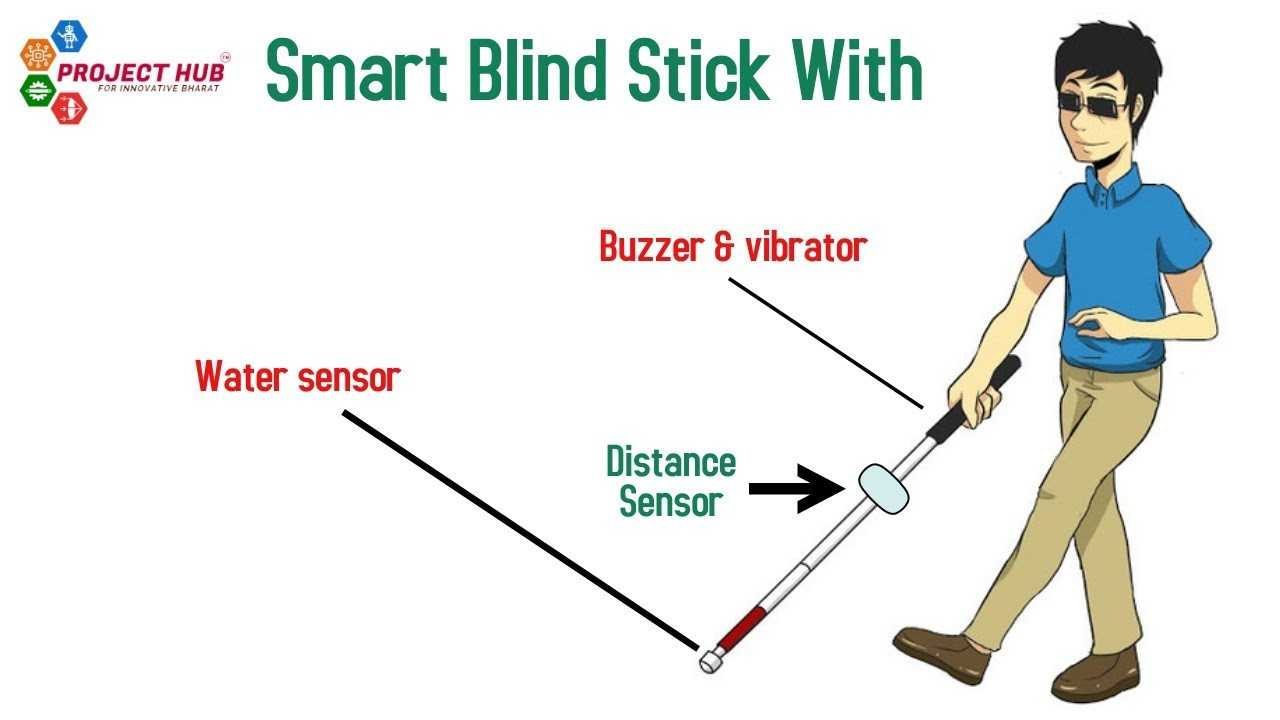
What is the Smart Stick?
A handheld device known as the Smart Stick detects obstacles in front of users while emitting buzzer or vibration warning signals. This device functions to improve mobility and independence among visually disabled persons.
Key Features:
- Obstacle detection using ultrasonic sensors.
- Audible or tactile feedback to alert the user.
- The device works with a lightweight portable structure to support everyday applications.
How This Arduino Project Benefit Children with Sensory Issue
- Provides real-time feedback through vibrations or sounds to alert children to obstacles.
- Enhances mobility and spatial awareness for visually impaired children.
- Promotes independence by helping children safely navigate their environment.
- Uses tactile and auditory cues to support sensory processing.
Materials Needed for the Smart Stick
These materials are necessary to construct the project: Arduino Uno or Nano, HC-SR04 Ultrasonic Sensor, Buzzer or Vibration Motor along with a stick or cane and a battery pack.
-
- HC-SR04 Ultrasonic Sensor:
- VCC → 5V
- TRIG → D13
- ECHO → D12
- GND → Ground
- Buzzer:
- Positive(+) → D10
- Negative(-) → Ground
- Vibration Motor:
- Positive(+) → D7
- Negative(-) → Ground
- LED:
- Positive(+) → D2
- Negative(-) → Ground
- HC-SR04 Ultrasonic Sensor:
How Does the Smart Stick Work?
- The ultrasonic sensor sends out waves and measures the time it takes for the waves to return after hitting an obstacle. This time is converted into distance.
- If the distance is less than 100 cm, the buzzer and vibration motor are triggered to alert the user.
- The LED indicates that the system is powered on.
The implemented process enables safe navigation by users throughout their area while decreasing their potential for accidents.

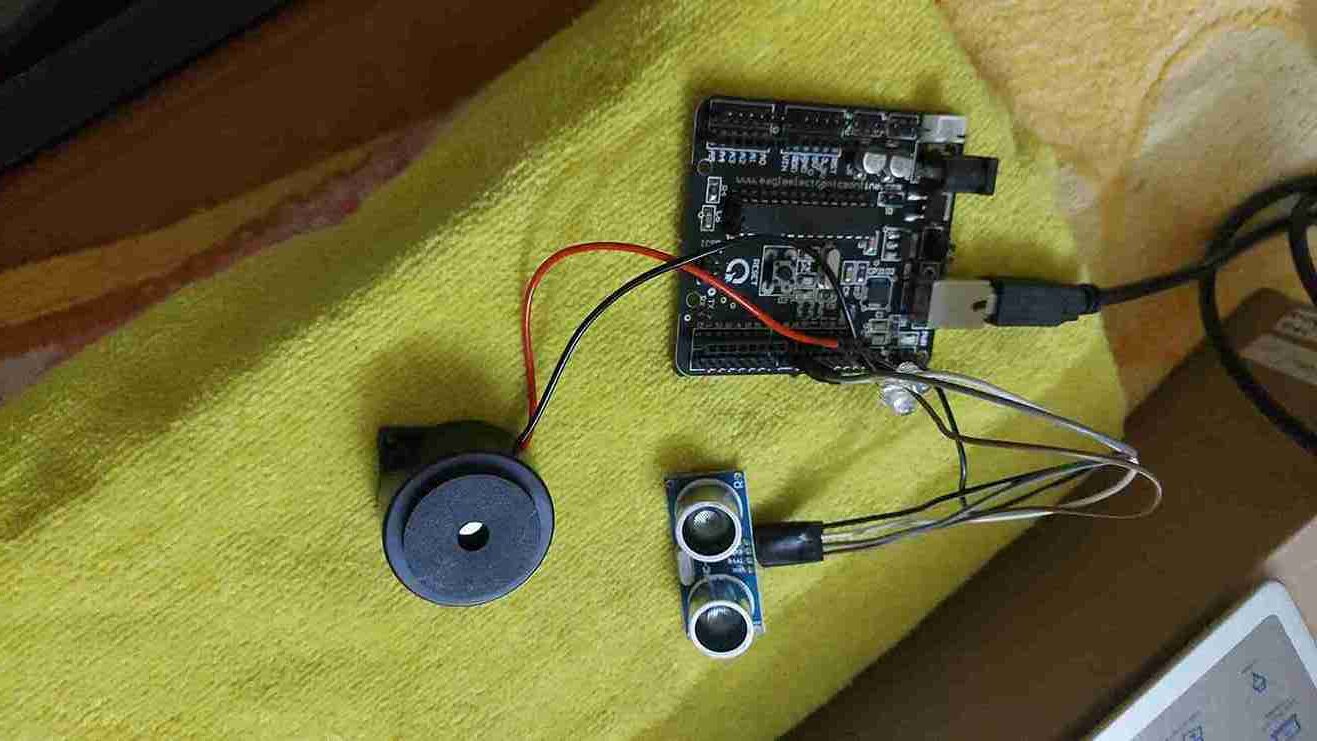
Step-by-Step Guide to Build the Smart Stick
- Draft and obtain all required elements which include the Arduino board and ultrasonic sensor and buzzer and any remaining materials in the list.
- Perform the next step by connecting the ultrasonic sensor to the Arduino combined with the buzzer or vibration motor. Mount the components onto a stick by using a stick or cane.
- The Arduino needs program code to process distance readings while generating feedback signals when obstacles appear before the user.
- The device must be tested by calibrating the sensor range while optimizing its sensitivity level.
- Finish the device by mounting it safely while making it easy to keep.
Code:
long cm, duration;
void setup() {
Serial.begin(9600);
pinMode(13, OUTPUT); // TrigPin
pinMode(12, INPUT); // EchoPin
pinMode(10, OUTPUT); // Buzzer
pinMode(2, OUTPUT); // LED
pinMode(7, OUTPUT); // Vibration Motor
}
void loop() {
digitalWrite(13, LOW);
delayMicroseconds(20);
digitalWrite(13, HIGH);
delayMicroseconds(20);
digitalWrite(13, LOW);
delayMicroseconds(20);
duration = pulseIn(12, HIGH);
cm = duration * 0.034 / 2;
if (cm < 100) {
tone(10, 3000);
digitalWrite(7, HIGH);
delay(500);
noTone(10);
delay(30);
} else {
digitalWrite(7, LOW);
}
delay(50);
}
Troubleshooting or Bugs:
- Incorrect sensor readings: Ensure the ultrasonic sensor is properly connected and calibrated.
- No feedback: Check the buzzer and motor wiring and test the code for proper pin settings.
- Power issues: Ensure the power supply is adequate for the components.
Testing Guide:
- Step 1: Power up the system and check the LED to ensure the Arduino is on.
- Step 2: Test the sensor by placing obstacles at varying distances. The buzzer or vibration motor should activate when an obstacle is within 100 cm.
- Step 3: Fine-tune the sensor range and motor sensitivity based on the feedback.
Why Build the Smart Stick?
Using engineering skills and social responsibility the Smart Stick for the Visually Impaired represents an exceptional DIY solution. The device provides a budget-friendly solution which users can personalize along with practical benefits for their needs in obstacle detection.
Quick Solutions to Questions related to Smart Stick:
- What is the Smart Stick?
The Smart Stick is a handheld device that detects obstacles and emits buzzer or vibration warnings to assist visually impaired users. - How does the Smart Stick detect obstacles?
It uses an HC-SR04 ultrasonic sensor that sends waves and measures return time to calculate distance. - At what distance do alerts trigger?
Alerts (buzzer and vibration) trigger when the measured distance is less than 100 cm. - Which Arduino pins are used for the ultrasonic sensor?
TRIG is connected to D13 and ECHO is connected to D12, with VCC to 5V and GND to ground. - How are the buzzer and vibration motor connected?
The buzzer positive connects to D10 and negative to ground; the vibration motor positive connects to D7 and negative to ground. - What indicates the system is powered on?
An LED connected with its positive to D2 and negative to ground indicates the system power status. - What common troubleshooting steps are suggested?
Check sensor connections and calibration for incorrect readings, verify buzzer and motor wiring for no feedback, and ensure adequate power supply for power issues. - How should the device be tested?
Power the system and check the LED, place obstacles at varying distances to ensure activation within 100 cm, and fine-tune sensor range and motor sensitivity. - What are the main benefits for children with sensory issues?
The device provides real-time vibration or sound alerts, enhances mobility and spatial awareness, and promotes independence using tactile and auditory cues.
