
Summary of Nodemcu arduino interfacing project
This guide explains how to set up the ESP8266 NodeMCU 1.0 board with the Arduino IDE, including driver installation, board configuration, and troubleshooting upload errors like "espcomm_sync failed" by using the manual flash mode sequence. It details pin functions for onboard LEDs (GPIO2/D4 and GPIO16/D0), warns about GPIO0 conflicts with external flash memory, and references a schematic diagram along with tools for file system uploads.
Parts used in the NodeMCU 1.0 Board Project:
- NodeMCU type board
- Silicon Labs CP2102 USB to UART Bridge
- ESP-12E Module
- Red LED
- Blue LED
- External flash chip
- Arduino IDE
A guide to getting started with the ESP8266 with the Arduino IDE
This assumes that yo have a NodeMCU type board with the Silicon Labs CP2102 USB to UART Bridge. These boards are convenient because they can be connected directly to your computer for progamming and serial console.
NodeMCU pin functions
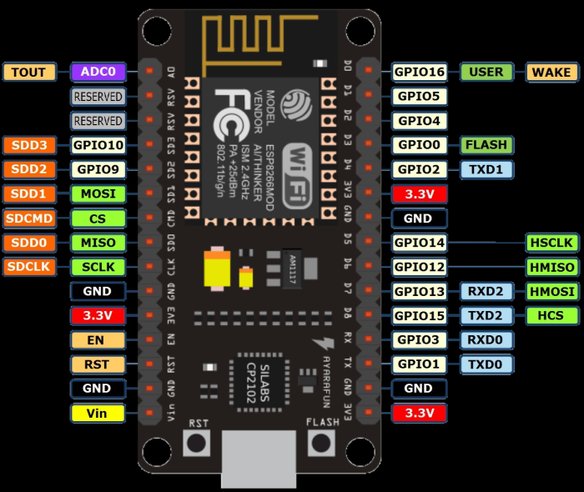 First install the Silicon Labs CP2102 USB to UART Bridge driver for your operating system.
Then follow the instructions here to add the ESP8266 board to the Arduino IDE.
You should test the IDE using the Blink example. File>Examples>ESP8266>Blink
This will blink the Red LED on the Node MCU board. For more on the attached LEDs
To upload the code you need to select the following settings:
Select the correct board Tools>Board>Node MCU 1.0 (ESP-12E Module)
CPU frequency 80MHz
Set the programmer baud rate to 115200 Tools>Upload Speed>115200
Choose the port that the board is attached to Tools>Port on the Mac this will be /dev/cu.SLAB_USBtoUART
Then click Upload
If you get the following warning and the code fails to upload.
warning: espcomm_sync failed
error: espcomm_open failed
You will need to put the board into flash mode manually. To do this press and hold the Flash button on the NodeMCU board then press and release the Reset button, finally release the Flash button. You should then be able to successfully upload the code.
NodeMCU on board LEDs
The NodeMCU board and the ESP8266MOD modules from AI-THINKER both have LEDs on them. The blue LED near pin 22 on the ESP8266MOD-12E module is connected between Vcc and GPIO2 (TXD1) labelled D4 on the NodeMCU 1.0 Board. The Blue (or Red) LED on the NodeMCU Board is connected between Vcc and GPIO16 labelled D0 on the NodeMCU 1.0.
Note GPIO0 is also attached the the external flash chip on the NodeMCU board so if you wish to attach an additional element to this pin make sure it does not pull this pin to ground, other wise the board will not boot the program from the external flash memory when the power is cycled.
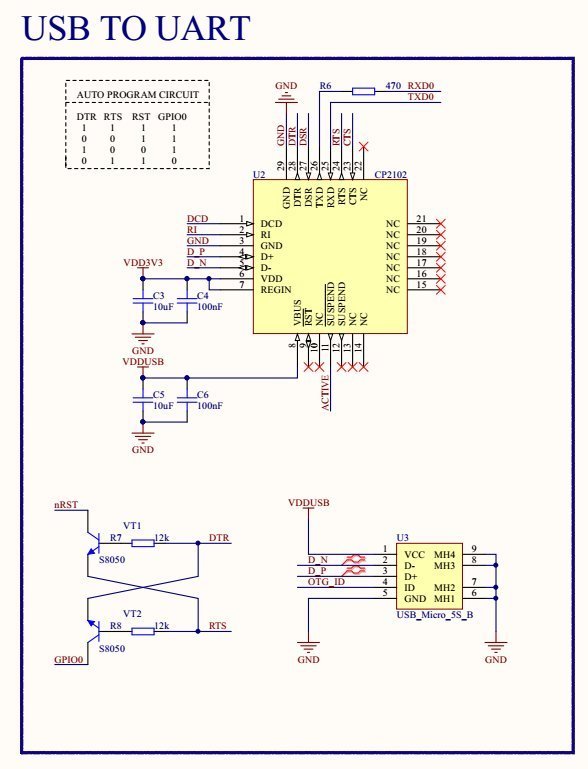
Complete schematic diagram visit: https://github.com/nodemcu/nodemcu-devkit-v1.0/blob/master/NODEMCU_DEVKIT_V1.0.PDF
File System Uploader
Arduino data upload tool
- What driver is required for the NodeMCU board?
You must install the Silicon Labs CP2102 USB to UART Bridge driver for your operating system. - How do you select the correct board in the Arduino IDE?
Select Tools>Board>Node MCU 1.0 (ESP-12E Module). - What upload speed should be set for the programmer baud rate?
Set the programmer baud rate to 115200 via Tools>Upload Speed. - Which port address is used on a Mac for this board?
The port on the Mac will be /dev/cu.SLAB_USBtoUART. - What causes the espcomm_sync failed error?
This error occurs when the code fails to upload without the board being manually placed into flash mode. - How do you manually put the board into flash mode?
Press and hold the Flash button, press and release the Reset button, then release the Flash button. - Which GPIO pin is connected to the blue LED on the module?
The blue LED is connected between Vcc and GPIO2, labeled D4 on the NodeMCU 1.0 Board. - Why should you avoid pulling GPIO0 to ground?
Pulling GPIO0 to ground prevents the board from booting the program from the external flash memory when power is cycled.
