
Summary of Interactive Logo using an Arduino
This article details an interactive logo project created for the 2012 Belgian Arduino Jam. The team used a laser cutter to engrave a company logo onto acrylic, mounted on an MDF box housing an Arduino Uno and custom circuitry. A microphone input randomizes an RGB LED strip's lighting sequence, creating a dynamic visual effect.
Parts used in the Interactive Logo:
- Laser cutter
- Acrylic plate
- MDF plate (3.5mm thickness)
- Arduino Uno
- RGB LED strip
- Microphone
- Custom stripboard
- Bipolar driver transistors (3 units)
- Inkscape software
- CorelDraw software
first of all we would like to thank the organisation and especially the main sponsor, Capgemini, which made all of this possible.
This project is a contribution to the first belgian Arduino Jam (2012).
During the Arduino Jam 2012, me and two other colleagues put our heads together to build an interactive logo. The idea was to use a lasercutter and a plate of acrylic with our company’s (and event sponsor’s) logo engraved.
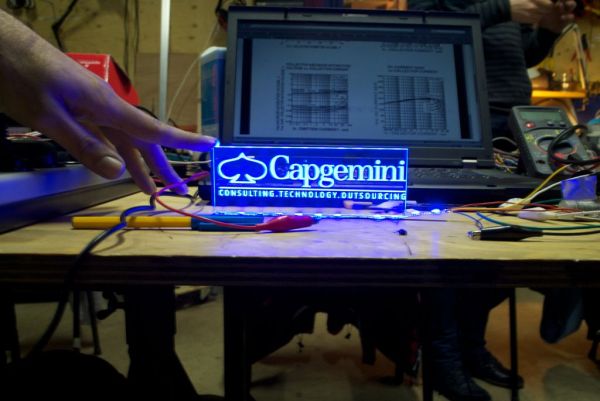
This acrylic plate was mounted on a laser cutted box with an Arduino inside which was used to steer an RGB LED strip.
The interactivity of the design consists of a randomization of the lighting sequence by using a microphone as input.
All the electronic circuitry was soldered onto a custom made stripboard that was mounted on top of the Arduino. This stripboard contained 3 bipolar driver transistors for driving the LED strips connected to the PWM outputs.
Step 1: Engraving the company’s logo
Firstly we edited the logo using Inkscape to have something suitable for the lasercutter. After a couple of tests on the computer connected to the lasercutter, we quickly realised that the logo had to be supplied in bitmap format and imported into CorelDraw, as the lasercutter’s printer driver did not handle vector graphics very well.
We did some tests with cardboard to see whether the format and resolution of the created bitmap was good enough. After defining the dimensions of our plate, we tried it on plexiglass to see what kind of effect the LED strip underneath would give us.
The light seemed to diffuse nicely around the engraving: first goal accomplished!
 CapLogo.cdr18 KB
Step 2: Lasercutting the logo’s enclosure
Therefore we used a handy website (http://boxmaker.rahulbotics.com/) that allowed us to generate a simple box layout by supplying the required dimensions.
Again, we did several test drives on cardboard first (see pictures attached), and finally choose an MDF plate with a 3.5mm thickness for our final design. During the first run, we forgot to take the correct thickness of our material into account, which caused the sides of our box to fall apart! Finally, after three iterations, we managed to get it right and were proud to have all the components for our custom made project enclosure.
 box_20120204_133006_888695.pdf
Led
For more detail: Interactive Logo using an Arduino
- How was the logo prepared for the lasercutter?
The logo was edited in Inkscape, converted to bitmap format, and imported into CorelDraw because the printer driver did not handle vector graphics well. - Can cardboard be used for testing the design?
Yes, the team performed test drives on cardboard to verify format, resolution, and dimensions before using plexiglass or MDF. - What material was chosen for the final enclosure?
An MDF plate with a 3.5mm thickness was selected for the final box design after three iterations. - Why did the first box run fail?
The sides fell apart because the correct thickness of the material was not taken into account during the initial design. - Does the project use a microphone for interactivity?
Yes, a microphone is used as input to randomize the lighting sequence of the RGB LED strip. - How were the LED strips driven?
Three bipolar driver transistors were soldered onto a custom stripboard connected to the PWM outputs of the Arduino. - Where can I find the box layout generation tool?
The team used the website http://boxmaker.rahulbotics.com/ to generate the simple box layout based on required dimensions. - What software was used to edit the logo initially?
Inkscape was the first tool used to edit the logo to make it suitable for the lasercutter.
