
Summary of Arduino Project in 5 Minutes
This article guides users through building an Arduino project in five minutes using Circuito.io. It outlines planning, connecting components on a breadboard, customizing code to display sensor distance, and testing the setup. The process emphasizes simplicity and rapid prototyping for makers.
Parts used in the Arduino Project in 5 Minutes:
- Circuito.io platform
- Breadboard
- Ultrasonic sensor
- Seven segment display
- Arduino board (implied by Firmware.ino)
- Fritzing software
- Arduino IDE
- Email service
In the following Instructable, we’ll show you how you can make your next Arduino project in just 5 minutes.
It’s simple, easy and fun.
Step 1: Plan It!
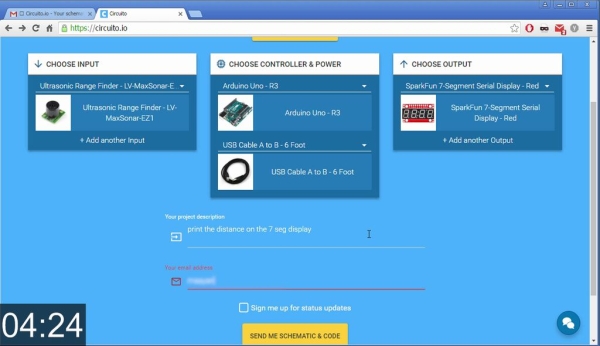
1. Go to Circuito.io
2. Select the components in the screenshot, add a description and your email and click “Send”
3. Instantly receive schematic and code from Circuito.io.
* Sometimes our emails go to “promotions” so make sure to check the different inboxes.
Step 2: Connect It!
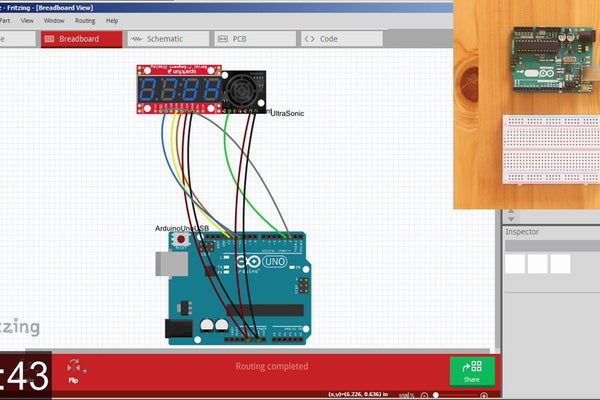
1. Download the attachments from the email you received.
2. Unzip the folder.
3. Open the .FZZ file (If you don’t have Fritzing, you can download it here for free)
4. Move components around so you have a clear view of the connections.
5. Connect the different components to the breadboard.
Step 3: Code It!
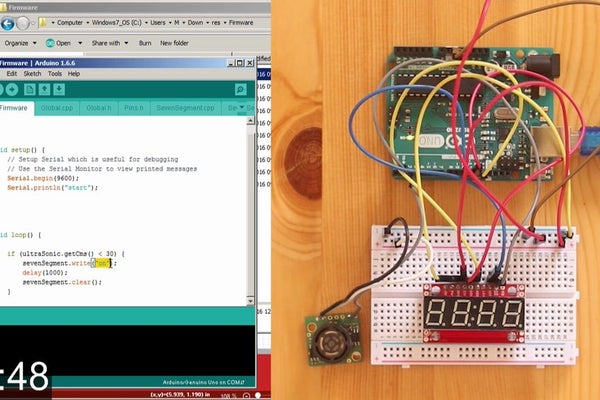
1. Open the Firmware folder
2. Open the Firmware.ino file (if you don’t have Arduino installed, you can download it here for free)
3. Make changes to the code.
The original code will show the word: ON if an object is closer than 30 cm. from the sensor:
void loop ( )
if (ultrasonic.getCms () < 30 {
sevenSegment.write(“on”);
delay(1000);
sevenSegment.clear();
We decided that for this project, we want the seven segment display to show the distance from the sensor:
sevenSegment.write (ultraSonic.getCms() );
delay (250);
Step 4: Test It!
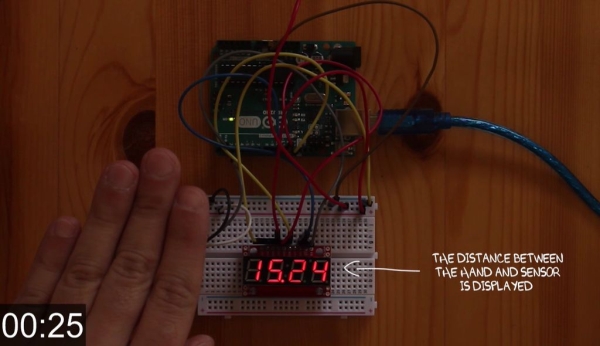
Now that everything is in place, you can test your project and see if it really works like it does on the video 🙂
If you have any trouble, you can always write to us >> [email protected] or through our FB page

We would love to see how your project turned out.
Share it with us through our FB page and with the Makers’ community.
Source: Arduino Project in 5 Minutes
- How do I get the schematic and code?
Go to Circuito.io, select components, add a description and email, then click Send. - What should I do if my email does not arrive?
Check your promotions inbox as emails sometimes go there. - Which file format must be opened in Fritzing?
You need to open the .FZZ file downloaded from the email. - Can I modify the original code provided?
Yes, you can make changes to the code inside the Firmware folder. - What does the default code display when an object is close?
The original code shows the word ON if an object is closer than 30 cm. - How do I change the display to show distance instead of text?
Modify the code to use sevenSegment.write with ultraSonic.getCms(). - Where can I find help if I encounter trouble?
You can write to [email protected] or visit their FB page. - How can I share my completed project?
Share it through their FB page and with the Makers' community.
