
Summary of Control a Parrot AR Drone with Linino
This article details a project to control a Parrot AR.Drone using a physical joystick instead of unstable mobile apps. It utilizes Linino, Node.js, and the Ideino environment on an Arduino Yun board. The solution involves installing the `ar-drone` Node module to handle flight commands like take-off, landing, and movement, which are mapped to joystick inputs and buttons.
Parts used in the Control a Parrot AR Drone with Linino:
- Parrot AR.Drone
- iOS or Android device (for reference)
- Arduino Yun
- Linino operating system
- Node.js
- Ideino development environment
- ar-drone Node module
- Joystick Shield
- Firmata sketch (firmata_spi_pullup_enabled.hex)
Performing the control of the AR.Drone with the iOS or Android apps is really difficult. The controls are very unstable because the app virtual joystick hasn’t a good sensitivity response. The idea was to use a real joystick instead of the Parrot application itself:
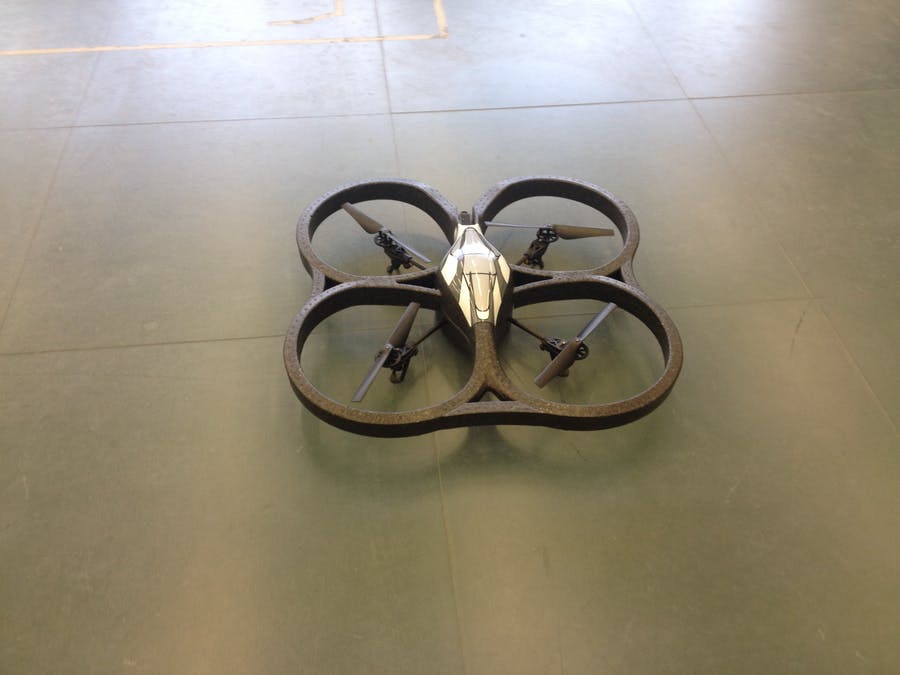
So, to create an application to control the quadcopter, you need Linino with Node.js and the Ideino development environment on-board, that include a library for managing the pins of the board in Node.js. For installing Node.js and Ideino on the Yun, please refer to this guide: http://wiki.linino.org/doku.php?id=wiki:nodejscript
After setting up Node.js and Ideino, we looked around for a node module implementing all the necessary commands to pilot the AR.Drone. We found that the most used is ar-drone. The source code of the ar-drone module is available on GitHub (https://github.com/felixge/node-ar-drone). ar-drone module comes with a detailed documentation from which I deduced that the main commands for controlling the AR.Drone:
- take-off
- land
- stop
- left / right
- front / back
- up /down
- clockwise / counter clockwise
The following picture show how we associate the ar-drone commands with the joystick shield controls
Note that the Take Off / Landing commands are performed by a single button switch, located under the two potentiometers of the joystick.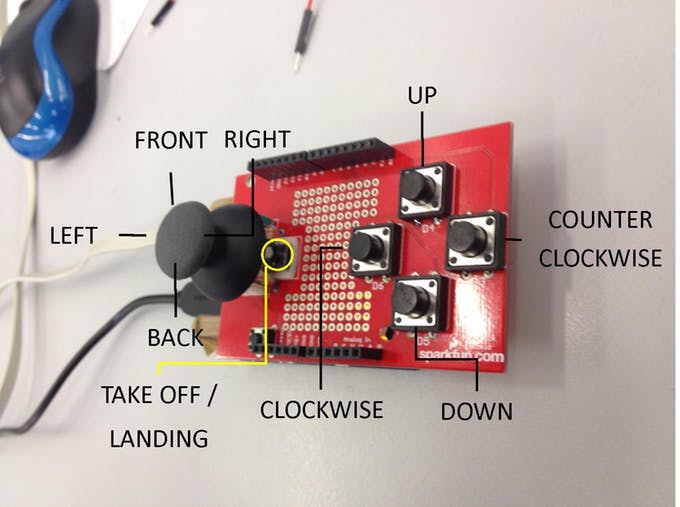
To start write the Node.js code in Ideino, we need to setup our environment. The First step is to setup the mcu with a sketch, generally to work with ideino and the ideino-linino-lib you need to load the firmata sketch that allows Linino to comunicate with the board. With ideino-linino-lib are distributed two .hex files:
- firmata_spi.hex
- firmata_spi_pullup_enabled.hex
The most used is the first one, but in this case, for the Joystick Shield, we need to use the second one which enables the pullup resistor in the Arduino board. See the product page for more details https://www.sparkfun.com/products/9760. To load the .hex file you need to open an ssh connection to your Arduino Yun and execute the commands below in the linux shell :
Read More: Control a Parrot AR Drone with Linino
- Why was this project created?
The iOS and Android app controls were found to be unstable due to poor virtual joystick sensitivity. - What software is required to create the control application?
You need Linino with Node.js and the Ideino development environment installed on the board. - Which Node module is recommended for piloting the AR.Drone?
The most used module is ar-drone, available on GitHub from the user felixge. - What are the main commands available in the ar-drone module?
Commands include take-off, land, stop, directional movements, and clockwise or counter-clockwise rotation. - How are Take Off and Landing commands triggered?
These commands are performed by a single button switch located under the two potentiometers of the joystick. - What sketch must be loaded onto the MCU before writing code?
You need to load the firmata sketch to allow Linino to communicate with the board. - Which .hex file should be used for the Joystick Shield?
You must use firmata_spi_pullup_enabled.hex because it enables the pullup resistor required for the shield. - How do you load the .hex file onto the Arduino Yun?
You need to open an ssh connection to the Arduino Yun and execute specific commands in the linux shell.
