
Summary of VirtualBox USB Passthrough Guide
VirtualBox 6.0 enables local USB passthrough for guest OS devices via the Extension Pack or network sharing tools like USB Network Gate. The article details two methods: direct local connection using VirtualBox's device menu, and remote access over LAN/Internet using USB Network Gate with RDP protocols. It highlights cross-platform support on Windows, Mac, and Linux, emphasizing that only one machine can control a USB device at a time without additional software.
Parts used in the VirtualBox USB Access Project:
- VirtualBox 6.0
- VirtualBox Extension Pack
- Host computer USB ports
- Peripheral USB devices
- Guest operating system
- USB Network Gate software
- VirtualBox Remote Display Protocol (VRDP)
- Microsoft RDP client
- Terminal Server
- Windows, Mac, and Linux operating systems
Accessing local USB ports and devices in VirtualBox
VirtualBox 6.0 allows you to take advantage of USB passthrough support to access locally attached peripheral devices.
Here is a step-by-step guide that illustrates using USB in VirtualBox.
- Optionally install the free VirtualBox Extension Pack. This extension offers the faster speed afforded by USB 3.0 support.
- After installation, start your virtual machine. Just about any virtual environment can make use of VirtualBox.
- Connect a peripheral device into one of the host computer’s USB ports.
- Navigate to Devices -> USB and select ‘USB device to share’.
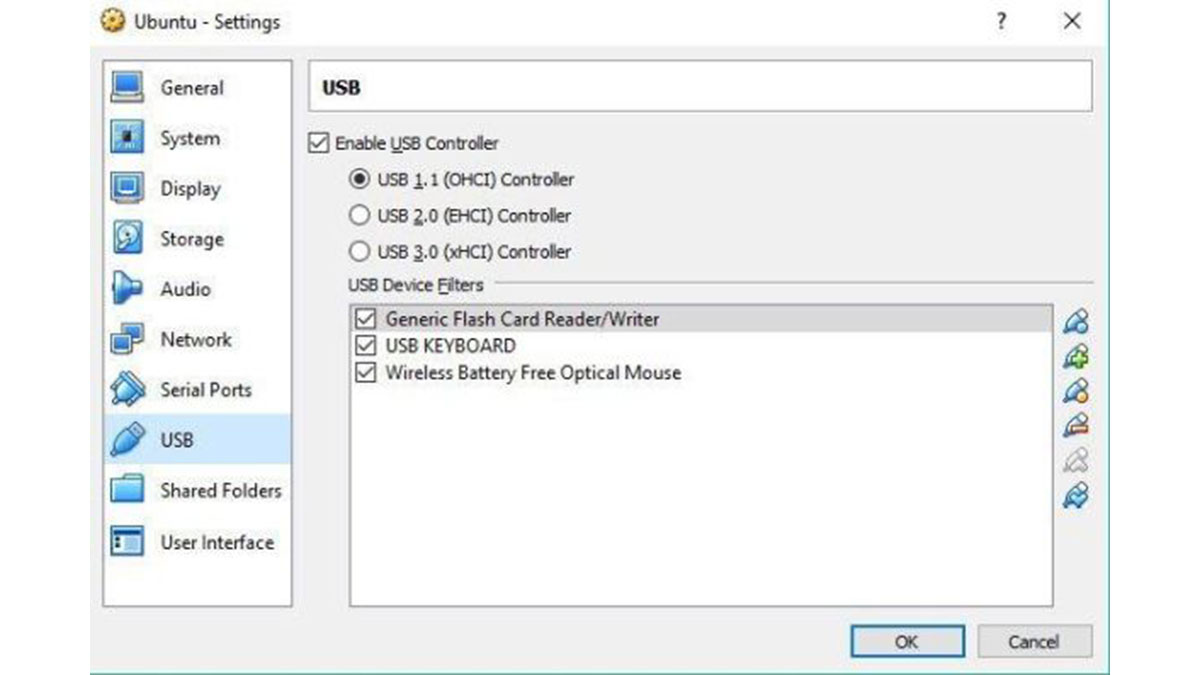
VirtualBox will enable the USB connection, allowing the guest operating system to recognize the device. Once connected in this manner, the guest operating system can exert complete control of the USB device and make full use of its functionality.
You can use this method to connect a USB device to a guest OS remotely. Keep in mind that you are limited to a single machine interacting with the USB device at a time.
The USB redirection technology that powers USB Network Gate enables this specialized software to make USB peripheral devices available over a network. Use a guest OS connected through the Internet or a LAN to remotely access USB devices attached to other machines on the network.
Here’s an easy, three-step procedure to enable this functionality:
- Download USB Network Gate to the machine with the locally connected USB device and install the application.
- Use the software’s GUI to share the device.
- Install USB Network Gate on the virtual machine with which you will share the device. Start the app and use it to connect over the network to the shared USB in VirtualBox.
USB Network Gate is a true cross-platform solution that offers full support on the Windows, Mac, and Linux operating systems.
VirtualBox USB solution for Windows
With VirtualBox, you have the ability to display and control a virtual machine remotely. Your PC can be used to access a guest OS running on another computer. This is accomplished using VirtualBox Remote Display Protocol (VRDP).
This is a communication protocol that is backward compatible with the RDP protocol employed by Microsoft. VirtualBox’s use of VDRP makes it an excellent solution for users using RDP connections to remotely access virtual machines.
VDRP enables virtual machines running VirtualBox to remotely access USB devices. It’s a simple method with which to access remotely attached USB devices as if they were directly connected to the VM’s host machine.
The most efficient software for sharing USB devices over RDP
There are other options to use when you want to share USB peripherals over RDP. USB Network Gate offers the ability to use an RDP session to connect remotely with network-attached USB devices. It shares the USB port with which the peripheral is connected, thereby sharing any attached device as well. Some simple configuration is all that is required in order to share devices over RDP.
The two computers that will be communicating both need to have USB Network Gate installed. They are logically defined as:
- The device server – this machine is physically attached to the USB device and has the Microsoft RDP client installed.
- A remote client – this computer will remotely access the USB device. This machine needs to have Terminal Server installed. This is the server component of RDP.
After USB Network Gate is installed you can use the remote client to interact with the USB device that is attached to the device server. Establishing a connection with the RDP server allows a client machine to use the shared USB device as if they were directly connected.
-
How do I enable USB passthrough in VirtualBox locally?
Navigate to Devices -> USB and select USB device to share after connecting the peripheral to the host. -
Can I use USB 3.0 speed in VirtualBox?
Yes, by optionally installing the free VirtualBox Extension Pack which offers faster speeds. -
Does VirtualBox allow remote USB access over a network?
Standard VirtualBox limits connections to a single machine, but USB Network Gate enables remote access over LAN or Internet. -
What software is needed to share USB devices over RDP?
USB Network Gate must be installed on both the device server and the remote client machines. -
Which operating systems are supported by this solution?
USB Network Gate offers full support on Windows, Mac, and Linux operating systems. -
What is the role of Terminal Server in this setup?
The remote client needs Terminal Server installed as it is the server component of RDP required for the connection. -
Can multiple machines control the same USB device simultaneously?
No, you are limited to a single machine interacting with the USB device at a time. -
Is VRDP backward compatible with Microsoft RDP?
Yes, VirtualBox uses VRDP which is backward compatible with the RDP protocol employed by Microsoft.
