
Summary of LED Show 2 using Arduino Esplora
This project demonstrates how to use an Arduino Esplora to control an RGB LED's color intensity using three analog sensors. The microphone adjusts red brightness, the linear potentiometer slider controls green, and the light sensor regulates blue. By reading these inputs, the code dynamically changes the LED output based on sound, position, and ambient light levels.
Parts used in the LED Show 2 using Arduino Esplora:
- Arduino Esplora
- Microphone
- Linear Potentiometer Slider
- Light Sensor
- RGB LED
This example shows you how to read different analog sensors to change the brightness of the three colors in the RGB LED.

In this example you will read the amplitude from the microphone, the amount of light on the light sensor, and the position of the linear potentiometer. These three sensors will control the intensity of the red, blue, and green colors of the RGB LED.
Circuit
Only your Arduino Esplora is needed for this example.
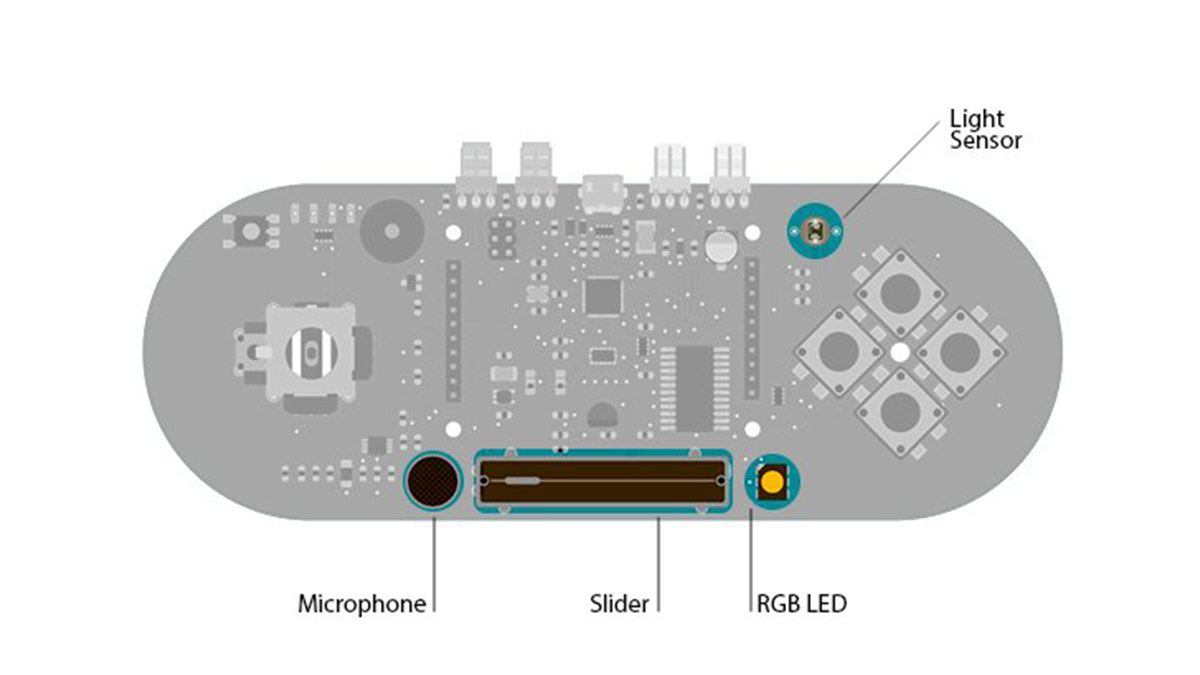
microphone, slider, light sensor and RGB led on the Esplora
Code
The RGB LED is comprised of three colors that represent the three primary colors: red, green, and blue. Each of these light’s brightness is individually controllable with functions in the Esplora library:
If you want to control all the colors with one instruction you can use the writeRGB() function.
In this example we use three of the sensors on the Esplora to control the brightness of the colors of the LED. The amplitude picked up by the microphone will increase the brightness of the red LED. The position of the slider on the linear potentiometer will change the brightness of the green LED. The intensity of the light on the light sensor will change the brighntess of the blue LED.
Hardware Required
- Arduino Esplora
For more detail: LED Show 2 using Arduino Esplora
- How does the microphone affect the RGB LED?
The amplitude picked up by the microphone increases the brightness of the red LED. - What component controls the green LED brightness?
The position of the slider on the linear potentiometer changes the brightness of the green LED. - Which sensor determines the blue LED intensity?
The intensity of the light detected by the light sensor changes the brightness of the blue LED. - Can all colors be controlled with a single instruction?
Yes, you can use the writeRGB function to control all colors with one instruction. - What functions are available for individual color control?
The Esplora library provides writeRed, writeGreen, and writeBlue functions for individual brightness control. - Does this project require any external hardware besides the board?
No, only the Arduino Esplora is needed as it contains the required sensors and LED. - What do the three colors of the RGB LED represent?
The three colors represent the primary colors: red, green, and blue. - How is the brightness of each color managed in the code?
Each light's brightness is individually controllable using specific functions in the Esplora library.
