
Summary of MKR1000 With Windows 10
This article guides users on connecting an Arduino MKR1000 to a Windows 10 PC via Wi-Fi for remote control. It details installing necessary libraries like WiFi101, configuring network credentials in the code, and using the "Windows Remote Arduino" app from the Microsoft Store to establish a connection using the device's IP address and port.
Parts used in the Arduino MKR1000 with Windows 10 Remote Project:
- Arduino MKR1000
- WiFi router
Arduino MKR1000 with Windows 10 remote Arduino using Wifi connection.
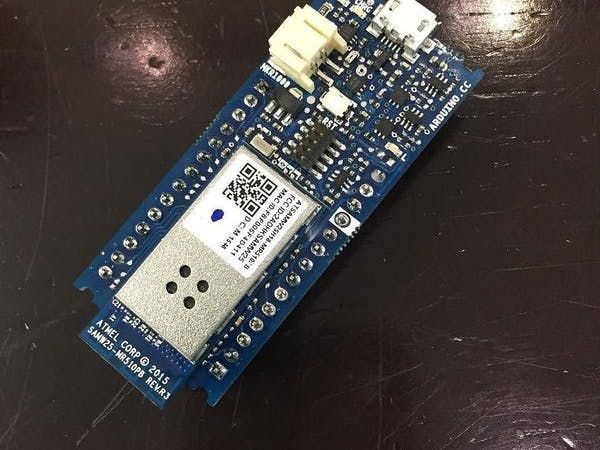
Things used in this project
Hardware components |
||||||
 |
|
× | 1 | |||
Hand tools and fabrication machines |
||||||
|
||||||
Story
Hello everyone.
First I want to say that this project is for the world’s largest Arduino maker challenge.
Please respect and share.
Step 1: Connect the mkr1000 with your computer
Step 2: Download the mkr1000 board library
tools –> board –> boarde manager –> and type ” MKR1000″
and download the library.
Step 3: Download the wifi library
sketch –> include library –> library manager –> type “wifi101”
P.S this is the library for the billed in wifi module.
Step 4: Open the attached code.
Step5: The modification for the wifi connection
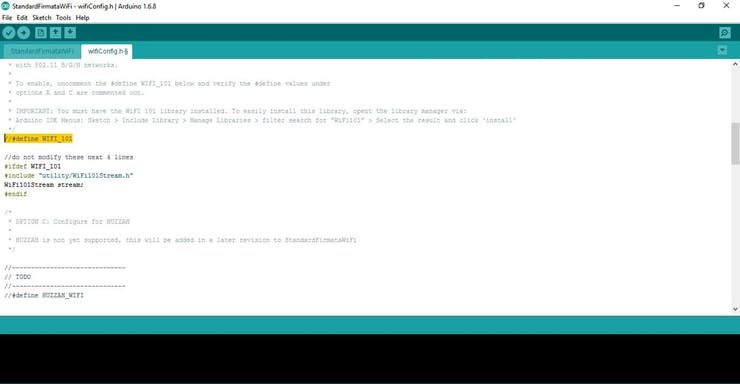
1. Uncomment the marked sentence
2. Change “your_network_name” with you wifi name. (be careful for the capitals)
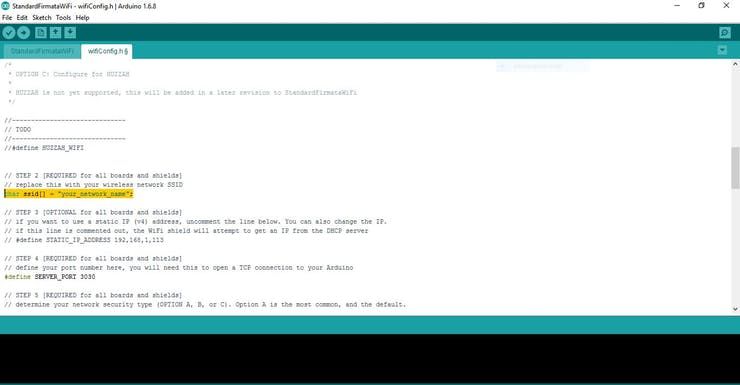
3. This step is optional
Uncomment the last line creating a stable IP address for the MKR1000.
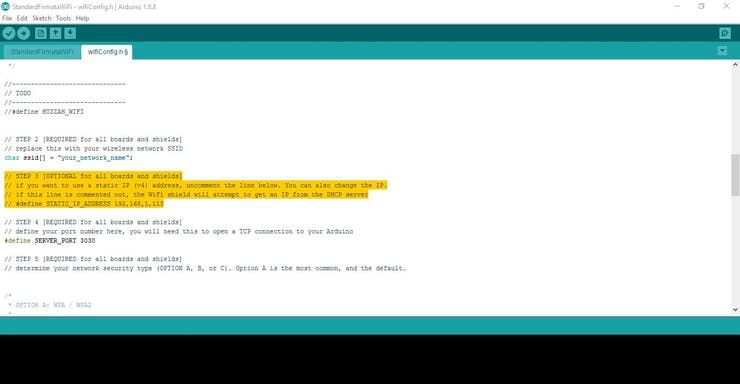
4. Choice your security mode
In my case it was a WPA / WPA2
Change “your_Wpa_passphrase” with your wifi password.
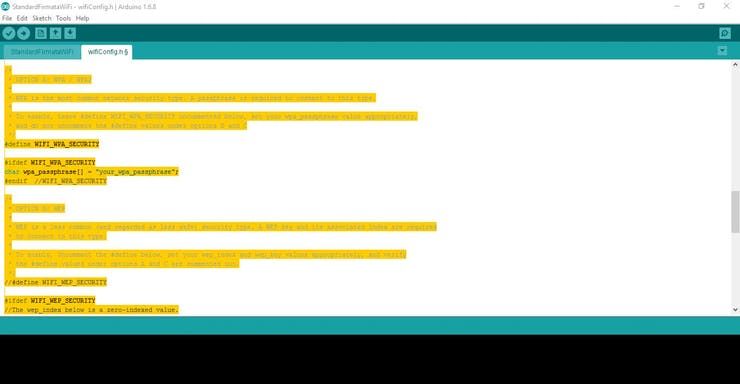
5. Upload the code to the MKR1000.
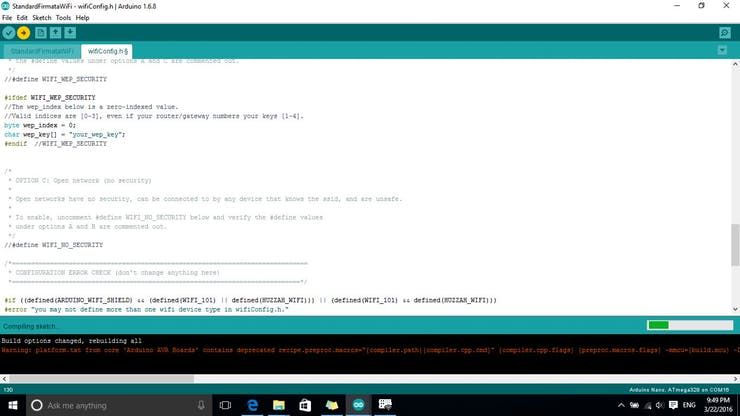
Step 6: open windows 10 store
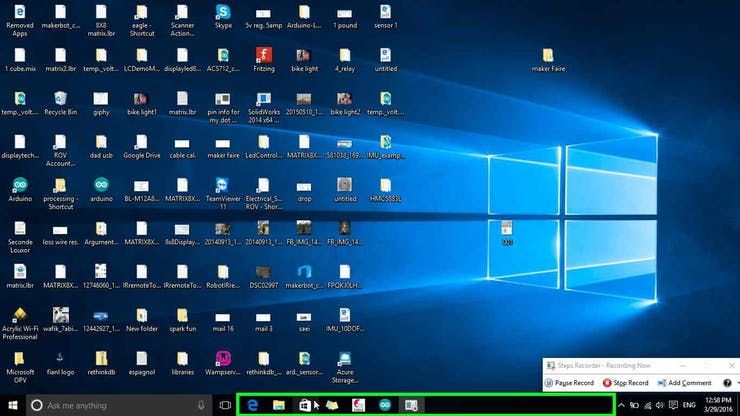
Step 7: Right click on the search box
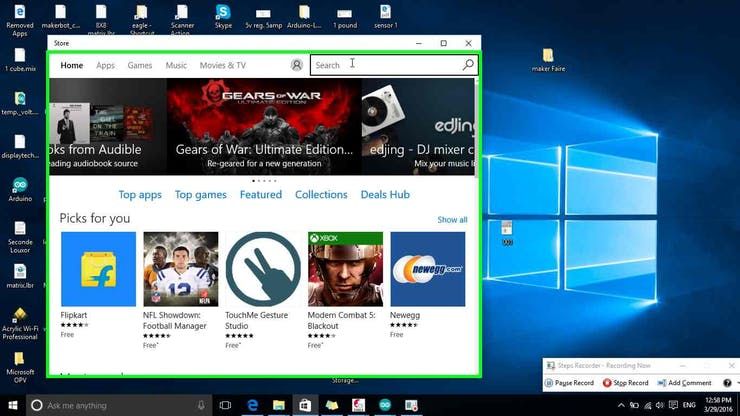
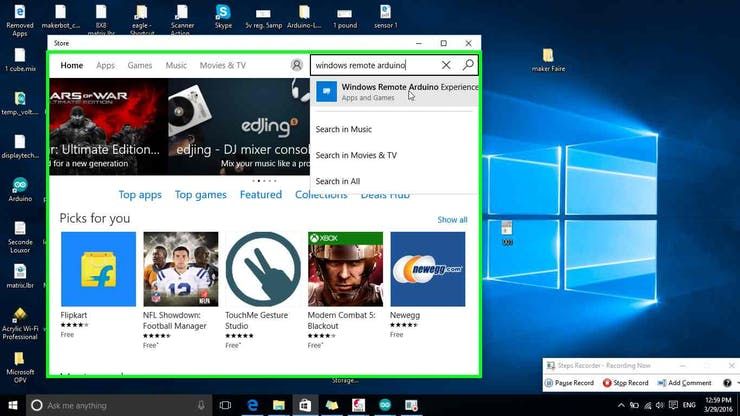
Step 8: Type ” windows remote Arduino ”
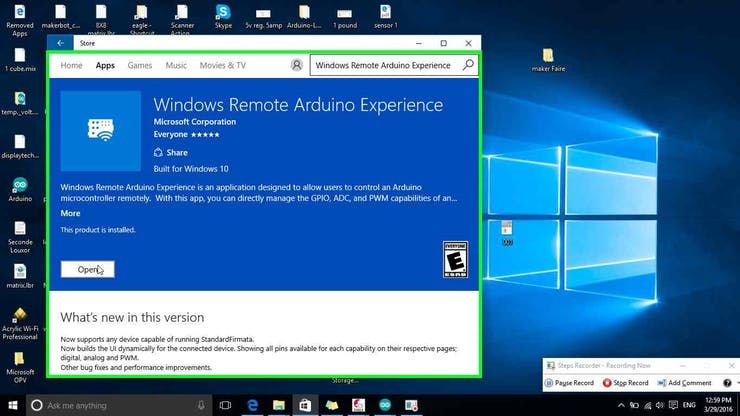
Step 9: Download it (I already download it so I will just open it)
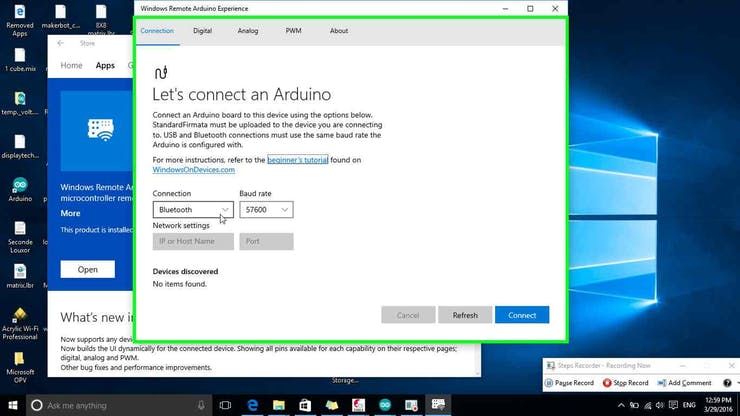
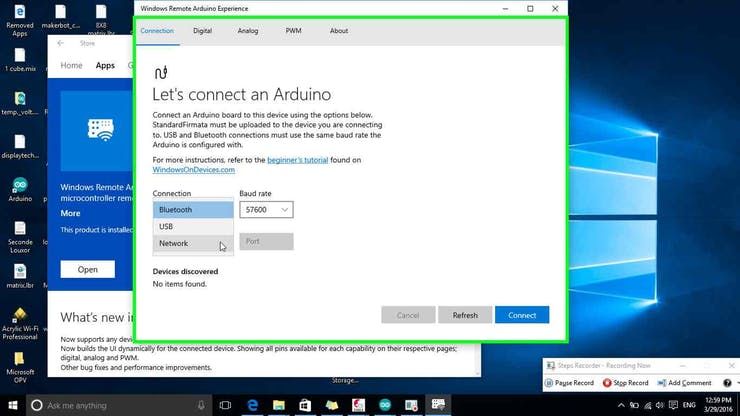
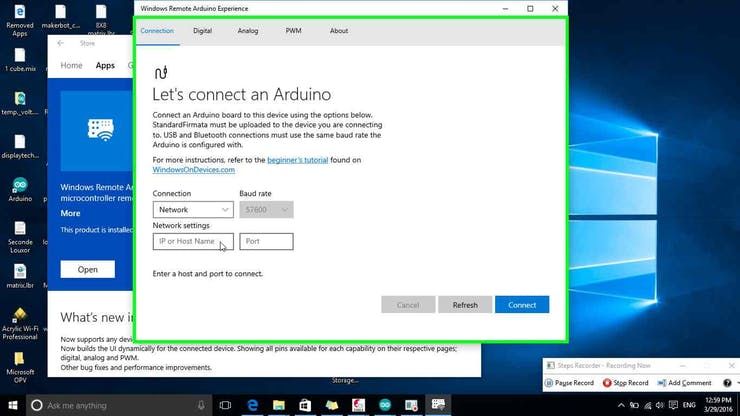
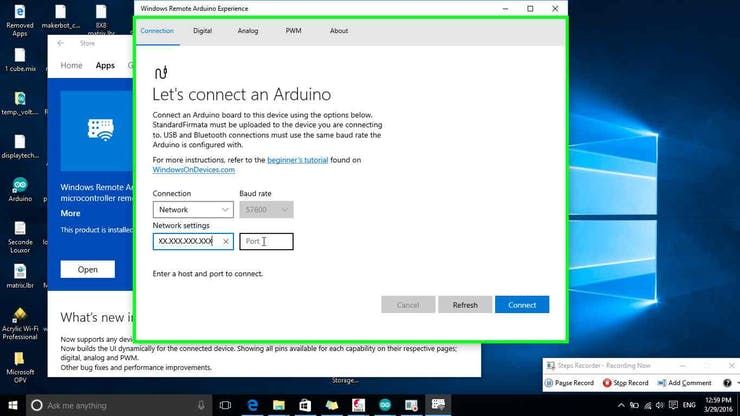
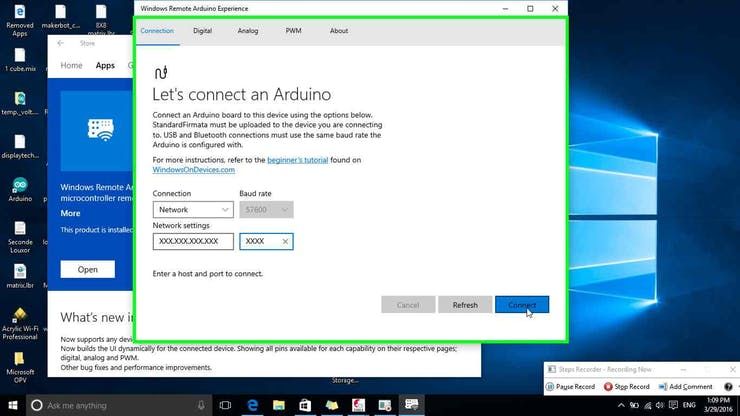
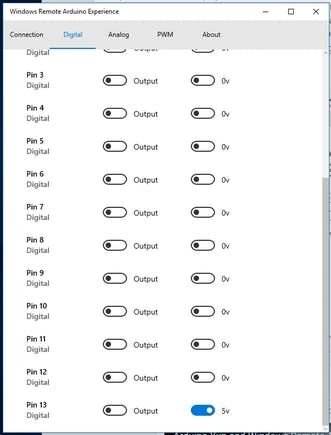
Step 10: Chose the communication type
Code
- How do I install the MKR1000 board library?
Go to tools, select board manager, type MKR1000, and download the library. - Which library is required for the WiFi module?
You must download the wifi101 library via the sketch include library menu. - What modification is needed for the WiFi connection name?
Change your_network_name with your actual WiFi name while being careful with capital letters. - How do you set a stable IP address for the MKR1000?
This is optional; uncomment the last line in the code to create a stable IP address. - What security mode should be selected for the WiFi password?
Change your_Wpa_passphrase based on your security mode, such as WPA or WPA2. - Where can I find the Windows Remote Arduino application?
Open the Windows 10 store, right-click the search box, and type windows remote Arduino. - What communication type should be chosen in the app?
Select the wifi network option when choosing the communication type. - What information is needed to connect to the MKR1000?
Type the MKR1000 IP address and the port found in the Arduino code before clicking connect.
