
Summary of Control TV functions using Analog input and Arduino
This article guides users in building an Arduino-based remote control to manage TV volume and other functions using a potentiometer, IR LED, and receiver. It details hardware connections for basic and amplified IR signals, software setup including the IRremote library, and testing procedures to capture remote codes. The project replaces traditional button pressing with analog input or light-controlled options.
Parts used in Arduino TV Remote Control:
- Arduino (or clone)
- 10k potentiometer
- IR LED
- 100 ohm resistor
- IR receiver
- NPN transistor (optional)
- 1k resistor (optional)
- Pushbutton (optional)
- Regular LED (optional)
- 470 ohm resistor (optional)
Have you ever wanted to use a good old knob to control your TV volume instead of repeated button pushing? Or make it controlled by light? Do you want your remote to be replaced by an awesome arduino and let it do the hard work of using a remote for you? Well this instructable is for you!
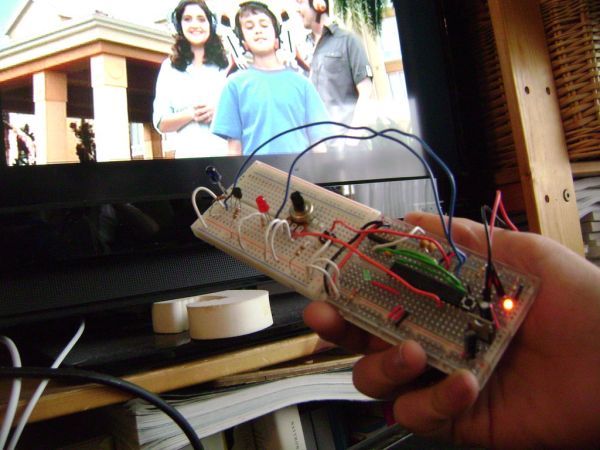
Also if you just want to learn how to use IR to control your TV with your arduino this will help you gain some understanding. Or maybe inspire some awesome project and instructable ideas!
In this instructable we will be using a 10k potentiometer, IR LED, and an Arduino to control the volume (or anything else you want) on a TV.
Here is a materials list
NOTE: “*” means optional
Arduino (or clone, but the arduino Leonardo has not worked for me)
10k potentiometer
IR LED http://www.radioshack.com/product/index.jsp?productId=2062565
100 ohm resistor
IR receiver http://www.radioshack.com/product/index.jsp?productId=2049727
*NPN transistor and 1k resistor (if you want to amplify power to IR LED)
*pushbutton
*regular LED and 470 ohm resistor
You will also need to download the IRremote library from this site:
http://www.arcfn.com/2009/08/multi-protocol-infrared-remote-library.html
and make shure to make it arduino 1.0/1.0.1 compatible by changing
#include
to
#include
in IRRemoteInt.h.
Now Lets Begin!
Step 1: Get the IR remote library, learn about it, and get some remote codes.
To get the really handy IR remote library that Ken Shirriff made
go to http://www.arcfn.com/2009/08/multi-protocol-infrared-remote-library.html
and download and install the library
make sure to change
#include <WProgram.h>
to
#include <Arduino.h>
in IRRemoteInt.h. (to open IRRemoteInt.h and edit it, use Notepad on Windows, or Text Editor on Mac, but don’t open with arduino IDE because it won’t open with it.)
to make it arduino 1.0/1.0.1 compatable

On the page make sure to read about how to use the library and find the correct protocol for your device
check out the sending example and test it to make sure it works on your arduino
NOTE: picture 1 shows the sending code, and picture 2 shows the hardware setup for it.
then do the receiving test on your arduino to find out your remote hexadecimal codes by pointing your remote at the receiver and pressing the buttons you want the codes for, the see the codes in the Serial monitor.
make sure to write down the codes or store them somewhere for future use.
NOTE: picture 3 shows the receiving code, and picture 4 shows the hardware setup for the receiving code.
If you get all these to work then you are set to continue!
Step 2: Set up your hardware!
Here are the steps to building the arduino remote:
hookup a pushbutton to pin 4 on your arduino, 5V, and ground with a 10k resistor
connect the center pin of your potentiometer to analog pin 3 on your arduino, and the side pins to 5V and ground
connect the long lead (“+”) of the indicator LED to pin 2 of your arduino with a 470 ohm (or whatever resistor works) resistor, and the short (“-“) lead to ground
connect the long lead (“+”) of the IR LED to pin 3 of your arduino with a 100 ohm resistor, and the short lead (“-“) to ground
NOTE: the first picture shows this basic circuit, and the ones after it show the steps listed above.
(OPTIONAL) if you want to use a transistor to amplify the IR LED’s power do this:
connect the long lead (“+”) of the IR LED to the emitter of the NPN transistor you have, the short lead (“-“) to ground, a 100 ohm resistor from the collector pin of the NPN transistor to 5V, and connect the base pin of the NPN transistor to pin 3 of your arduino with a 1k resistor.
NOTE: the last three pictures show this circuit with transistor and how to set it up
10k potentiometer
IR LED http://www.radioshack.com/product/index.jsp?productId=2062565
100 ohm resistor
IR receiver http://www.radioshack.com/product/index.jsp?productId=2049727
*NPN transistor and 1k resistor (if you want to amplify power to IR LED)
*pushbutton
*regular LED and 470 ohm resistor
You will also need to download the IRremote library from this site:
http://www.arcfn.com/2009/08/multi-protocol-infrared-remote-library.html
and make shure to make it arduino 1.0/1.0.1 compatible by changing
#include
to
#include
in IRRemoteInt.h.
Now Lets Begin!
For more detail: Control TV functions using Analog input and Arduino
- What components are required to build this Arduino TV remote?
You need an Arduino, a 10k potentiometer, an IR LED, a 100 ohm resistor, an IR receiver, and optionally an NPN transistor with a 1k resistor. - Can I use an Arduino Leonardo for this project?
No, the author notes that the Arduino Leonardo has not worked for them in this specific project. - How do I make the IRremote library compatible with Arduino 1.0?
You must edit the file IRRemoteInt.h to change the include statement from WProgram.h to Arduino.h. - How can I find the hexadecimal codes for my TV remote buttons?
Use the receiving test code on your Arduino to point your existing remote at the receiver and view the codes in the Serial monitor. - Which pins should I connect the potentiometer to on the Arduino?
Connect the center pin of the potentiometer to analog pin 3, and the side pins to 5V and ground. - How do I wire the indicator LED in this circuit?
Connect the long lead of the LED to pin 2 with a 470 ohm resistor, and the short lead to ground. - Is it possible to amplify the power sent by the IR LED?
Yes, you can add an NPN transistor and a 1k resistor to amplify the power if needed. - What is the best way to install the IRremote library?
Download it from the specified website, install it, and manually edit the source file for version compatibility. - Does this project allow controlling the TV with light?
The article mentions making the control work via light as a possibility to inspire awesome project ideas.
