
Summary of Getting Started with Arduino – LED Blinking
Arduino Uno is highlighted as the ideal entry-level board for embedded systems, requiring minimal programming expertise. This tutorial guides beginners through installing necessary drivers via USB and configuring the Arduino IDE to run a standard "Hello World" project: blinking an onboard LED connected to pin 13 using pre-loaded examples.
Parts used in the Arduino Beginner Project:
- Arduino Uno Board
- USB Cable
- Computer
- Arduino Software
- Arduino Driver
- On-board LED (Pin 13)
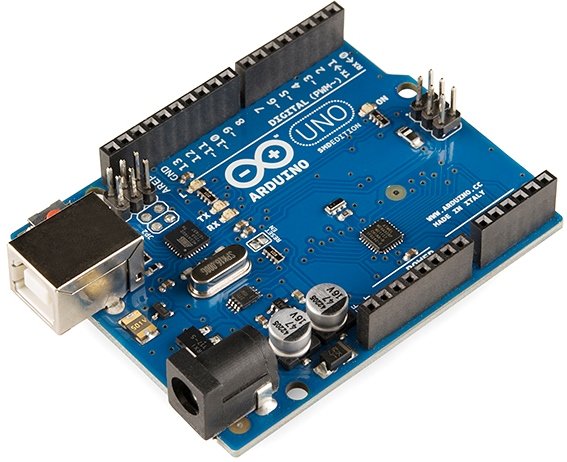
Arduino Uno is the best development board for beginners in the field of embedded systems. We can program Arduino board with less technical knowledge and programming skills. This tutorial is intended to beginners in the field of Arduino. Hope you already have an Arduino board. Then you have to download Arduino Software and Driver. You can download it from Arduino Website.
Installing Arduino Driver
Now connect the Arduino to your computer using a USB cable. As usual Windows may start driver installing procedure but it will fail after some time. We need to install driver manually which comes along with Arduino Software.
You can find Arduino under the Ports (COM & LPT). If it is not listed there, look under Other Devices >> Unknown Device.
| Double Click on the Unknown Device, you can see details. |
elect “Browse My Computer for driver software”
Hope you successfully installed driver.
Now we can start Arduino programming. All of us start learn a new programming from Hello World. In microcontroller fields the Hello World example is usually blinking an led. In Arduino Uno, there are 4 on-board LEDs. One for indicating power, two (RX and TX) for indicating serial communication between Computer and Arduino. The remaining one is connected to PIN : 13. Thus when the digital pin 13 is HIGH, LED turns ON and when it is LOW, LED will be OFF.
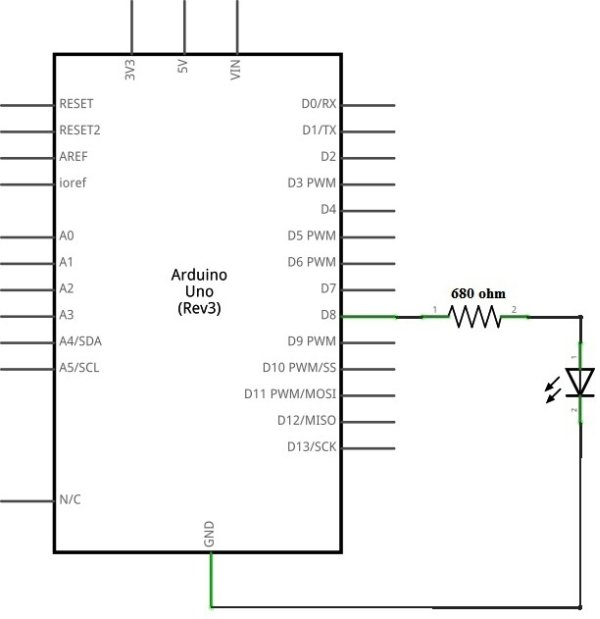
Firstly we can start by blinking this on board LED. Arduino IDE comes with a lot of examples, which makes our task simpler.
- Open the Arduino IDE
Arduino IDE
- Open File >> Examples >> 01. Basics >> Blink
Opening LED Blinking Example
- It will open the sketch (code) for blinking on board LED connected to PIN : 13
For more detail: Getting Started with Arduino – LED Blinking
- Why is Arduino Uno recommended for beginners?
It is considered the best development board for beginners in embedded systems because it can be programmed with less technical knowledge and skills. - How do I install the Arduino driver if Windows fails automatically?
You must manually install the driver by browsing your computer for software located within the Arduino Software package. - Where can I find the Arduino device if it is not listed under Ports?
If not listed under Ports, check under Other Devices where it may appear as an Unknown Device. - What is the microcontroller equivalent of Hello World?
In the microcontroller field, the Hello World example is usually blinking an LED. - Which on-board LED is connected to Pin 13?
One of the four on-board LEDs is connected to PIN 13, while others indicate power or serial communication. - How does the LED connected to Pin 13 behave based on code?
The LED turns ON when the digital pin 13 is HIGH and turns OFF when it is LOW. - How do I open the Blink example sketch in Arduino IDE?
Navigate to File then Examples then 01 Basics and finally select Blink. - Does the Arduino IDE provide built-in examples for learning?
Yes, the Arduino IDE comes with many examples that simplify the task of learning new functions.
