
Summary of GameBoy 5110 – Arduino Handheld Game Console by 3D Printing
This article details a DIY project to build a retro-styled handheld game console using an Arduino Nano, a Nokia 5110 LCD screen for blue backlighting, and a custom 3D-printed shell. The device features six programmable buttons, a piezoelectric buzzer for sound, and runs games like "Snake." It is powered by a 9V battery and includes a slide switch for power control, offering a customizable gaming experience during quarantine.
Parts used in the GameBoy 5110 Handheld Console:
- Arduino Nano
- Nokia 5110 LED LCD screen
- Piezo buzzer
- Mini slide switch
- Button B3F Omron 12mm
- Prototype board
- 9V battery compartment
- Wire
- DuPont wire female connector
- PLA printing material
- Nut 2mm bolt
- Soldering iron
- Tin and flux
- Hot glue gun
- Screwdriver
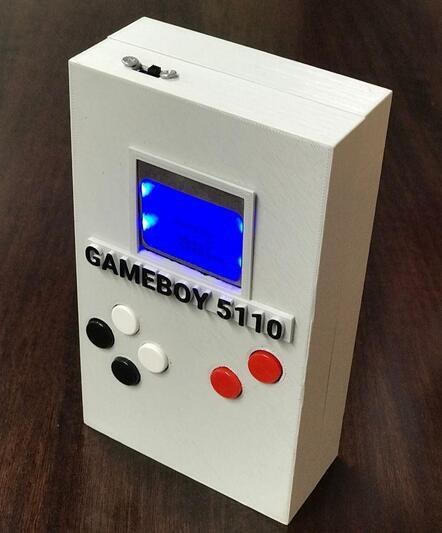
During the COVID-19 crisis, how to spend a lot of quarantine time at home? In addition to improving cooking skills and doing sports, game lovers can also make their own unique GameBoy game console! The blue backlit LCD screen of the Nokia 5110 is used here (which makes it more retro style) and the 3D printed GameBoy shape shell. The project is based on Arduion Nano, you can also use your favorite hardware.
Supplies
LCD5110_Graph.h – “Snake” Game Programming
Code: Arduino Source Code
When it comes to the selection of materials, you can refer to Apogeeweb Electronics.
Step 1: Characteristic Explain
1. With six programmable buttons, it is convenient to upload your favorite games.
2. The four keys on the left are arrow keys, and the upper button on the right is the reset button. You can change the controls in the Arduino file.
3. The sound part adopts piezoelectric buzzer.
Step 2: Material
Arduino Nano × 1
Nokia 5110 LED LCD screen × 1
Piezo buzzer × 1
Mini slide switch × 1
Button B3F Omron 12mm (multiple colors) × 6
Prototype board × 1
9V battery compartment × 1
Wire × several
DuPont wire in in female × 1
PLA printing material × 1
Nut × several 2mm bolt × several
Soldering iron × 1
Tin and flux × 1
Hot glue gun × 1
Screwdriver × 1
Step 3: 3D Printing
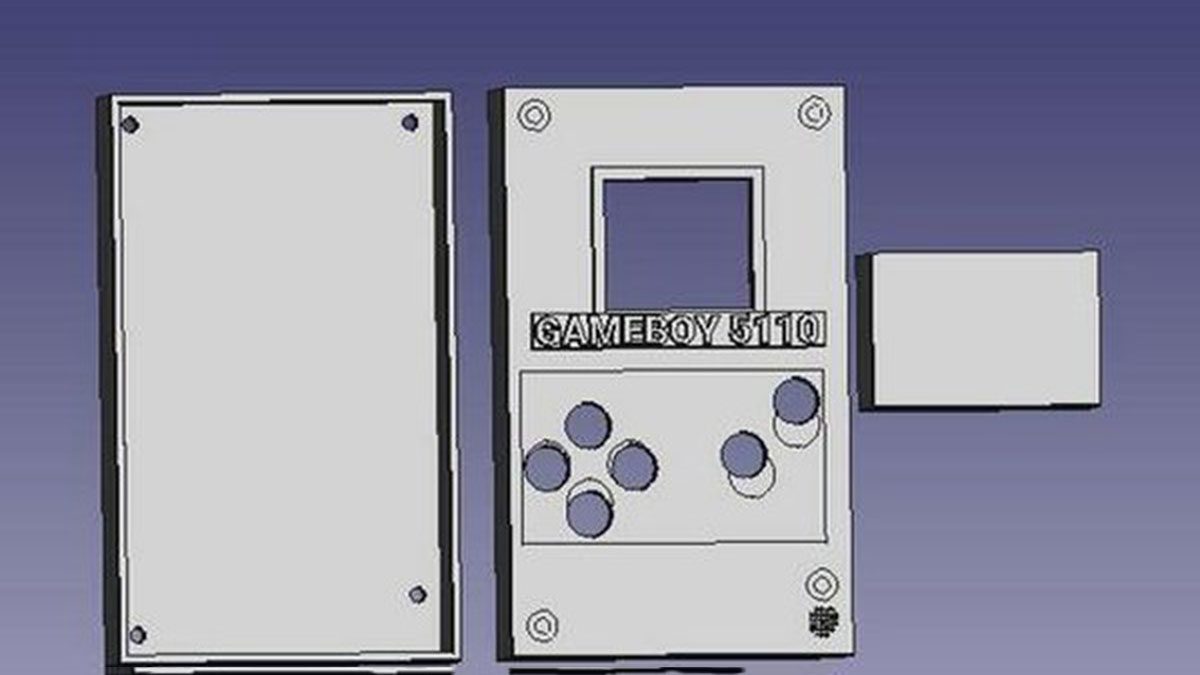
Get 3D printed shell. I recommend printing the game console shell first, and then select the hardware that matches the shell. I use Freecad for 3D design and share these files under a CC license. The printing includes four parts: the front of the case, the back of the case, the logo of Gameboy5110, and the bottom. If the prototype board or hardware you choose is different from mine, please change the design drawing according to your plan.
Step 4: Hardware Parts
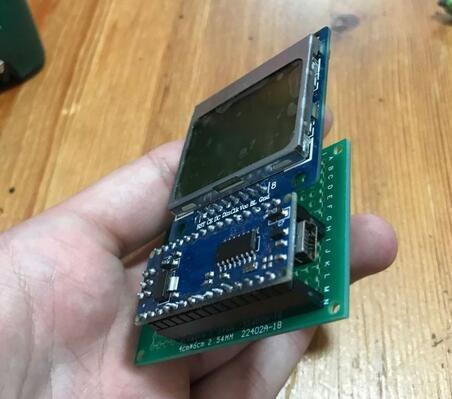
1. Motherboard
a. I use a prototype board similar in size to Arduino Nano and LCD.
b. Solder two 15-pin busbars to the prototype board at the same distance as the Arduino headers; the other 8-pin busbar is used to connect to the LCD.
c. Solder the 8-pin busbar to the D3, D4, D5, D6, and D7 pins of the Arduino.
d. The remaining 3 pins are VCC, BL and GND. Solder VCC and BL to any 5V pin, and solder GND to any ground terminal of the circuit board.
As shown in the figure, the welding work of the three prototype boards is over. Pay attention to the use of female header pins, which is convenient for removing the Arduino and screen or replacing the hardware at any time without damaging any parts. Finally, connect the LCD and DuPont wire as an extender.
Step 5: Left Button
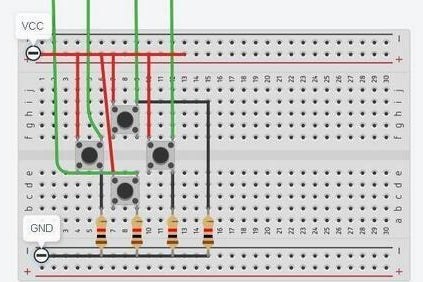
Now, start to install the arrow keys on the left side of the game console. Among them, the resistor is optional. You can use the INPUT_PULLUP (PIN) wire as the internal resistance of the Arduino input, but you need to change the program code. The connection method of the buttons is as shown above.
As shown in the figure, weld the four buttons according to the distance shown in the 3D file, or adjust the distance according to the hardware you choose.
To use an analog input as an electronic value, simply define it as an input. The green wire needs to be soldered to the Arduino input wire.
The soldering method is:
Up – Pin 16 (A2) Left – Pin 17 (A3)
Bottom – Pin 18 (A4)
Right –Pin 19 (A5)
In addition, you need to solder VCC to 5V, and solder GND to any ground terminal of the main prototype board.
Reminder: I recommend soldering longer wires between the prototype boards to better adjust the part position.
Step 6: Right Button
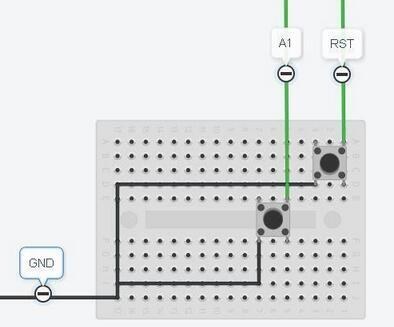
Start to install the button on the right. If you use internal resistance, the following will explain how to use INPUT_PULLUP.
Use the upper right button as the reset button, solder one side to the RST pin of the motherboard, and solder the other side to GND.
The game I currently install does not require a second button, but for the convenience of playing other games in the future, second button is necessary. You only need to solder one side to A1 and the other side to GND. When you use it, it is recommended to use INPUT_PULLUP(15), and use it with digital Read.
Step 7: Power and Switch
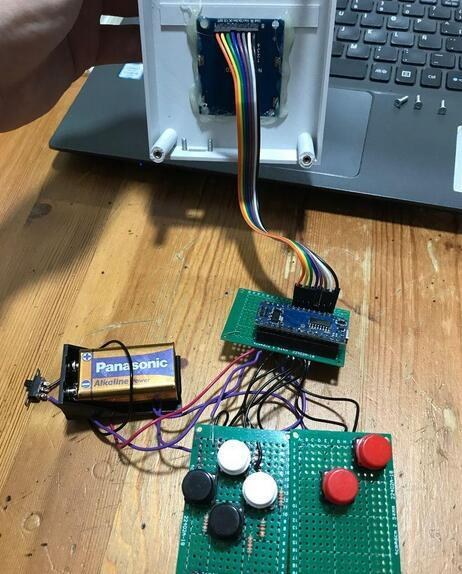
This part requires 9v battery, slide switch and battery compartment.
Solder the black wire to GND and the red wire to VIN, but before adding the switch, solder the red wire of the battery compartment to the middle pin of the switch and the other pin to VIN, then close the circuit.
Step 8: Buzzer
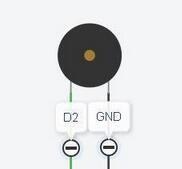
You can use your favorite sound unit, here I use the sound generator on the picture-piezoelectric buzzer.
Solder one wire to GND and the other wire to pin 2. Of course you can also change the way of welding.
Finally, use a hot glue gun to fix it on the back of the battery compartment, and now the game console can emit sound.
Step 9: Parts Installation 1
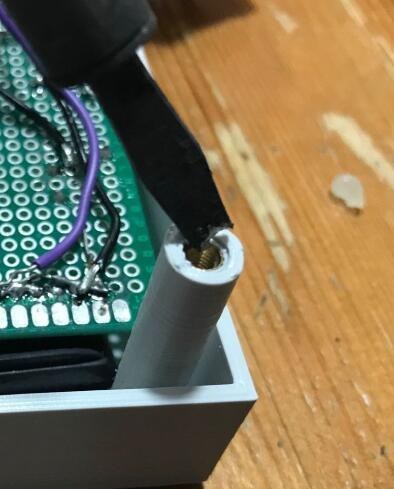
Fixed Shell The hardware part of the game console has been completed, and now the shell can be installed. Use solder dots to soften the plastic slightly and insert the nuts into the four fixing posts.
Source: GameBoy 5110 – Arduino Handheld Game Console by 3D Printing
- What hardware does this project use as its main controller?
The project is based on an Arduino Nano, though you can use your favorite hardware. - How many programmable buttons are included in the design?
The console features six programmable buttons for uploading and playing games. - Can I change the controls in the Arduino file?
Yes, you can change the controls in the Arduino file to customize the four arrow keys and the reset button. - What type of sound unit is adopted in this project?
The sound part adopts a piezoelectric buzzer. - Is it necessary to solder external resistors for the buttons?
The resistor is optional; you can use the INPUT_PULLUP internal resistance of the Arduino input instead. - How do I connect the reset button on the right side?
You solder one side to the RST pin of the motherboard and the other side to GND. - What is the recommended order for assembling the parts?
I recommend printing the game console shell first, and then selecting the hardware that matches the shell. - Which pins are used for the left arrow keys on the analog inputs?
Up uses Pin 16 (A2), Left uses Pin 17 (A3), Bottom uses Pin 18 (A4), and Right uses Pin 19 (A5). - How should the 9V battery be connected to the circuit?
Solder the black wire to GND and the red wire to VIN via the slide switch to close the circuit. - Where is the best place to fix the buzzer?
Use a hot glue gun to fix the buzzer on the back of the battery compartment.
