
Summary of Arduino UNO LCD Game: An Entertaining Display Project
This article demonstrates building a game on an LCD1602 display using an Arduino UNO and the Wokwi simulator. The project features a character that jumps to avoid obstacles, with scores displayed in real-time. Users can create custom symbols for the sprite and terrain. The guide includes a connection diagram, component list, and full C++ code for handling interrupts, graphics rendering, and game logic within the simulation environment.
Parts used in the Arduino UNO and LCD1602 Game:
- Arduino UNO
- Jumper wires
- LCD1602
- USB cable
- Toggle switch
Introduction
Mastering Arduino programming is a straightforward endeavor. All you require is a computer and a bit of time. Among the significant Arduino programming simulators available, Wokwi stands out. Why, you ask? Find out here.
This article demonstrates the process of interfacing the LCD1602 with an Arduino UNO, complete with programming. Thanks to the Wokwi embedded systems simulator, presenting this project is effortlessly achievable. All I need to do is share a link.
Connection diagram
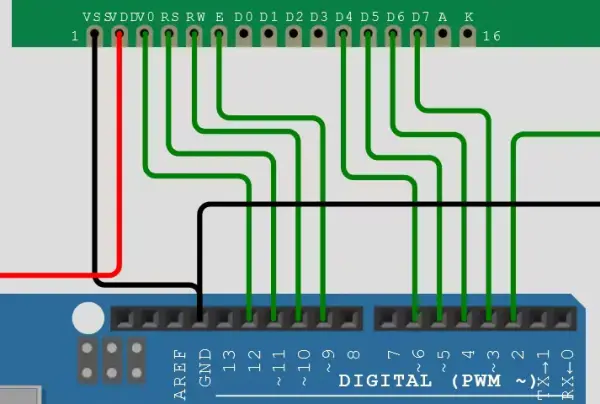
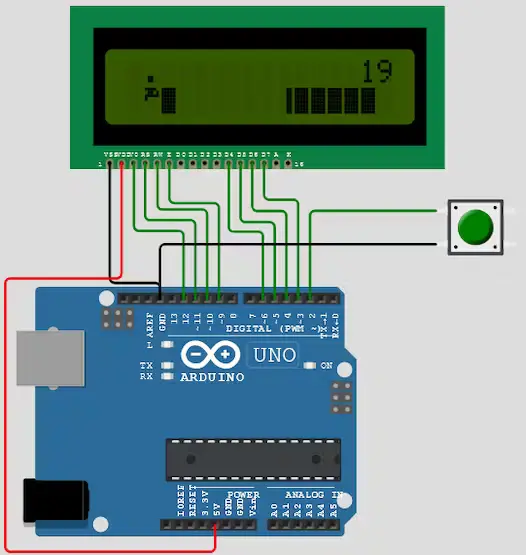
Components needed
Arduino UNO, jumper wires, LCD1602, USB cable for powering the UNO, and a toggle switch are the components needed for this setup.
Brief description
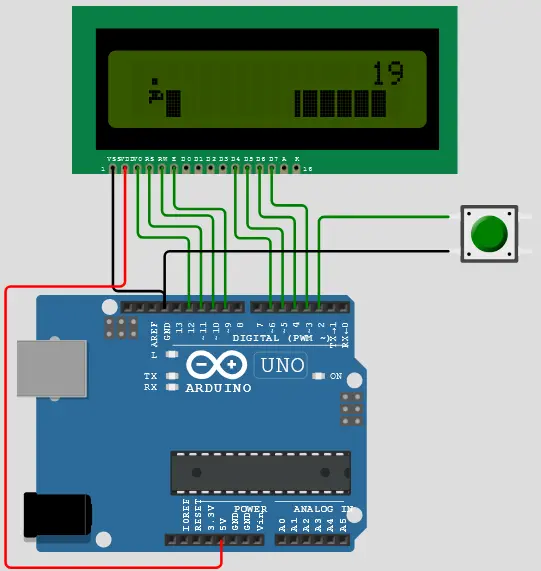
This project initiates the game upon pressing the switch. Your objective is to shield the character from incoming blocks. The score will be prominently showcased at the top right corner of the display.
As it’s evident, the character used isn’t a conventional symbol. It’s possible to design your own symbols and store them within the LCD’s EEPROM location for display.
Conclusion
Simplifying project sharing on the Wokwi simulator allows you to effortlessly share your projects with others. This sharing feature is beneficial for seeking assistance or showcasing your designs. If you have inquiries about this project or the simulation tool itself, feel free to ask.
Schematics
Code
- What simulator is recommended for this Arduino project?
Wokwi stands out as a significant Arduino programming simulator for presenting this project effortlessly. - How does the user initiate the game?
The project initiates the game upon pressing the toggle switch. - Where is the score displayed on the screen?
The score is prominently showcased at the top right corner of the display. - Can users design their own characters for the game?
Yes, it is possible to design your own symbols and store them within the LCD's EEPROM location. - How is the button input handled in the code?
The button push is handled as an interrupt attached to digital pin 2. - What happens when the hero collides with an obstacle?
The game stops playing immediately when the hero collides with something. - How can this project be shared with others?
Simplifying project sharing on the Wokwi simulator allows you to share your projects via a link. - What is the purpose of the terrain shifting function?
The function slides the terrain to the left in half-character increments to simulate movement.
